


Got tickets for a concert but can’t make it? Your friend wants to join you, but they need their own ticket to get in? You’re not alone in this pickle. Many fans face the same headache when plans change or when they want to share the fun with others.
Here’s something cool: How to Transfer Tickets on Ticketmaster gives you a secure way to send tickets to friends and family. When you transfer tickets, the person who gets them receives a brand new barcode.
Your old tickets become useless for entry. This smart system stops ticket fraud and keeps everyone safe.
This guide walks you through every step of the ticket transfer process. We’ll show you how to send tickets from your Ticketmaster account. You’ll learn how to accept tickets from someone else too.
We’ll also fix common problems that pop up during transfers.
Ready to become a ticket transfer pro?
Key Takeaways
- Ticketmaster ticket transfers create new barcodes for recipients while making original tickets invalid to prevent fraud.
- Transfer tickets through your Ticketmaster account by selecting events, entering recipient details, and confirming with verification codes.
- Recipients must have Ticketmaster accounts and click email links to accept transferred tickets into their accounts.
- Some venues and artists disable ticket transfers, and phone-purchased tickets often lack transfer options completely.
- Successful transfers show “Accepted by” or “Claimed” status while pending transfers display “Waiting to accept.
Steps to Transfer Tickets on Ticketmaster
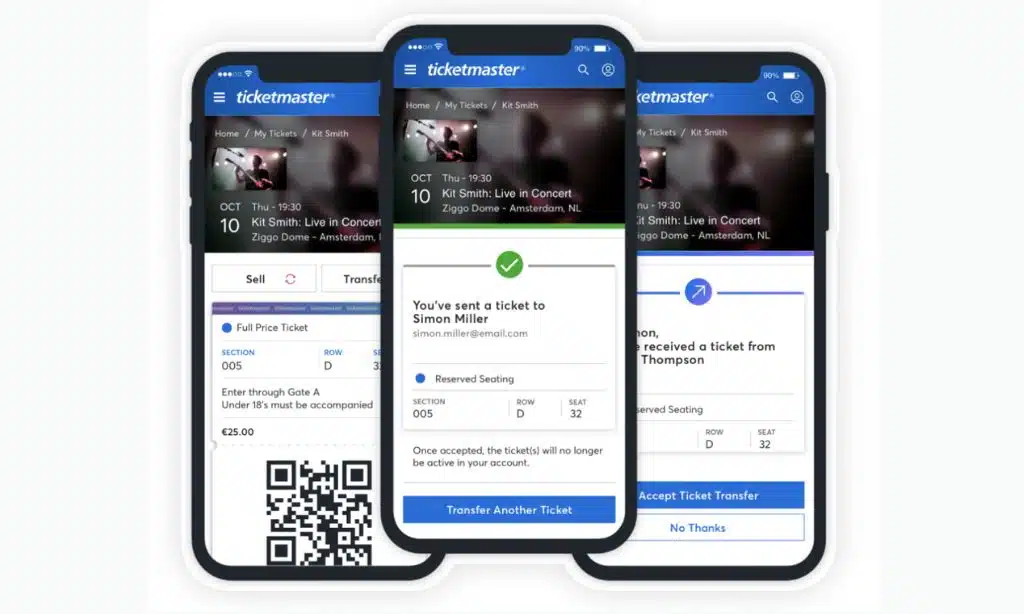
Moving tickets from your account to someone else’s takes just a few clicks on the Ticketmaster platform. The whole process happens through your digital account, whether you use the mobile app or visit the website on your browser.
Access Your Ticketmaster Account
You have three ways to access your tickets. Open the Ticketmaster app and log in with your credentials. Log into your Ticketmaster account on the website at ticketmaster.com. Sign into the team’s or venue’s website via https://am.ticketmaster.com/ for direct access.
Go to “MY EVENTS” and locate your order after signing in. Your mobile device makes the process quick and simple. The app stores your tickets in a digital wallet for easy access. Select the event you want to transfer from your list of purchases.
Tap on the specific tickets you need to send to another fan.
Select the Event and Tickets to Transfer
Find your event from the list of upcoming shows. Click on the event name to open ticket details. Your screen will display all tickets for that specific event. Select the event and click “TRANSFER.” If the button is greyed out, tickets are not eligible for transfer.
Some venues or artists restrict ticket transfers for security reasons.
Pick the exact tickets you want to send to someone else. Select the item to transfer, but note that ineligible items will be greyed out. Multiple tickets can be sent together or separately.
The system shows which seats are available for transfer. Your account will mark these tickets as pending once you start the process. The recipient’s information comes next in this ticket transfer process.
Enter the Recipient’s Information and Confirm Transfer
After picking your tickets, you’ll need to enter the recipient’s email address or mobile number. This step makes it possible to send tickets directly to your friend or family member.
Type their contact details carefully to avoid any delivery issues.
Next, a one-time verification code will be sent via text to confirm the transfer. Enter the code and select “CONFIRM” to move forward. You can also add a personal note if you want to include a message with the tickets.
Press “TRANSFER TICKET” to complete the process, and your recipient will receive an email or text with a link to claim the ticket.
How to Transfer Tickets on Ticketmaster

Getting tickets from someone else is simple once you know the steps. You’ll receive an email notification that tickets were sent to you, and accepting them takes just a few clicks.
- Check your email inbox for the transfer notification from Ticketmaster with details about the event’s ticket transfer.
- Click the “Accept Tickets” link in the email to start the process of gaining entry to your account.
- Sign in or create a Ticketmaster account if you don’t have one, as recipients must have an account to accept tickets.
- Verify your mobile number or email address to activate your account and complete the security process.
- Review the ticket details on screen to confirm you want to accept the ticket transfer for the correct event.
- Press the accept button to complete the transfer and add the tickets to your account as valid entries.
- Download the tickets to your phone or add them to Google Wallet for easy access at the venue.
- Check that your account shows the accepted tickets, allowing everyone to enter the event without issues.
- Follow the instructions from the venue’s official site about entry requirements and what to bring on event day.
Common Issues and Troubleshooting Ticket Transfers
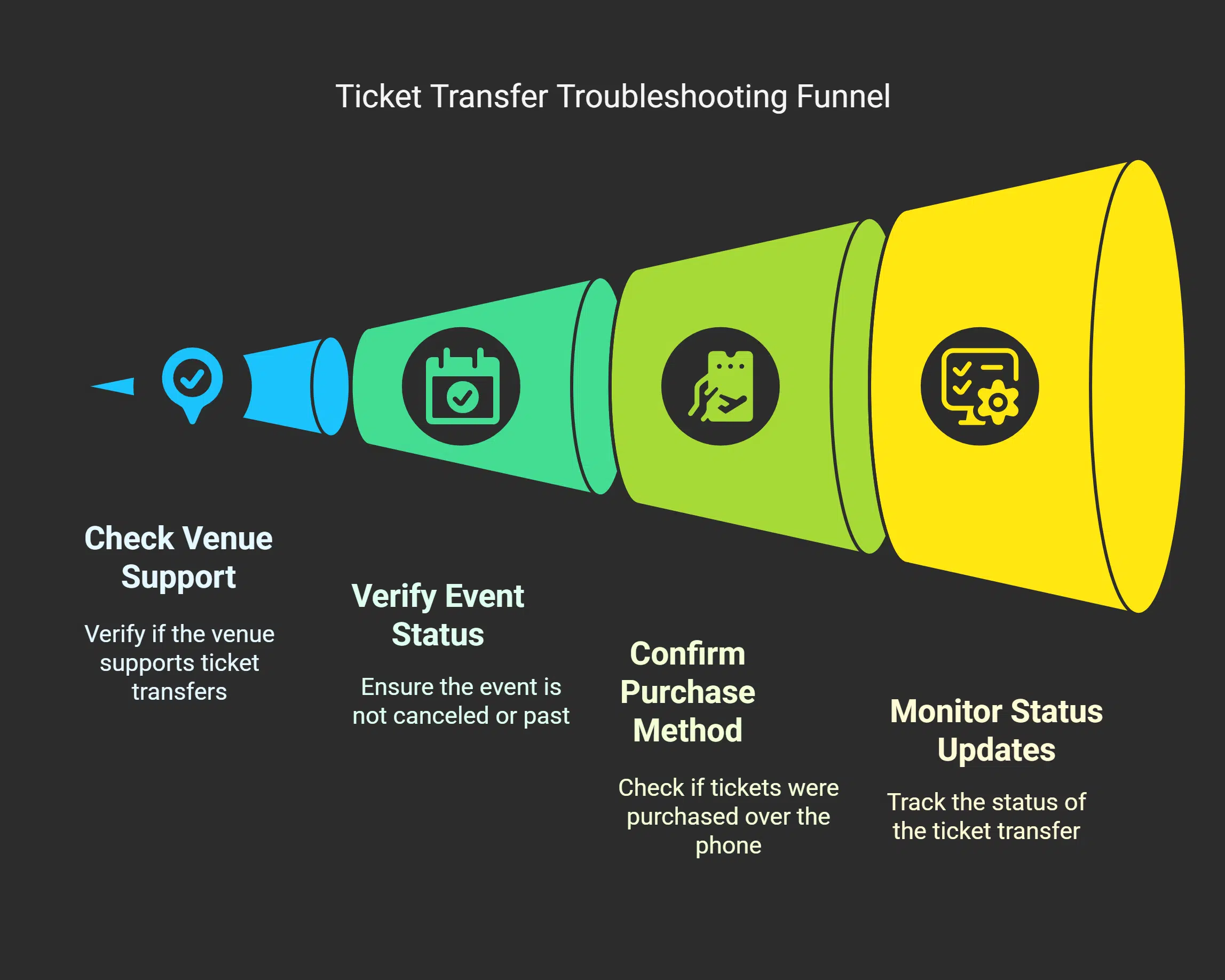
While accepting transferred tickets works smoothly most of the time, you might hit some bumps along the way. Several factors can block your ticket transfer from going through properly.
The venue does not support ticket transfer in some cases. The artist or venue has disabled the feature for the event or section you want to transfer. Your event might be canceled or has already occurred, making transfers impossible.
Tickets purchased over the phone often lack transfer options too. If you see an error message, check these common causes first. Your account manager can help if you need more help with StubHub or other ticket seller platforms.
Status updates show “Waiting to accept” or “Sent” when your recipient hasn’t claimed their tickets yet. Look for “Accepted by” or “Claimed” status to confirm a successful ticket transfer.
Electronic ticket systems sometimes delay updates, so give it a few minutes before panicking.
Takeaways
Transferring tickets on Ticketmaster doesn’t have to be rocket science. Follow these simple steps, and you’ll send tickets to friends faster than you can say “concert time.” Your recipient will gain entry with their own barcode while your original tickets become invalid.
Keep your phone handy for that verification text, and make sure your friend has a Ticketmaster account ready to go. Now you’re all set to share the fun and spread those good vibes!
FAQs on How to Transfer Tickets on Ticketmaster
1. How do I use ticket transfer to send tickets to another person on Ticketmaster?
Go to your Ticketmaster account and find your tickets. Click the transfer button, enter your recipient’s email or phone number, then press send. You’ll receive an email confirmation once the transfer goes through.
2. What happens after I send tickets to another person?
Your recipient gets a notification right away. The tickets show up in your account as sent until the recipient has accepted them. Once accepted, the tickets move to their account completely.
3. Can I send tickets through SMS instead of email?
Yes, Ticketmaster lets you send tickets via text message. You can use their pre-written text message or write your own. Just make sure your recipient’s phone number is correct before you press send.
4. How do I know if my ticket transfer worked?
You’ll receive an email when the transfer is complete. Check your account to see if the tickets still show as available or if they’re marked as sent. The recipient should also get a message about gaining entry to the event.
5. Where can I find help if ticket transfer isn’t working?
Search the Ticketmaster help section for related articles about transfers. You can also contact their support team directly. They’ll walk you through the process step by step, just like other ticketing platforms like Ticketmaster do for buying tickets.