

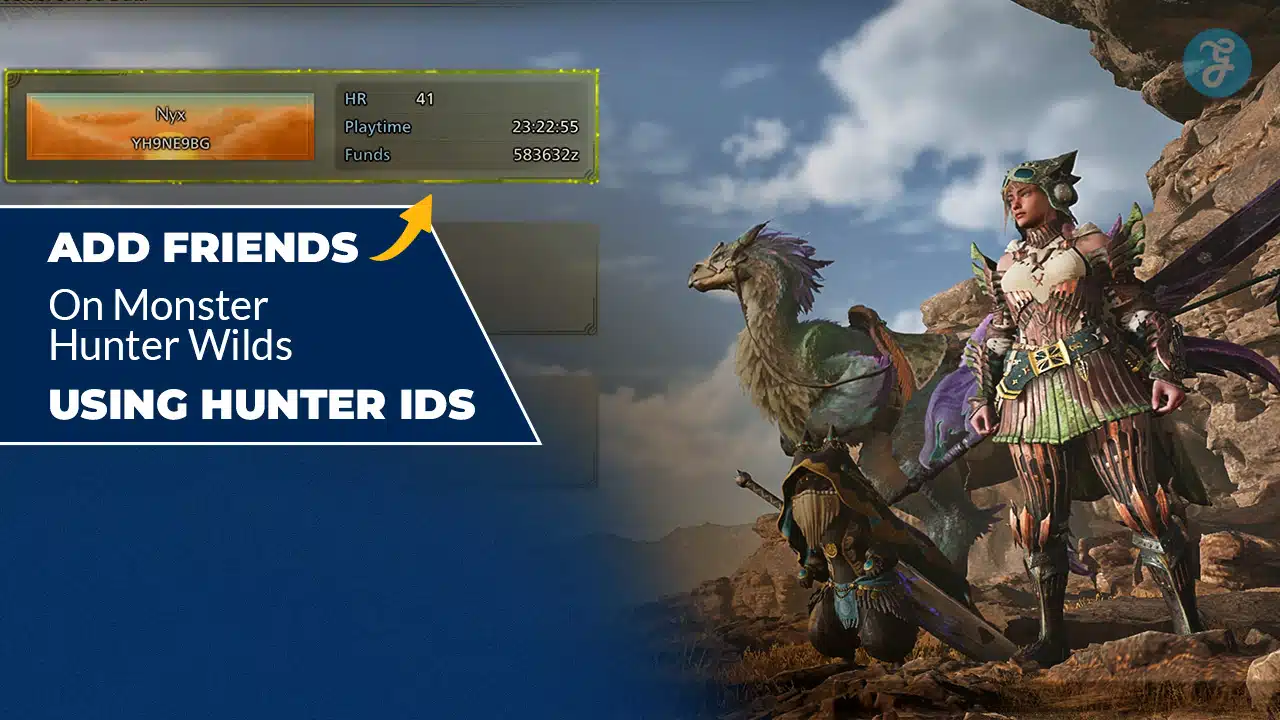
How to Add Friends in Monster Hunter Wilds is one of the first things you should learn if you plan to play co-op regularly. Adding friends correctly saves time, reduces lobby confusion, and makes it easier to join hunts quickly without relying on random matchmaking. It also matters even more if you are playing cross-platform, because platform invites are not always the smoothest way to connect.
In this guide, I will show you how to add friends in Monster Hunter Wilds using Hunter IDs, how to find your own Hunter ID, how to send and accept requests, and what to do when the system does not work the way you expect. I will also cover common issues, privacy settings, and the fastest fallback methods for joining friends when friend requests fail.
How to Add Friends in Monster Hunter Wilds Using Hunter IDs
How to Add Friends in Monster Hunter Wilds using Hunter IDs usually follows the same flow across platforms. You find the player’s Hunter ID, search it in the in-game friends menu, then send a request. Once they accept, you can invite them, join their session, or use quick access options that appear in the friends list.
The key thing to understand is that Hunter IDs are the in-game identity system. They are separate from your console friends list or PC friends list. If you add someone through Hunter ID, you are adding them inside the game, which is often more reliable for cross-platform play and for joining sessions quickly.
What a Hunter ID Is and Why It Matters
A Hunter ID is your unique identifier inside Monster Hunter Wilds. It is used to locate you in the in-game social system. It makes it possible to add friends even if they are not on the same console ecosystem as you.
How to Add Friends in Monster Hunter Wilds becomes simpler once you treat Hunter IDs as the universal friend code system. If you and your friend exchange Hunter IDs, you do not need to rely on platform invites. You can find each other directly in the game.
Hunter IDs are also useful when you meet someone through matchmaking and want to add them later. You do not need to remember their platform name. You only need their Hunter ID.
How to Find Your Hunter ID
To add friends, you first need to know where your own Hunter ID is. Most players find it in one of these places.
You can usually find it in your player profile screen, hunter status screen, or the social menu. Look for a section that shows your player card or hunter profile. Your Hunter ID should be listed there, often near your name and rank information.
If you are trying to share it with a friend, copy it exactly. Hunter IDs often contain a mix of letters, numbers, and sometimes symbols. One missing character can cause a failed search.
If the game allows it, use a copy option. If not, take a screenshot and send it to your friend. That is faster than typing it into chat.
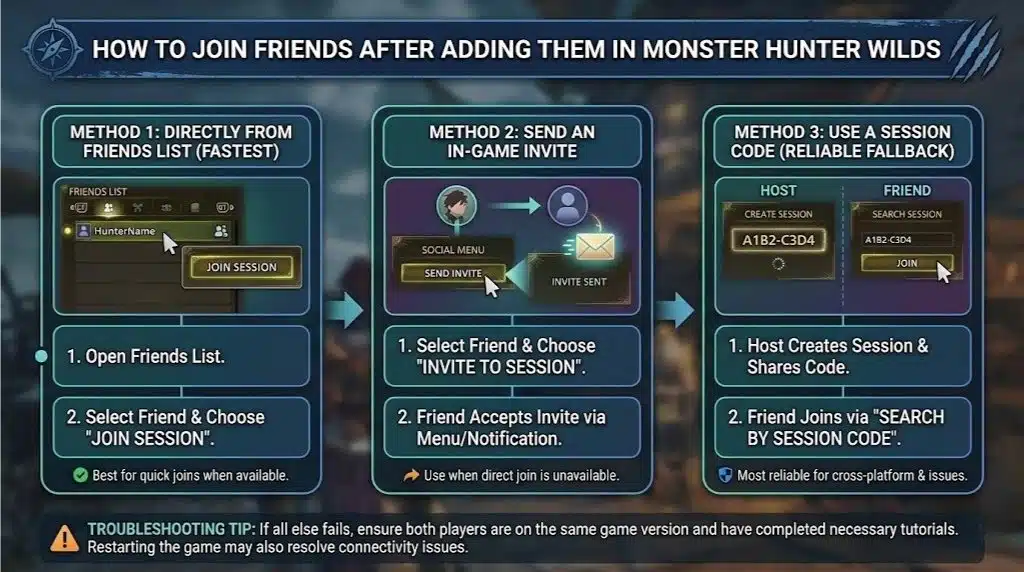
How to Search for a Friend Using Their Hunter ID
Here are 7 easy steps:
- Once you have your friend’s Hunter ID, you will use the in-game search function.
- Open the friends menu or social menu.
- Select the option to add a friend or search for a player.
- Choose the Hunter ID search option if the game gives you multiple search types.
- Enter the Hunter ID exactly as it appears.
- Confirm the search, then select the correct player from the results.
- Send a friend request.
If the search returns no result, double-check the ID. Most failures happen because of one wrong character. If it still does not work, your friend may be in offline mode, or privacy settings may be blocking searches.
How to Send a Friend Request
After you find the player profile from the Hunter ID search, you will see an option to send a request. Send it, then ask your friend to accept it immediately so you can confirm it worked.
Some players send the request and assume it went through, then later realize it is still pending. If you are trying to play right now, always confirm that the request was accepted before you start building a lobby.
How to Accept a Friend Request
Your friend will need to open their in-game social menu and check incoming friend requests. Once they accept, you should see them appear in your friends list.
If you do not see them after acceptance, back out of the menu and re-open it. In some games, the friends list does not refresh instantly.
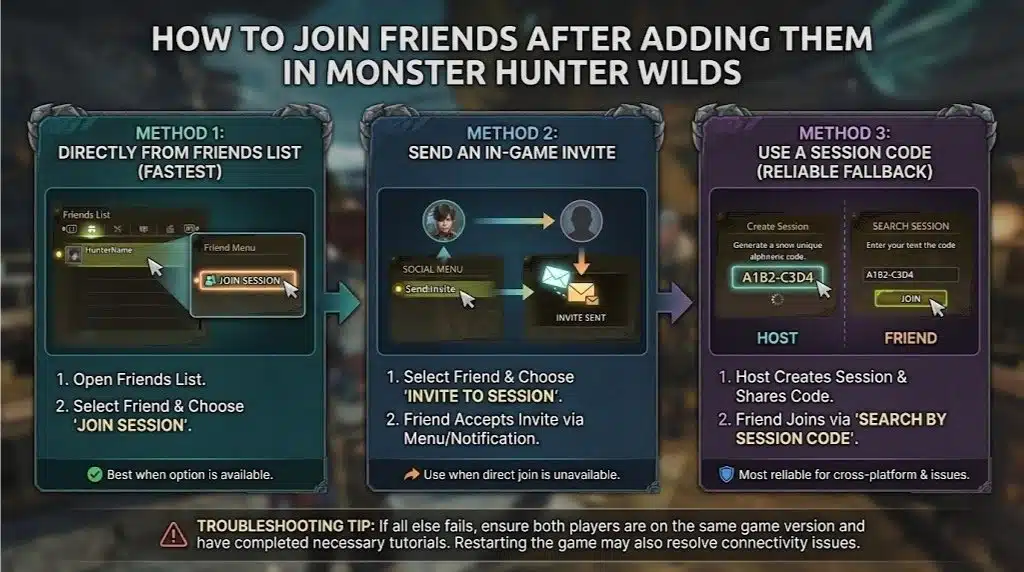
How to Join Friends After Adding Them
Adding friends is only step one. After that, you want to actually play together. Here are the fastest ways.
From the friends list, select your friend and choose join session if it is available.
If you cannot join directly, invite them to your session using the in-game invite option.
If neither option appears, the most reliable fallback is using a session code. You create a session, share the code, and have them join manually.
How to Add Friends in Monster Hunter Wilds is helpful, but session codes are still the fastest troubleshooting tool when something does not behave normally.
How to Add Friends You Met in a Hunt
If you met someone through matchmaking, you can often add them directly from the recent players list.
Open your social menu.
Look for recent players, recently played with, or hunter list.
Select the player.
Choose add friend.
This method is the easiest because it avoids typing. If the game shows their Hunter ID, you can still copy it for later.
Cross-Platform Notes for Hunter ID Friend Adds
How to Add Friends in Monster Hunter Wilds is most valuable if you are playing cross-platform, because Hunter IDs operate inside the game.
If you are on PS5 and your friend is on PC, you might not be able to rely on platform invites. Hunter ID adds solve that problem by using the in-game identity system.
If cross-platform is enabled in your settings, adding friends by Hunter ID should work as long as both players are online and not blocked by privacy rules.
Common Problems and Fixes
How to Add Friends in Monster Hunter Wilds can fail even when you do everything right. Here are the most common reasons.
If the Hunter ID search returns nothing, it is almost always a typo. Confirm every character and try again.
If your friend request sends but never arrives, privacy settings may block friend requests or player searches. Check your platform privacy settings and in-game privacy settings.
If you can add your friend but cannot join them, the issue is usually not the friends system. It is usually a session issue, a version mismatch, or a story lock. Make sure both players are on the same update and both have multiplayer unlocked.
If your friend appears offline, they may be in offline mode or in a solo-only segment. Have them return to an online hub or menu state and try again.
If invites fail, use a session code. Session codes bypass most friend list issues and work across platforms.
Best Practice: The Fastest Routine for New Groups
If you are setting up a regular group, this is the routine I recommend:
- First, everyone shares their Hunter IDs in one place, like a group chat.
- Second, everyone adds everyone. Do it once and you never deal with it again.
- Third, pick one player to host most sessions. That keeps the group organized.
- Fourth, use session codes as the universal backup. Even if you are friends in-game, codes are still the fastest way to regroup when something breaks.
How to Add Friends in Monster Hunter Wilds is step one. Building a stable routine is what makes co-op feel smooth long-term.
Wrapping Up
How to Add Friends in Monster Hunter Wilds is easiest when you use Hunter IDs through the in-game social menu. Find your own Hunter ID, exchange IDs with your friends, search the ID, send requests, and accept them right away. After you are connected, use the friends list to join sessions and invite each other, and keep session codes as your reliable fallback method when invites fail.