We have reached a breaking point. According to Atlassian’s 2025 Workplace Woes report, 78% of knowledge workers say meeting overload is preventing them from getting their actual work done. Even worse, Flowtrace analysis reveals that the average employee now spends 392 hours per year in meetings—roughly ten full workweeks lost to the “Sync.”
If you are reading this, you are likely part of that statistic. You are a manager tired of seeing your team’s morale dip during the 4:00 PM standup. You are a founder watching your “makers” lose their flow state to constant interruptions. Or you are simply someone who knows there must be a better way to work than staring at a grid of faces on Zoom for six hours a day.
The solution is Asynchronous Meeting Tools.
An asynchronous meeting is communication that doesn’t happen in real-time. It’s a status update recorded on video, a brainstorming session on a digital whiteboard that spans three days, or a daily standup delivered via text bot. It is the shift from “we need to talk now” to “I will contribute when I am at my best.”
But you can’t just cancel all meetings and hope for the best. You need a stack—a set of tools designed to replace the nuance, context, and collaboration of a live call.
In this guide, we will break down the 8 best tools to facilitate asynchronous meetings, categorized by the specific type of meeting they replace. We will cover pricing, key features, and actionable strategies to help you move from a culture of “presence” to a culture of performance.
Why Move to Asynchronous Meetings?
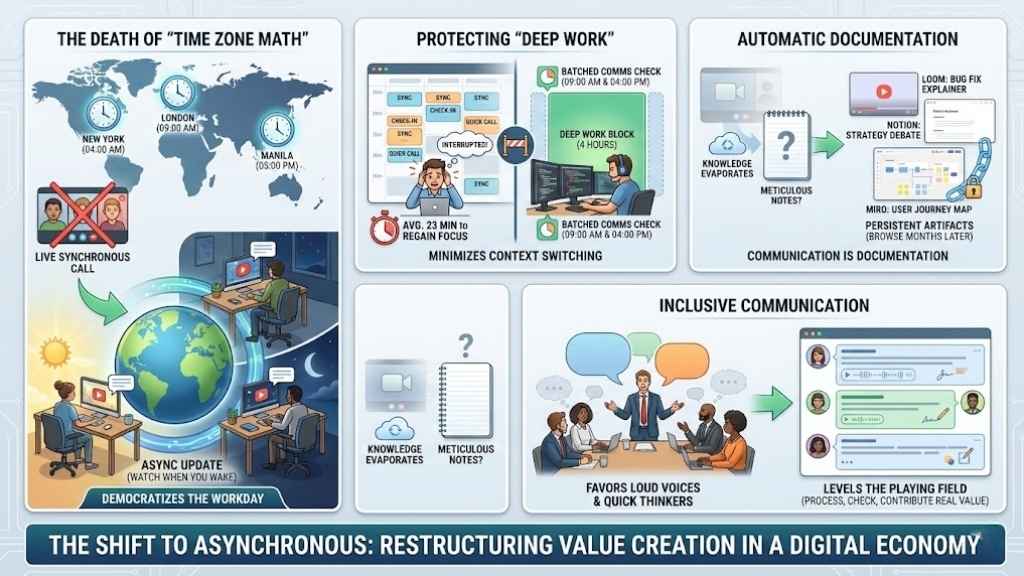
Before we dive into the software, it is critical to understand why this shift is necessary. Asynchronous work isn’t just about disliking video calls; it is about fundamentally restructuring how value is created in a digital economy.
1. The Death of “Time Zone Math”
In a truly global remote team, a synchronous meeting is always inconvenient for someone. If you have a team split between London, New York, and Manila, a “all-hands” call usually means someone is logging on at 10:00 PM. Asynchronous meetings democratize the workday. A team member in Manila can watch an update over breakfast that their London colleague recorded the previous afternoon. No one loses sleep; everyone stays informed.
2. Protecting “Deep Work”
Cal Newport’s concept of “Deep Work”—the ability to focus without distraction on a cognitively demanding task—is impossible in a calendar peppered with 30-minute syncs.
- The Cost of Context Switching: It takes an average of 23 minutes to regain focus after an interruption.
- The Maker Schedule: Asynchronous tools allow your developers, writers, and designers to batch their communication. They can check updates at 9:00 AM and 4:00 PM, leaving the massive block in between for pure creation.
3. Automatic Documentation
In a Zoom call, knowledge evaporates the moment the call ends unless someone is taking meticulous notes (which rarely happens).
With asynchronous tools, the communication is the documentation. A Loom video explaining a bug fix, a Notion thread debating a strategy, or a Miro board visualizing a user journey—these artifacts persist. New hires can browse them months later to understand the context of a decision.
4. Inclusive Communication
Live meetings favor the loudest voices and quick thinkers. They often disadvantage introverts or non-native speakers who may need a few extra minutes to formulate a thoughtful response. Async meetings level the playing field. They give everyone the time to process information, check facts, and draft a contribution that adds real value, rather than just filling silence.
8 Best Tools for Asynchronous Meetings (By Category)
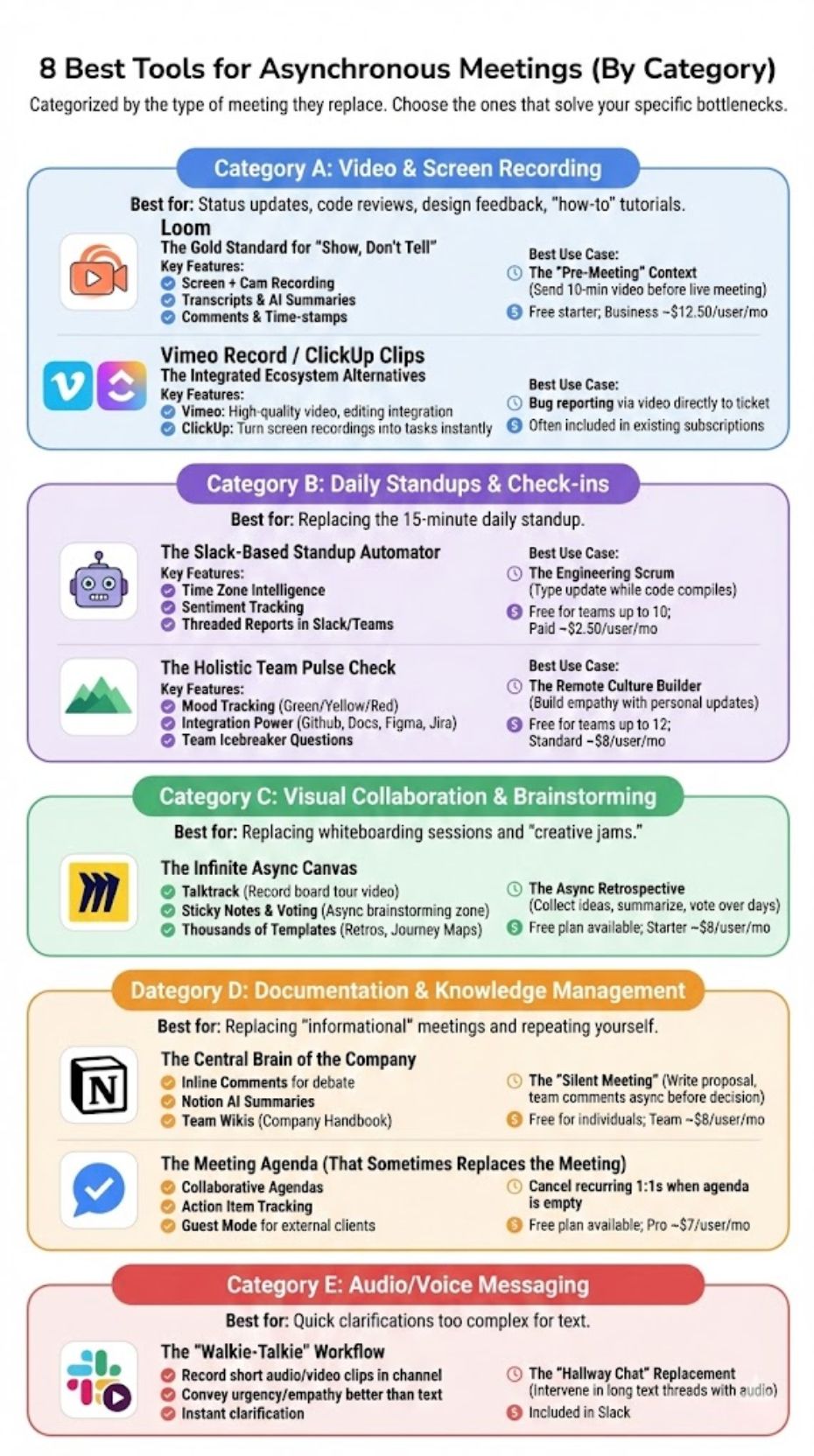
We have categorized these tools based on the type of meeting they replace. You likely do not need all eight; choose the ones that solve your specific bottlenecks.
Category A: Video & Screen Recording
Best for: Replacing status updates, code reviews, design feedback, and “how-to” tutorials.
1. Loom
The Gold Standard for “Show, Don’t Tell”
Loom has become synonymous with async video for a reason. It solves the problem of tone. Text is efficient but often cold; video allows you to convey nuance, excitement, or urgency without requiring a live slot on the calendar.
Key Features for Async Meetings
- Screen + Cam Recording: You can record your screen while your face appears in a small bubble. This is crucial for “walkthrough” meetings where you are explaining a document or design.
- Transcripts & AI Summaries: Loom automatically generates a transcript and a summary of your video. Viewers can read the “TL;DW” (Too Long; Didn’t Watch) if they are in a rush.
- Comments & Time-stamps: Viewers can drop emojis or comments at specific timestamps (e.g., “I love this design choice at 2:15”). This mimics the nod of approval in a real meeting.
Best Use Case: The “Pre-Meeting” Context
Instead of holding a 60-minute meeting where the first 20 minutes are just presenting data, send a 10-minute Loom video 24 hours beforehand. Ask the team to watch it on their own time. Then, use the live meeting only for discussion and decision-making. You will cut the meeting time in half.
Pricing: Free starter plan; Business plans start around $12.50/user/month.
2. Vimeo Record / ClickUp Clips
The Integrated Ecosystem Alternatives
If your company restricts new software procurement, you might already have a Loom alternative sitting in your tech stack.
- Vimeo Record: If your marketing team already uses Vimeo for hosting, their “Record” tool offers very similar functionality to Loom. It excels in video quality and integrates tightly with video editing workflows.
- ClickUp Clips: If your team uses ClickUp for project management, “Clips” allows you to record a screen video and instantly turn it into a task.
- The Async Advantage: When a bug is reported via a ClickUp Clip, the developer doesn’t need to call the reporter to ask “Can you show me what happened?” The video is attached directly to the ticket.
Pricing: Often included in existing Vimeo or ClickUp subscriptions.
Category B: Daily Standups & Check-ins
Best for: Replacing the 15-minute daily standup that always runs 30 minutes over.
3. Geekbot
The Slack-Based Standup Automator
Daily standups are notorious for disrupting deep work. Geekbot is an automated bot that lives inside Slack or Microsoft Teams. At a designated time (say, 9:00 AM local time for each user), it sends a direct message asking standard questions: What did you do yesterday? What will you do today? Any blockers?
Key Features for Async Meetings
- Time Zone Intelligence: It asks users at 9:00 AM their time, not the manager’s time.
- Sentiment Tracking: You can add a question like “How do you feel today?” to track team morale over time.
- Threaded Reports: Geekbot compiles everyone’s answers into a dedicated public channel. Team members can read the updates and start a thread on a specific blocker without distracting the whole group.
Best Use Case: The Engineering Scrum
For developers, context switching is fatal to productivity. Geekbot allows them to type their update in 2 minutes while their code compiles, rather than stopping work to join a Zoom call. If there are no blockers, no further interaction is needed.
Pricing: Free for teams up to 10 users; Paid plans start at $2.50/user/month.
4. Range
The Holistic Team Pulse Check
While Geekbot is transactional (tasks/blockers), Range is cultural. It is designed to replace the “watercooler” moments and the emotional context often lost in remote teams.
Key Features for Async Meetings
- Mood Tracking: Every check-in starts with a mood selection (Green/Yellow/Red) and an optional emotion tag (e.g., “Anxious,” “Excited”). This alerts managers to burnout risks without a prying 1:1 meeting.
- Integration Power: Range pulls activity from Github, Google Docs, Figma, and Jira. When you write your daily update, you can drag and drop the actual work artifacts you completed.
- Team Questions: It includes icebreaker questions (e.g., “What was your favorite toy as a child?”) to build rapport asynchronously.
Best Use Case: The Remote Culture Builder
Use Range if your team feels disconnected. The combination of work updates (“I fixed the API”) and personal updates (“I’m feeling tired because my baby didn’t sleep”) creates empathy that pure status tools miss.
Pricing: Free for teams up to 12 users; Standard plan is $8/user/month.
Category C: Visual Collaboration & Brainstorming
Best for: Replacing whiteboarding sessions and “creative jams.”
5. Miro
The Infinite Async Canvas
Brainstorming is the hardest thing to replicate asynchronously. Miro solves this with an infinite digital whiteboard where teams can collaborate over days rather than hours.
Key Features for Async Meetings
- Talktrack: This is Miro’s killer feature for async. You can record a video of yourself walking through the board, zooming in on specific sticky notes or diagrams. Users open the board, click your avatar, and watch your tour while they explore the canvas themselves.
- Sticky Notes & Voting: You can set up a “Brainstorming Zone.” Team members add ideas via sticky notes over a 48-hour period. Then, you use the “Voting” plugin to let everyone vote on their favorites—no live meeting required.
- Templates: Miro has thousands of templates for Retrospectives, User Journey Maps, and Flowcharts, providing structure to the async chaos.
Best Use Case: The Async Retrospective
Instead of a 2-hour retrospective on Friday afternoon:
- Monday: Create a Miro board with “Start, Stop, Continue” columns.
- Mon-Wed: Team members add sticky notes anonymously as they think of them.
- Thursday: Manager records a 5-minute Talktrack summarizing the themes.
- Friday: Team votes on the top 3 issues to fix.
- Result: The live meeting is canceled, or reduced to 15 minutes to assign action items.
Pricing: Free plan available; Starter plan approx. $8/user/month.
Category D: Documentation & Knowledge Management
Best for: Replacing “informational” meetings and repeating yourself.
6. Notion
The Central Brain of the Company
Notion is more than a note-taking app; it is a database-driven workspace. In an async culture, Notion replaces the meeting where you announce a new policy or explain a project roadmap.
Key Features for Async Meetings
- Inline Comments: Just like Google Docs, but more structured. Team members can highlight text in a proposal and ask questions. The debate happens in the margins, not in a meeting room.
- Notion AI: Recently, Notion has integrated AI that can summarize long documents or meeting notes into actionable checklists.
- Team Wikis: By creating a “Company Handbook,” you eliminate the need for “How do I do X?” meetings.
Best Use Case: The “Silent Meeting” (Amazon Style)
Jeff Bezos famously banned PowerPoint in favor of 6-page memos. You can do this in Notion. Before a decision is made:
- Write a proposal in Notion.
- Share it with the team with a “Read by [Date]” deadline.
- Team members read and comment with questions.
- The author resolves comments async.
- Only schedule a meeting if there is a fundamental disagreement that text cannot resolve.
Pricing: Free for individuals; Team plans start at $8/user/month.
7. Fellow
The Meeting Agenda (That Sometimes Replaces the Meeting)
Fellow is designed to make meetings better, but ironically, its best feature is enabling you to cancel them. It forces every meeting to have an agenda. If the agenda is empty, the tool prompts you to cancel the call.
Key Features for Async Meetings
- Collaborative Agendas: Before a recurring 1:1, both parties add items to the list. Often, you will realize the items can be solved via a quick comment in Fellow, and the meeting is canceled.
- Action Item Tracking: “Who is doing what” is clearly documented. This prevents the follow-up meeting to check on the status of the previous meeting.
- Guest Mode: Great for working with external clients async without forcing them into your Slack.
Pricing: Free plan available; Pro plans start at $7/user/month.
Category E: Audio/Voice Messaging
Best for: Quick clarifications that are too complex for text but don’t need a video.
8. Slack Clips / Huddles
The “Walkie-Talkie” Workflow
Sometimes you don’t need a formal Loom video or a structured Notion doc. You just need to explain something quickly.
- Slack Clips: You can record short audio or video clips directly in a channel.
- Why it works: Text is notoriously bad at conveying urgency or empathy. A 30-second audio clip saying, “Hey, great job on this, just one small tweak needed on the header” lands much softer than a text message saying “Fix the header.”
Best Use Case: The “Hallway Chat” Replacement
Use audio clips to prevent long, spiraling text threads. If you see two people typing back and forth for 10 minutes in Slack, intervene with an audio clip to clarify the confusion instantly.
Pricing: Included in Slack.
How to Choose the Right Async Stack
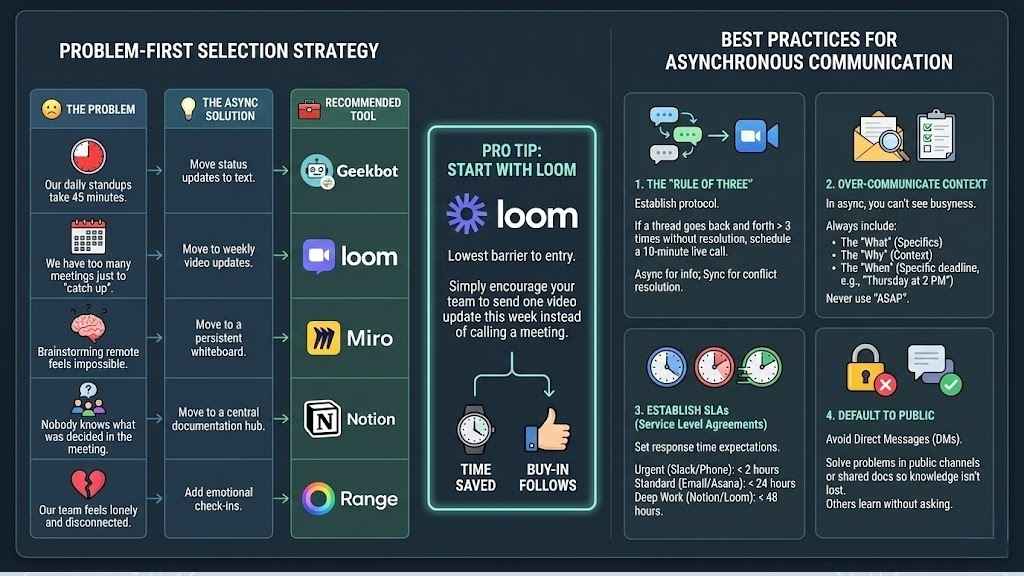
Do not make the mistake of adopting all eight tools at once. That is a recipe for “tool fatigue,” which is just as bad as meeting fatigue.
Follow this “Problem-First” Selection Strategy:
| The Problem | The Async Solution | Recommended Tool |
| “Our daily standups take 45 minutes.” | Move status updates to text. | Geekbot |
| “We have too many meetings just to ‘catch up’.” | Move to weekly video updates. | Loom |
| “Brainstorming remote feels impossible.” | Move to a persistent whiteboard. | Miro |
| “Nobody knows what was decided in the meeting.” | Move to a central documentation hub. | Notion |
| “Our team feels lonely and disconnected.” | Add emotional check-ins. | Range |
Pro Tip: Start with Loom. It has the lowest barrier to entry. Simply encourage your team to send one video update this week instead of calling a meeting. Once they see the time saved, buy-in for other tools will follow.
Best Practices for Asynchronous Communication
Tools are useless without the right culture. If you give a team Loom but expect them to reply instantly, you haven’t built an async culture; you’ve just built a stressful one.
1. The “Rule of Three”
Establish a clear protocol for when to switch back to synchronous (live) communication. A popular rule is:
If a text or comment thread goes back and forth more than three times without resolution, schedule a 10-minute live call.
Async is for information; Sync is for conflict resolution.
2. Over-Communicate Context
In an office, you can see if someone is busy. In async, you can’t. When sending a request, always include:
- The “What”: Specifics of the task.
- The “Why”: Context and background.
- The “When”: A specific deadline (e.g., “Please review by Thursday at 2 PM”). Never use “ASAP”—it induces anxiety.
3. Establish SLAs (Service Level Agreements)
Async does not mean “whenever you feel like it.” Set expectations for response times.
- Urgent: Use Slack/Phone (Response expected < 2 hours).
- Standard: Use Email/Asana (Response expected < 24 hours).
- Deep Work: Use Notion/Loom (Response expected < 48 hours).
4. Default to Public
Avoid Direct Messages (DMs). When you solve a problem in a DM, the knowledge is lost to the rest of the team. Have async conversations in public channels or shared docs so others can learn without asking you the same question later.
Final Thoughts
The goal of asynchronous meetings is not to never speak to your colleagues again. It is to make the time you do spend together meaningful. When you strip away the status updates, the round-robin check-ins, and the informational announcements, you are left with the things humans are actually good at: debating complex problems, bonding emotionally, and making high-stakes decisions.