Have you ever hit Play, expecting to join a game, and Roblox slams you with Roblox error code 524 like you just tried to walk into a locked room? It’s frustrating because the message sounds final: you don’t have permission to join this game.
Good news: most of the time you can fix it with a few targeted checks. I’ll walk you through the fastest privacy and private server fixes first, then the network and device basics, and finally the developer-side checks that help you stop repeat reports.
Key Takeaways
- Error Code 524 means Roblox thinks the account is not authorized to join this game or private server, and it often points to permission or availability issues rather than a random computer bug.
- Private server settings matter: per Roblox’s Private/VIP Servers FAQ, owners can invite up to 50 individual users or allow their Connections list, and users under 13 can only join private servers created by their connections.
- For basic stability, Roblox Support lists a minimum 4-8 Mb/s internet connection for a single-use household, and it also notes Roblox is not supported on virtual machines, cloud-based computers, or altered mobile operating systems.
- Developer-side triage is faster when you can reproduce the join path (Play button vs server list vs invite link), then capture client and server logs in the Developer Console, and collect Player or Studio log files only when Roblox asks for them.

What is Error Code 524 in Roblox
Error Code 524 in Roblox shows up when the platform won’t authorize a join attempt. You’ll usually see a version of “you do not have permission to join this game” or “permission to join this experience,” often right after you hit the play button.
This one gets confused with “524” errors from websites, but Roblox Error Code 524 is a Roblox-specific permission and access problem, not a generic web timeout.
If you’re trying to join a friend, a VIP server, or a private server, think “access list” first. If you’re trying to join a normal public server, think, “Is the server available right now?” second.
Before you do anything complicated, use this quick reality check:
- Private server join: you need to be invited (or allowed by connections settings), and your privacy settings can block you even if you were invited.
- Group-only experience: you need the right group role, not just the group name on your profile.
- Random spikes and outages: If Roblox is having issues, waiting a few minutes and retrying can work.
If you suspect a platform-wide issue, you can sanity-check availability here: check current Roblox server status.
Common Causes of Roblox Error Code 524
Error 524 usually comes from one of three buckets: private server permissions, account-level restrictions (privacy or maturity controls), or short-term availability and device/network glitches.
Here’s the easiest way to think about it: match the situation you’re in to the check that actually fixes it.

| What you’re doing | Most likely cause | Fastest check |
|---|---|---|
| Trying to join a private server or vip server | Not invited, not in Connections, or server owner settings | Ask the owner to add you to Server Members or enable Connections Allowed |
| Trying to join a friend via play button or server list | Privacy settings or a join-path bug | Change private server and join settings, then try joining a different way (profile vs server list) |
| Trying to join a mature or restricted experience | Content maturity or parental controls | Check content restrictions on the account (especially for under 13) |
| Trying to join any game and nothing works | Temporary Roblox availability issue, app/browser glitch, or unstable connection | Restart app/device, switch networks, update or reinstall Roblox |
Why does a private server cause Error Code 524?
A private server can block you even when the game itself is public. If your username is not on the server’s member list, Roblox treats the join as unauthorized and throws the 524 error message.
Roblox’s own Private server access guide explains that owners can configure who can play, including inviting up to 50 individual users or allowing their connections.
Two common gotchas that waste a lot of time:
- You were invited, but your account blocks private servers: your privacy setting can still prevent the join.
- The owner thinks “friends” equals access: the owner still needs to turn on the right server setting (Connections Allowed) or explicitly add your username.
Also, age matters. Roblox states that users under 13 can only join private servers created by their connections, which means random invite links can fail even if the server owner thinks they “opened it up.”
How do content maturity settings trigger Error Code 524?
Sometimes players call it “error 524,” but what’s really happening is that the account is blocked from accessing the experience due to restrictions. If the restriction flips after an update or a parental control change, it can feel like a join bug.
Roblox’s Content Maturity FAQ explains that parents can set content restrictions so the child can only join experiences at or below the selected maturity level, and experiences above that level won’t be playable.
One more developer-side wrinkle: a Roblox Developer Forum announcement in late 2024 explained that users under 13 may be unable to join, search, or discover experiences that don’t have content maturity labels. If your experience is missing labels, under-13 testers can look “blocked” even when everything else is configured correctly.
If you’re troubleshooting your own account and you recently changed privacy controls, try reverting to a more permissive setting temporarily, then test joining again to see if the block is account-level or server-level.
If you’re stuck and want to compare notes with other players, this thread is a good example of how the issue shows up in the wild: community reports about Roblox error code 524.
Can network or server instability lead to Error Code 524?
Yes. Roblox Support lists server availability, network, browser, and device glitches as possible triggers for error code 524, even though the message sounds purely permission-based.
When Roblox is busy (big updates, holidays, major events), you might see “unable to join” messages that clear up after you retry. That’s especially common if you’re joining through a specific server list entry that is restarting or temporarily unavailable.
One more thing that trips people up: Roblox is not supported on virtual machines, cloud-based computers, or mobile devices running altered or unofficial operating systems. If you’re testing on that kind of setup, you can chase “engine bugs” for hours that won’t reproduce on a normal device.
How to Fix Error Code 524 Roblox
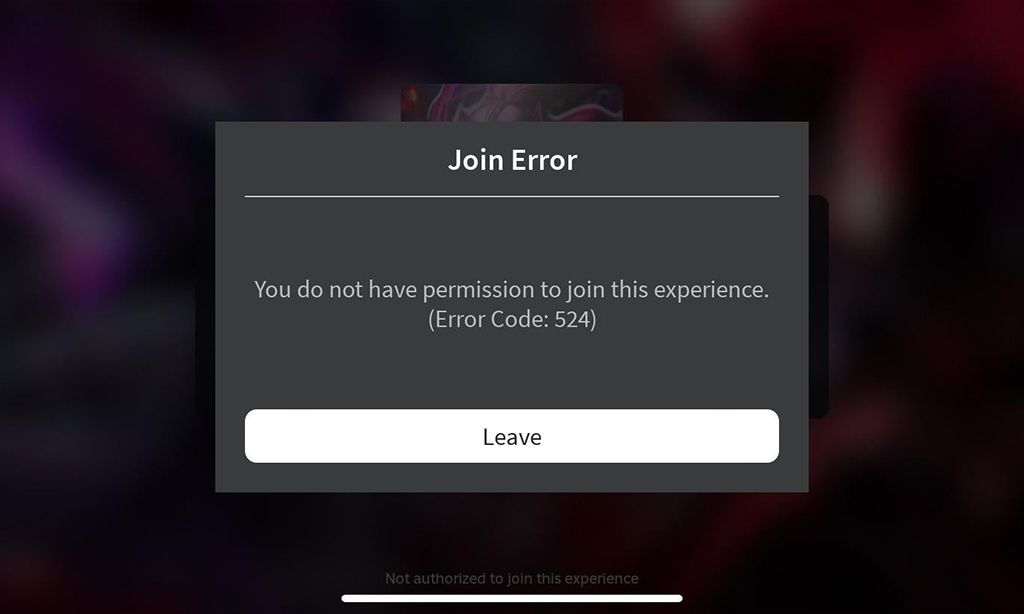
If you want the fastest path to fix Roblox error code 524, start with permissions and privacy, then move to stability checks. For developers, you’ll also want to check logs in the Developer Console in Roblox Studio so you can tell whether reports are access-related or availability-related.
Roblox Support recommends a minimum 4-8 Mb/s internet connection for a single-use household, and notes Roblox isn’t supported on virtual machines, cloud-based computers, or altered mobile operating systems.
How do I adjust privacy and server settings to fix Error 524?
If you’re seeing “permission to join this game” on a private server, this is the highest-ROI fix. Make a change, then try to join immediately so you know what worked.
- Open Settings, then Privacy and content restrictions, then Visibility & private servers, and set private server membership to the most permissive option you’re comfortable with (for troubleshooting, “Everyone” is the fastest test).
- If you’re joining a private server, ask the server owner to open the server’s Configure page from the Servers tab, then either add your exact username to Server Members or enable Connections Allowed.
- If you are under 13, only attempt joins that come from your Connections list. Random invite links can fail even when everything looks “open.”
- If it’s a group-exclusive experience, confirm your group role meets the experience requirement, not just that you joined the group.
Pro tip for troubleshooting: test join paths. Try joining from the play button, then try joining from your friend’s profile, then try joining from the server list. If only one path fails, you may be dealing with a join-flow glitch rather than a permissions issue.
How can I verify content maturity and age restrictions?
If the account has parental controls or content restrictions, you can get blocked from certain experiences even when the server is configured correctly.
- On the website or app, open Settings and look for Parental controls or Content restrictions (the exact menu name can vary by account type).
- Check content maturity restrictions and confirm the experience you’re trying to join is allowed for that account.
- If a parent manages the account, have them confirm settings from their linked parent account. A child account may not be able to raise restrictions on its own.
- After any change, close Roblox completely and reopen it before you try to join again.
What should I do to ensure a stable internet connection?
Even when the message says “permission,” a shaky connection or a stuck client can still produce error 524. This checklist helps you rule that out quickly.
- Switch networks (Wi-Fi to mobile data, or the other way around) and try to join again to isolate whether it’s your router or your ISP.
- Power-cycle your router: unplug it for about 30 seconds, plug it back in, then retry joining.
- Restart the device you’re playing on, not just the Roblox app, to clear cached network states.
- Run a speed test and confirm you’re hitting at least 4-8 Mb/s. If you’re sharing your connection with other devices, you’ll likely need more bandwidth than that.
- If you’re on a PC, try a wired Ethernet connection for more stable ping and fewer packet drops.
- Turn off VPNs and avoid virtual machines. If you need to test from different regions, use a supported device and network instead of a VM.
If nothing changes after these steps, update or reinstall Roblox next. Corrupted files can make the join process fail in confusing ways.
Advanced Troubleshooting for Developers
If you’re a developer and players keep reporting error code 524, your goal is to figure out which “permission” is failing: private server membership, account restrictions, or a join-flow problem.
The fastest developer workflow is to reproduce the join, capture the join path (play button vs server list vs invite link), and then collect the right logs.
In live experiences, open the Developer Console (often mapped to F9 on desktop) and check logs for join-related errors, warnings, and timing patterns. A practical detail from Roblox developer documentation discussions is that server logs are typically visible only to the experience owner or group members with editing permissions, so don’t assume every tester can see the same tabs.
If you can’t reproduce it in a live server, try to reproduce it in Studio, but keep expectations realistic. Roblox Developer Forum threads have pointed out that Studio logging can behave differently than live servers, including situations where client and server output appear mixed.
When you need device-level logs for a support ticket, Roblox Support provides an official process for retrieving log files. On Windows, those logs are commonly found under:
%localappdata%\Roblox\logs(Windows)Macintosh HD > Users > [your user profile] > Library > Logs > Roblox(macOS)
Only send those logs when Roblox specifically asks for them, and make sure testers redact anything sensitive before sharing.
How can I test server capacity and stability?
You can’t “scale Roblox servers” the way you would with your own hosting, but you can reduce false 524 reports by making your join flow more resilient and your server settings more realistic.
- Verify your private server configuration steps are documented for players (where to find the server, how to configure it, and what “Connections Allowed” means).
- Run playtests that mimic how players really join: play button, server list, profile join, and any external invite flows you support.
- If your experience is group-gated, test with multiple roles (owner, admin, member, and non-member) so you can see exactly which role triggers “unable to join.”
- Review your experience’s maximum player count and matchmaking settings so you don’t create “full server” confusion that players report as a permission error.
How do I confirm compatibility with supported devices?
Don’t debug a permission problem on an unsupported setup. Roblox Support lists minimum requirements that are easy to verify, and mismatches can create misleading errors.
- On PC, Roblox installs on 64-bit Windows 10 or Windows 11, and the website supports common browsers like Chrome, Firefox, and Microsoft Edge.
- On Mac, Roblox supports macOS 10.13 or later.
- On ChromeOS, Roblox requires ChromeOS version 53 or above with the Play Store enabled.
- On mobile, Roblox requires iOS 13 or later and Android 8.0 or later.
Make sure testers are on a native device with a supported operating system version, no VPN, and no modified OS. That alone cuts down a lot of “can’t join” noise.
Preventing Future Occurrences of Error 524
You can’t stop every Roblox outage, but you can stop most repeat error code 524 reports by making access rules obvious and making your join paths consistent.
How can I optimize server configuration to prevent Error 524?
Think in terms of reducing permission confusion and improving the join experience.
- Write a clear access checklist: tell players if the experience is group-only, if private servers require invites, and whether Connections are required for under-13 accounts.
- Keep private server instructions short: “Servers tab > three dots > Configure > add username or enable Connections Allowed” is the simplest version that still works.
- Test after every settings change: if you adjust privacy, group access, or content restrictions, do a quick join test from a non-owner account so you catch “permission to join this experience” issues before players do.
- Label your experience correctly: If your audience includes users under 13, keep content maturity labeling up to date so those accounts don’t get filtered out.
What should I tell players about access requirements?
Give players something they can act on in under a minute. Here’s a simple script you can paste into your support replies.
- “If you’re joining a private server, ask the owner to add your exact username to Server Members or turn on Connections Allowed.”
- “Check Settings > Privacy and content restrictions > Visibility & private servers, and make sure your private server settings allow the join.”
- “If you’re under 13, you can only join private servers created by your connections.”
- “Restart Roblox and your device, then try joining again. If Roblox is having an outage, waiting a few minutes can work.”
If players still get the same error message after that, ask for their platform (PC, mobile, PlayStation, or Xbox), whether they used the play button or server list, and the exact time the join failed. Those details help you reproduce the issue instead of guessing.
Final Words
Roblox error code 524 is usually a permissions problem, not a mystery bug. Start with private server membership and privacy settings, then rule out restrictions and basic stability issues.
If the error message keeps coming back, collect the join path details, check logs in the Developer Console, and escalate to Roblox Support with the right log files and device info when requested.