Many people see broken links the day they go live. They spot odd pop-ups on tablets or smartphones. These slip-ups can make search engines rank you lower. You may feel stuck just before your website launch.
Key Takeaways
- Use a checklist to cut errors by half (Fact). Test your site on phones, tablets, and browsers.
- Proofread every page. Run a grammar checker, swap placeholders, and keep tone clear.
- Click each link, button, and form. Install SSL, set daily backups, and add analytics tracking.
- Compress images to 70–80% quality. Add alt text and serve via CDN for loads under two seconds.
- Research keywords in Google Analytics. Scan for broken links with Screaming Frog and fix meta titles.
Ensure Your Website Design is Finalized
Give your responsive design one last spin, tweak the CSS, and smile when your layout sings on desktop and phone. Then check your site icon in the browser tab, click it, and make sure it links home before you shift gears to content.
Verify color schemes and branding
Pick three brand hues that match your logo. Use CSS variables in your HTML stylesheet. Check text contrast on light and dark backgrounds. Match your coffee shop’s brown tone to the coffee cup tab icon.
Follow your brand style book on every landing page.
Open your site in Chrome and Firefox. Scan header and footer colors on mobile screens. Test how links and call to action buttons look on phones. Confirm each hue stays true on devices with responsive design.
Tweak CSS rules until your branding shines.
Check favicon implementation
Use a clear graphic for your favicon. Save it in .ico or .png. Upload it so web browsers show a tab icon by your domain name.
A coffee shop might add a coffee cup icon for brand recognition. This small tab icon makes your site stand out in tabs and boosts user experience during website development. Use your website launch checklist to confirm the image appears across web browsers.
Test layout and user interface
Check your site layout on real devices. Inspect all buttons and menus for ease of use.
- Match Balsamiq wireframe to live pages: Compare fonts, color scheme, and tab icon, confirm services overview, testimonials, and CTAs appear on a consulting business homepage.
- Review header and footer menus: Test menu bars for misaligned links, try horizontal scrolling, spot stray placeholders or broken links. Verify domain name displays correctly in the browser bar.
- Inspect responsive design on phones and tablets: Check mobile compatibility, watch for collapsed menus, verify adaptive grids and fluid images.
- Trigger keyboard navigation across pages: Use Tab and arrow keys to move focus, look at focus outlines, confirm keyboard users reach contact forms and CTAs.
- Run screen reader tests with NVDA or VoiceOver: Listen for missing alt tags, spot unlabeled buttons, test assistive technologies for smooth flows.
- Click each call to action: Fill test contact forms, simulate a checkout path, watch for errors in URL slug or broken redirects.
- Benchmark against top rivals: Open two high ranking sites, note design tweaks, refine layout for better user experience and search results.
Proofread and Review Content
Fire up a grammar checker and scan each line like a jeweler inspecting a gem.
Then run a readability test and an SEO app to polish your tone, sharpen your facts, and boost your search rankings.
Check for spelling and grammar errors
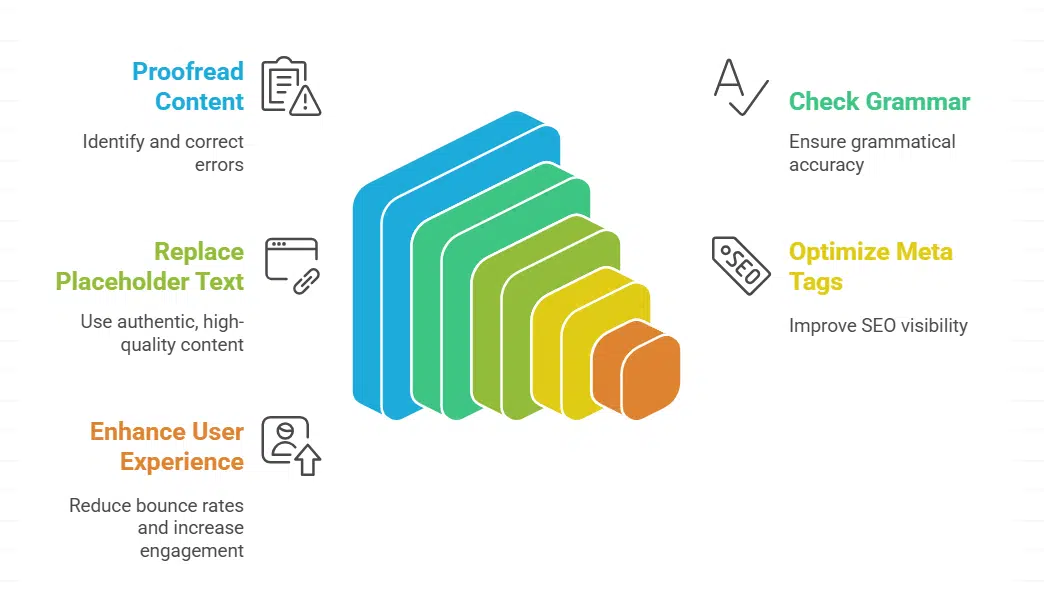
Proofread every line on your about page and contact page. Use a grammar checker in Google Workspace or a tool like Grammarly to catch typos fast. Run a spell-check in your content management system or paste text into Hemingway Editor, so crawlers in Google Search Console spot clean copy.
Fixed errors boost search engine optimization, lift search engine rankings, and polish your site’s user experience.
Swap out any placeholder text with high-quality, authentic content. Scanners in SEO tools flag missing meta tags, bad grammar, or odd phrasing in meta descriptions and index pages.
Solid spelling in your call to action and contact forms cuts bounce rates, sparks more clicks on social media platforms, and adds a pro touch before website launch.
Ensure consistent tone and style
Set a style guide for fonts, colors, and tone. Cover your landing section, about page, and contact page. Keep each call to action clear and lively. Replace generic placeholder text with real content.
Use clear alt text on every high-quality image. Write each prompt the same way. This tweak boosts user experience.
Carry that voice into sms and whatsapp links, cookie banners, and privacy notices to meet legal compliance. Use data from google analytics to spot weird phrasing. Run a few usability tests before launch.
This step ties seo, indexing, responsive design, and domain name paths into one smooth path.
Double-check the accuracy of information
Use your website launch checklist to scan every page. Scan dates, phone numbers, and pricing on the about page. Match each product description in the online store to its spec sheet.
Fix any typo in meta titles or meta tags for search engine optimization.
Test all contact forms and CTAs to spot missing email copy and can-spam act text. Check cookie notices and privacy notes for legal compliance. Confirm Google Analytics tracking ID and CDN links work with your caching setup.
Let image alt text include keyword research terms to boost search engine optimization.
Test Website Functionality
Click every button, fill each contact form, tap your CTA, and peek at the console for errors—keep reading.
Test every link and button to make sure they run. Avoid dead ends on mobile or desktop.
- Scan your navigation bar links with Hostinger’s mobile editor preview to confirm mobile compatibility.
- Use UserTesting or Lookback for real interact data on your contact page touchpoints.
- Validate your logo link points home to uphold a smooth user experience on the web.
- Check call to action (cta) buttons with analytics tool event tracking to gauge click rates.
- Test form buttons and contact forms for secure data submit with SSL in line with legal compliance.
- Inspect social media campaign links and share buttons for spamvertising filters and can-spam act compliance.
- Verify CDN resource links and images load fast to boost page speed and avoid malicious software blocks.
- Review outbound links against the digital services act to prevent spyware or botnets from sneaking in.
- Confirm pay-per-click (ppc) ad links and ad platform tracking works without redirect glitches.
- Run speed tests after link checks to catch load errors tied to image optimization or minify scripts.
Test forms and CTAs
Every form should guide a visitor to act. CTAs must drive clicks.
- Submit a test message on desktop and phone view. Confirm forms work across screens to boost user experience.
- Verify each call to action (cta) leads to the proper page or pop up. Check that buttons change color on hover.
- Use UserTesting or Lookback to watch users fill contact forms and click CTAs. Note any confusion or delay.
- Track form submits and click events in Google Analytics. Confirm data shows up in your dashboard.
- Record validation errors and missing fields. Fix scripts that break form flow before your website launch.
- Check placeholder text on each field. Avoid generic labels that hide the purpose of inputs.
- Ensure data encryption on forms meets CAN-SPAM Act rules and cookie standards. Protect user data and privacy.
- Preview forms in Hostinger’s mobile editor. Confirm mobile compatibility on multiple devices.
- Link CTAs to assets on your content delivery network. Speed up page loads after each click.
- Scan form pages for unwanted software or ransom scripts. Keep your forms safe, clean, and secure.
Link your logo to the homepage
Link your logo to the homepage for quick access. Add this step to your website launch checklist. Use a high-quality image for crisp display. Give the picture alt text for SEO value.
Test the logo link on mobile with Hostinger’s mobile editor and preview feature. Verify it works in responsive design layouts. Highlight your domain name in the header to boost brand trust.
Track click rates in your analytics tool. Keep user experience smooth.
Optimize Images and Media
Use a media CDN to zap big pics into lean, mean load times that wow your visitors. Add clear alt text to every image to aid sight-impaired users and boost SEO scores.
Compress image sizes for faster loading
Large photos can slow page loads and hurt user experience. Image optimization cuts load times. You can run images through an image compression tool. That step reduces file size and speeds site access.
Pick JPEG or PNG at 70 to 80 percent quality. Apply lossless methods for graphics with text or logos. Harness a content delivery network (CDN), it caches optimized files worldwide.
Speed and responsive design scores improve fast.
Add alt text to images for SEO
Alt text lets search bots read image content. It boosts your site’s search engine optimization. You describe each high-quality image in a few words. You add relevant keywords like alt text and image optimization.
This practice also helps screen readers.
Open your CMS and fill the alt text field. Pick concise labels that match your page topic. Pair alt text with lazy loading to speed page render. Compress files first using TinyPNG.
Serve images via a CDN. This combo boosts SEO and mobile compatibility.
Ensure embedded videos load correctly
Load each embedded clip on desktop and phone. Check that players scale with responsive design. Put this test into your website launch checklist. Watch each clip start in under two seconds.
Use a CDN such as Cloudflare or AWS CloudFront to boost speed.
Add captions or transcripts below the video. That move helps SEO and user experience. Link each clip to a clear call to action (CTA). Set a fallback thumbnail with clear alt text if the stream fails.
Compress all page images with TinyPNG to boost speed.
Perform SEO Checks

Fire up Search Console or a site stats tool, and hunt down stray tags or slow scripts to keep your site lean. Treat your keyword research like a treasure map, craft crisp titles, and tidy each link so search spiders can munch through your pages.
Research and implement target keywords
Mark terms that your audience types in search fields. Use keyword research with Google Analytics, and SEO software. No magic spells, just hard numbers. This choice boosts search engine optimization.
Check monthly search volume, pick terms with low competition. Save top matches in a spreadsheet. Link your domain name to a clear URL plan with short, readable slugs.
Place target keywords in page titles, headings, and meta descriptions. Build a clear permalink structure that shows each page topic. Stick keywords in image alt text, and in CTA lines.
Mix in natural phrasing so readers feel at home.
Optimize meta titles and descriptions
Craft concise meta titles that match your target keyword from your keyword research. Limit titles to about 60 characters so they show fully on search results. Keep it tight, like a well-packed suitcase.
Use a clear phrase that reflects your site launch topic, like domain name tips or user experience hacks. Add your brand at the end, if space remains.
Write meta descriptions under 160 characters. Include a short call to action, such as Learn more or Get started today. Link description wording to your responsive design or about page.
Test click rates in an analytics platform or SEO tool and tweak words to boost your SEO. Submit a site map file to the search console so crawlers find your pages.
Check internal and external links
Use an SEO tool like Screaming Frog or Ahrefs to scan each page. The crawler logs broken internal links and 404 errors. You fix dead ends to boost user experience. A clear permalink structure guides URLs and aids search engine optimization.
Confirm external links open in a new tab and lead to active pages.
Google Analytics tracks outbound clicks and shows link drop off rates. Site owners spot sudden traffic gaps near missing links. They update links on the about page, contact page, and blog posts.
The website launch checklist gains depth with link testing.
Test Website Responsiveness
Test Website Responsiveness: Use developer tools, test with a device emulator on various screens, and keep reading for more tips.
Ensure mobile compatibility
Test mobile compatibility on phones and tablets. Use a hosting platform’s mobile editor and site preview tool to view layouts. Make sure responsive design fits all screens. Test the checkout process on smartphones for smooth usability.
Review call to action buttons and contact forms on mobile.
Check image optimization on phones. Compress high-quality images for fast load. Add alt text to boost search engine optimization. Track mobile views with google analytics.
Test across multiple devices
Open your site on a phone, tablet, and laptop. Notice how the responsive design shifts fonts and images. Use your hosting platform’s mobile preview feature to mirror small screens.
Try a cross-browser testing service to find hidden bugs on Chrome, Safari, and Firefox. Watch menus, buttons, and call to action links. A broken button can ruin user experience.
Add this to your website launch checklist. Mobile compatibility drives engagement and conversions. Run a speed test with a simple analytics tool like Google Analytics to catch slow assets.
Spot a misplaced cookie banner before users get stuck. Fine tune layouts and text. Your site then looks sharp, fast, and ready for launch.
Collapsible menus free screen space and speed up browsing on tiny devices. They work like folding maps that hide details until you tap a label. This tactic fits responsive design, and boosts mobile compatibility and user experience.
Add collapsible menus to your website launch checklist, then use Hostinger’s mobile editor and preview feature to test them on iPhone and Android handsets. Check the checkout process after you collapse and expand nav items, to spot glitches.
Run through each step on each handset, and tweak the JavaScript snippet until taps run smooth.
Validate Security Features
Check your lock icon and add a strong cipher plugin for form data. Schedule nightly site snapshots and run a malware scan to stop a breach before it crashes the party.
Install an SSL certificate
Add HTTPS to your domain name with an SSL certificate. Encryption shields user data sent through contact forms and login fields. It boosts user experience. Hosting providers often supply free certificates.
Use a hosting control panel or certificate client tool to install one in minutes.
Browsers show a padlock next to your tab icon. That sign helps with search engine optimization and builds trust. Cloudflare and many cdns include SSL options. A secure setup guards credentials and form entries from hackers.
It also helps with your website launch checklist.
Ensure data encryption for forms
Site owners must guard user data on contact forms. Many hosts offer free SSL certificates, so add one today. HTTPS tunnels stop eavesdroppers from reading passwords or phone numbers.
Encrypt hidden fields and cookie data before you store them. Users trust sites that show a padlock icon next to the URL. That symbol tells readers that this site cares about their privacy.
Test website backup solutions
Set up an offsite backup job that runs daily. Use cPanel or a plugin to copy files and the database. Store archives on Amazon S3 or Dropbox. Encrypt backup files with SSL so form data stays safe.
Verify that the site loads with HTTPS after you restore a test copy.
Add a check to your website launch checklist to watch backup logs. Record the date and file size after each run. Use a staging area to restore and click through the contact page, CTA buttons, and menu.
Scan the restore for errors and confirm that your domain name works with no broken links. Keep a note of any issues so you can update your privacy policy and stay in legal compliance.
Integrate Essential Tools
Plug in a tracking service, it spots visitor patterns and drives smart tweaks. Add a chat widget and sharing icons to spark talks, see section nine for more ideas.
Set up analytics tracking
Install an analytics tool like Google Analytics on every page of your site. Create an account, copy the tracking code, and add it to your header. Use a tag manager for a quick add.
The tool uses cookies to record page views, referrals, and session times.
That data reveals user experience trends and guides your SEO tests. Review your dashboard after a day to spot any odd spikes or errors. Update themes and add-ons each month to keep scripts working and avoid errors.
Combine analytics insights with a website launch checklist and your search engine optimization reports.
Place share icons in your header and footer. These buttons drive social media marketing. They prompt readers to post on Facebook, Twitter and LinkedIn. Tiny icons shape a smooth user experience and urge site visitors to spread the word.
Use clear graphics for Facebook, Twitter and LinkedIn links. Google Analytics will track each click. This data will guide your email marketing, guest blogging and PPC ads plan. Vivid icons can power a social media campaign that sparks visitor interest.
Make this a key step in your website launch checklist.
Test live chat functionality
Open the chat feature on various devices, click each greeting and note response times. Send a support message from two accounts, watch how fast replies arrive. Use Google Analytics data to track chat sessions, link them to call to action (cta) clicks and review user experience.
Check logs for errors and slow loads.
Invite a colleague to send questions through contact forms and chat side by side. Spot any typos or canned replies that feel like a robot. See if chat bubbles shrink on mobile under responsive design.
Mix in a test on PPC ads landing pages to watch conversions. Try a chat link in an email marketing blast, then track sessions against your goal.
Conduct Pre-Launch Testing
Use a cross-browser testing tool, a performance analyzer, and live preview sessions to spot browser compatibility bugs and smooth out any kinks—read on to learn more.
Check for browser compatibility
Open your site in major browsers to spot layout shifts or broken images. Align this check with your website launch checklist. Check responsive design on tablets and phones for smooth user experience.
Run tests with platforms like UserTesting or Lookback. Test the checkout process on mobile devices to ensure seamless mobile compatibility.
Perform speed tests and optimize load times
Speed tests catch slow pages fast. Screaming Frog SEO Spider, Google Search Console, and GTmetrix point out bloated scripts and huge images. You trim away extra code and compress CSS.
Pages then load in under two seconds. That boost enhances user experience and mobile compatibility on your website launch.
A/B tests can show if a video introduction increases conversion rates. You track those gains with Google Analytics in real time. You swap heavy PNGs for optimized JPEGs and WebP. That slash cuts file sizes for high-quality images and your tab icon.
You check off the last item on your website launch checklist.
Get feedback from a third party
A third party can spot glitches that hide under your nose. Ask a friend or use a testing platform like UserTesting or Lookback to click through your site. They can test contact forms, call to action (cta) buttons and run responsive design checks.
A/B testing on landing pages can show if a video introduction boosts conversion.
Fresh eyes can flag broken links, missing alt text and odd placeholders on the about page or contact page. A colleague may spot stray typos in your domain name or color scheme. Third party input can reveal if your Google Analytics setup runs right.
Outsiders can scan forms to block unsolicited bulk emails and ransomware attempts before they hit your inbox.
Takeaway
A web launch feels like a sprint. Double-check hosting details, domain name, and responsive design to avoid bad surprises. Test calls to action, contact forms, and image compressor to boost user experience.
Check SSL certificate and data backup to protect visitor data. Connect Google Analytics and form builder to track performance.
FAQs on Things to Check Before Launching Your Website
1. What should I check with my domain name and tab icon before my website launch?
Pick a domain name that fits your brand. See if it is free, set DNS, and add SSL. Pick a tab icon, also called a favicon. Test it on desktop and mobile, a clear icon helps visitors spot your site in browser tabs.
2. How can I test responsive design, mobile compatibility, and user experience?
Open your pages on a phone, a tablet, and a desktop. Resize your browser window. Click menus, links, buttons. Check that text stays legible. Ask a friend to find your sign-up form, like a game of hide and seek. Good user experience keeps people on your site.
3. Why is image optimization, high-quality images, and alt text key for search engine optimization?
Use high-quality images that still load fast. Compress files without losing clarity. Add alt text that describes each picture. Use keywords from your keyword research in alt text. This helps search engine optimization and screen readers.
4. Why should I test contact forms, call to action (CTA), placeholder text, and legal checks?
Test every contact form to see if messages reach your inbox. A broken form is like a phone that never rings. Set clear call to action (CTA) buttons so visitors know the next step. Swap placeholder text for real copy before launch. Check legal compliance, follow the can-spam act, and add a privacy policy on your contact page.
5. What goes on my website launch checklist for keyword research, competitor analysis, Google Analytics, web design, and usability testing?
Make a website launch checklist that covers keyword research, search engine optimization (SEO), and competitor analysis. Check your web design for a clear color scheme and consistent fonts. Test your about page and contact page. Run usability testing to spot hiccups. Add Google Analytics and link Google Ads for data from day one.