No matter the circumstances in which you focus on a dramatic moment, demonstrate the functionality of a product, or add the touch of the movie to your video, the effects that involve slowing it down can add the dramatic element of the video mood and the professionalism of the video production. But then, usually, to make buttery-smooth slow-motion scenes, you need many frames and expensive editing applications (which is not the case with CapCut Desktop).
With the help of the smart frame interpolation and the wide range of video settings provided by CapCut, users can now produce realistic slow-motion effects with a few clicks, even using regular footage. CapCut is one of the most available and powerful free tools for content creators nowadays.
CapCut, combined with other such tools as an AI voice generator, can make it possible to produce not only visually spectacular edits but also narratively engaging material in the shortest amount of time. It is time to take a closer look at how to get smooth, slow motion in CapCut and level up your videos.

Why Use Slow Motion in Your Videos?
Slow motion does not only mean slowing down. It is a way of writing style and narrative. It will enable you to control the attention allocated to the viewer, emphasize certain events, and use a sentimental or dramatic tone. Regardless of the type of vlogs, tutorials, sport videos, or product promotions you edit, a bit of slow-motion may make the experience of the one watching more outstanding, which is why it is a brilliant idea to employ slow-motion in a strategic way.
The thing is that the very best part is that…? You do not have to develop advanced skills or use expensive software to use this effect. The speed control functions of CapCut, as well as the possibility to improve each frame, make it simple even to the uninitiated.
How To Get Smooth, Slow Motion In Capcut And Level Up Your Videos
Step 1: Start a New Project and Import Your Footage
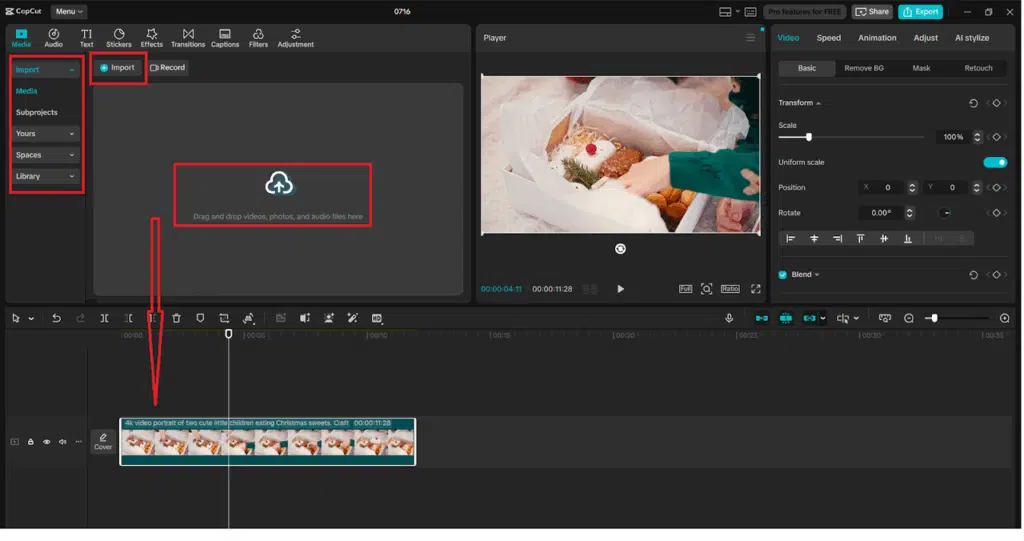
Launch CapCut Desktop and press “New project” to start. Then, copy your video and paste it in the Media panel or use the “Import” button in the top left corner. After appearing in your media library, drag the clip onto the timeline. Ensure that the video you are supposed to slow down is in the right location in order to apply the effect normally.
Step 2: Access Speed Controls and Choose “Curve” or “Normal”
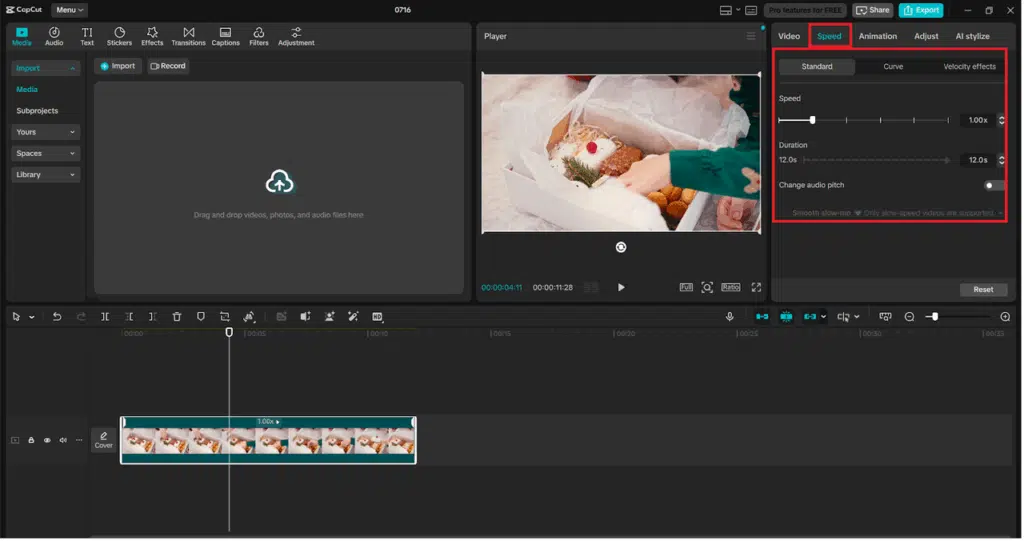
Having chosen your clip on the timeline, you need to look at the upper editing menu and click on the “Speed” button. CapCut is an app that offers two options: Normal or Curve.
In case you would like to have regular slow-motion, use Normal. To have more vibrant control (e.g., slow down and then accelerate), select Curve. Here, we are going to use Normal to make smoother control.
As soon as you click Normal, a slider will emerge where you can change the speed of playback. Scaling it down below 1.0x makes the video run slower. As an example, choosing 0.5x causes your video to play at half the speed.
Step 3: Enable Optical Flow for Smoother Frame Interpolation
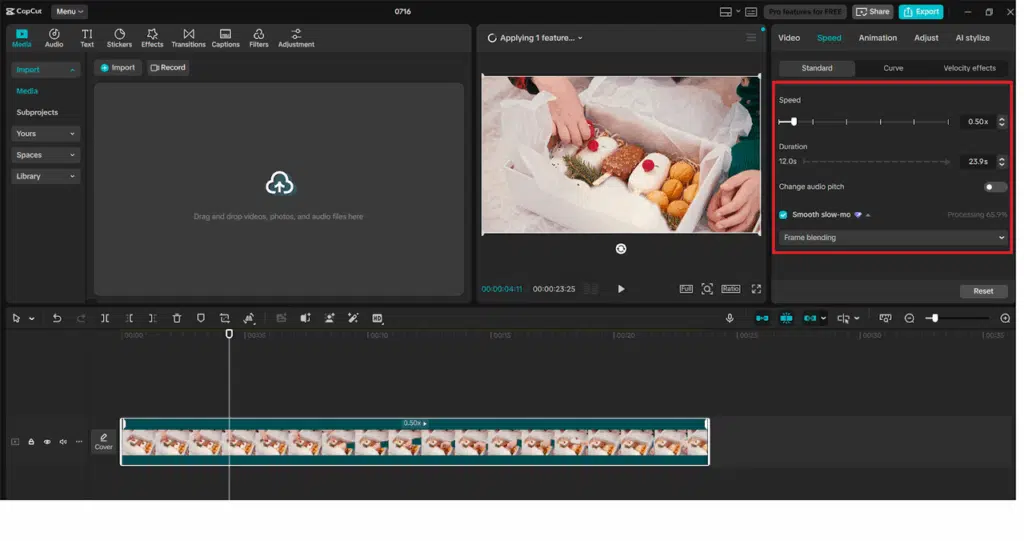
Reducing the rate of a common 30fps video tends to either make it jerky or low in resolution. CapCut will solve this by providing frame interpolation with an AI-taught process. Once you have chosen your slow speed (such as 0.5x), move to the right-hand panel under “Video” settings and find the “Optical Flow” toggle.
Enable Optical Flow. This attribute smartly creates midway frames, which result in a softer transition of the original frames. The effect is an interim fluid slow-motion video that simulates extremely framed video. In case you intend to present your video on high-resolution screens, further assembly with an AI video upscaler can enable additional visual sharpness and clarity improvement.
Step 4: Refine the Timing and Add Transitions or Effects
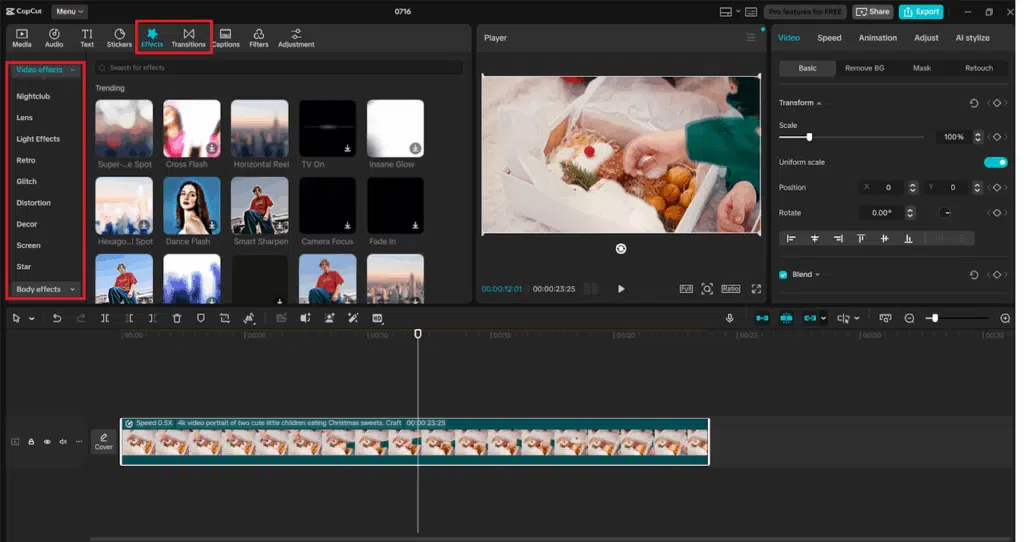
Your video is now slowed, and to ensure you watch it, press Play. However, you can split or trim the clip and leave in slow motion just the portion you like if the moment seems to be inappropriate. You can, too, to add a fade-in/ fade-out or a blurry slide in/out at the beginning and/or end of the slowed-down portion to add a cinematic touch. Applying any other visual effects. If you need to add some visual effects, use the “Effects” or “Transitions” tab in the top menu. CapCut has many filters and motion effects powered by AI that can work smoothly with slow-motion effects.
Step 5: Review, Add Voiceover or Subtitles, and Export
Now, you have a visual timing locked, and it is time to add narration or subtitles in case you need them. This is something that you can perform all too easily by visiting the “Text” tab and clicking the “Text to speech” button. Fill in your text, select the voice sound, and CapCut will voice a realistic voice on the video. The feature of text to speech AI is ideal when it comes to adding context, narrating a story, or describing products without any manual recording.
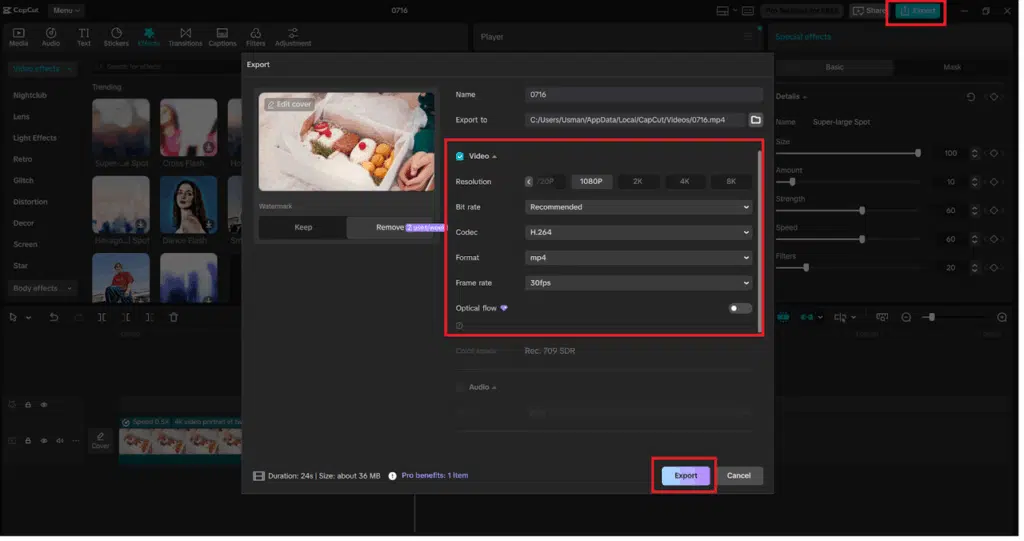
Play the finals in the timeline as a test. Once you are done and you are satisfied, you can click on the “Export” button at the top right. Select your resolution, file name, and export format. This is followed by selecting “Export” one more time to complete your professional slow-motion work.
Benefits of Using CapCut for Slow Motion
- No need for fancy stuff: You can even make a slow motion on an ordinary 30fps video.
- Optical Flow (built-in): The AI reconstructs the lost frames to have a very smooth playback.
- Beginner-friendly UI: There are no complex layers involved, and no need to do manual adjustments.
- Integrated editing tools: Insert music, voiceovers, subtitles, and effects all in the same environment.
- Optimized for social sharing: Export directly to YouTube, Instagram, TikTok, etc.
CapCut is a tool to provides more complicated effects to creators so that they can use slow motion and other advanced features
Final Thoughts
Slick slow morphs give your content drama, elegance, and visual narrative-smooth slow motion, and you can create it in no time with CapCut Desktop. With the Speed controls, enabling the Optical Flow, and combining the effect with the help of text-to-speech AI narration, you are capable of creating engaging content in several minutes rather than hours.
CapCut dishes out a whole post-production package when coupled with an AI voice generator to record the narrative or an AI video upscaler to produce detailed output. No matter how you apply your edits, in the mode of fun, business, or artful storytelling, slow motion is another tool that every video editor could have in their toolbox, but it is also something that you no longer have to spend time producing.