Are you interested to know, how to play music in Discord? One of the best ways to interact with your friends online is through Discord. As entertaining as it is, being able to play music over your server adds to the overall enjoyment of Discord. So, in order to do so, we’ve put together a guide on how to play music in Discord.
Discord is one of the best cross-platform communication apps, whether it’s for real-life or gaming buddies. A capability to add and stream music to your Discord voice chats may make the overall experience lot more engaging and pleasurable, whether you’re just hanging out or playing some games.
The majority of us enjoy listening to music while chatting with friends on Discord. If you want to learn how to play music in Discord, there are several options. Let’s take a look at all of the possibilities presented in this guide to assist you to decide which one to pursue.
Discord has grown to be one of the most popular social media platforms for forming groups. Users can communicate with one another using a variety of methods such as voice calls, video calls, text messaging, media, and files. However, people have recently been trying to figure out how to play music in Discord, and have asked questions such as how to play music in Discord. As a result, we’ve outlined the procedures to do so right here.
About Discord
The app’s creators recently launched the Slash commands, which let users communicate with the app’s bots. This is a simple command provided by the creators. That makes it easier to communicate with the bots. The participants will only need to input “/” to bring up a list of commands that the bot can carry out. The developers have provided a fantastic way to communicate with the bots on their app. The program has over 9000 certified bots, according to Discord’s official blog post. As a result, the makers’ endeavor to find a better and faster way to communicate with these bots is unquestionably commendable.
How to play music in Discord?
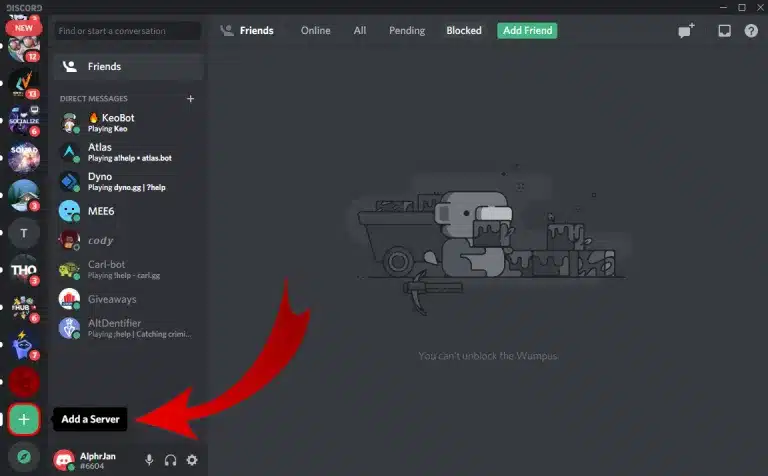
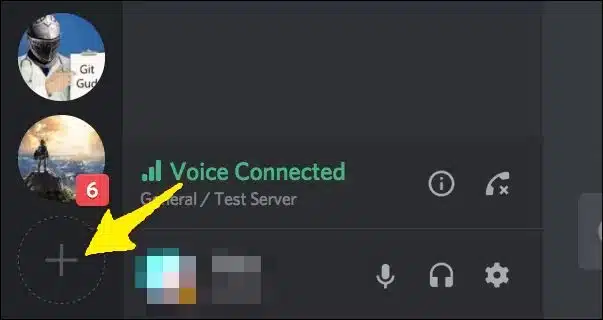
To begin, you must first create a Discord server. By clicking on the “+” icon, you can create a server.
- Give the server and the region a name.
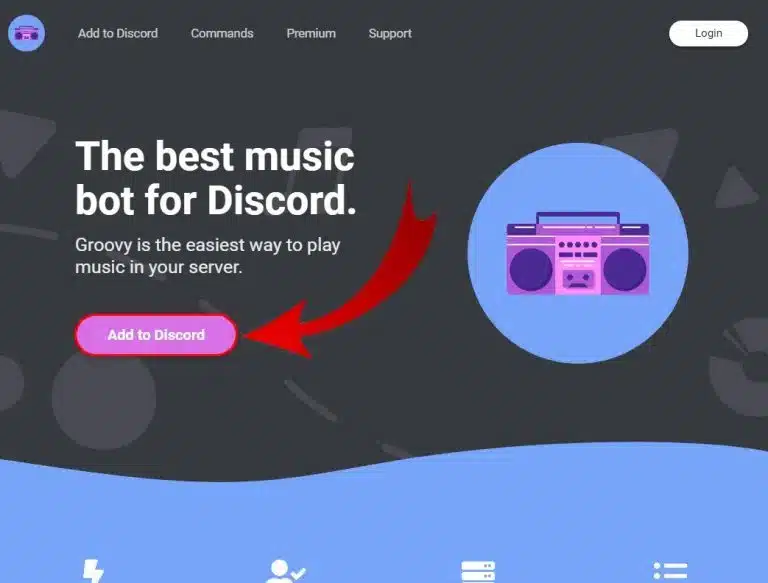
- Then you’ll have to go to a bot’s website.
- Choose “Invite” or “Add” as an option.
- After that, you’ll have to log into your Discord account.
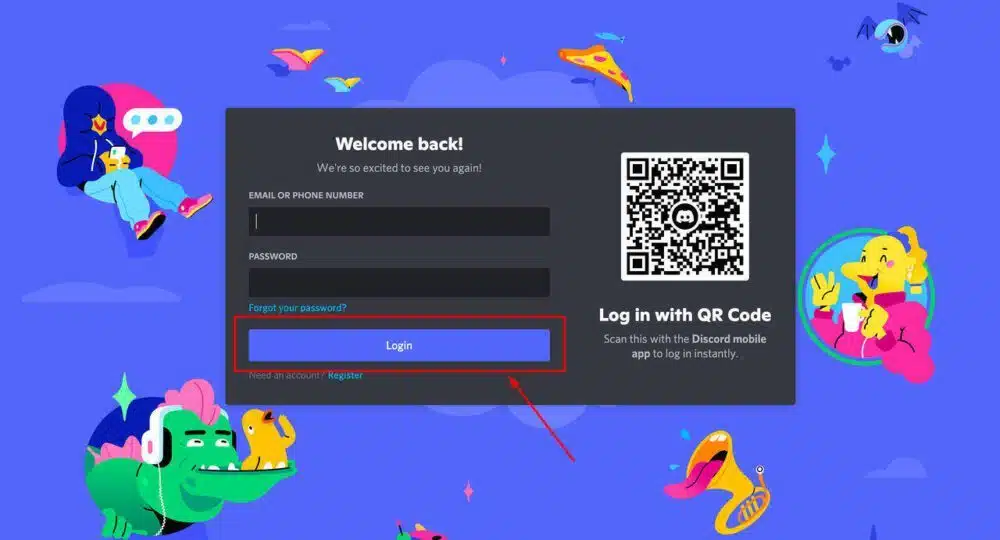
- After that, all you have to do is select a server for your music bot.
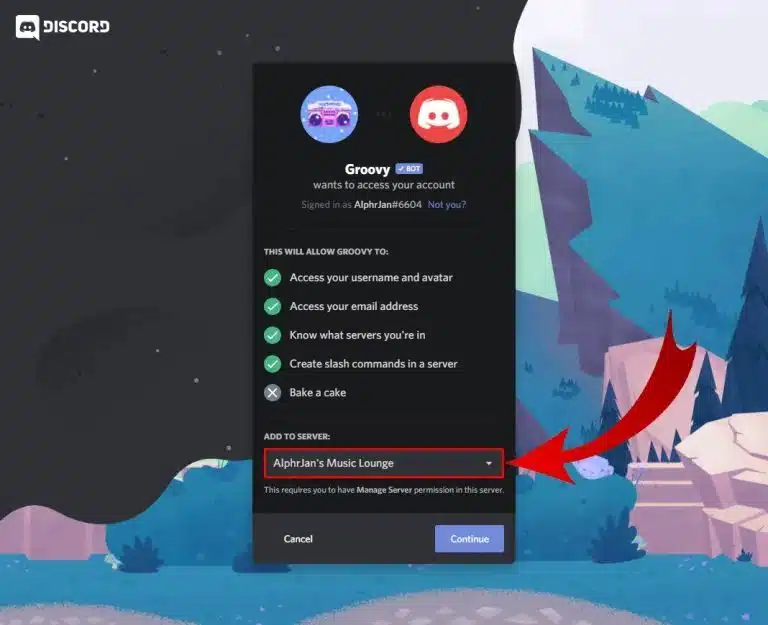
- Once you’ve completed the verification, your Discord app will start playing music.
How to play music in Discord with your phone or Android?
- Open the Groovy.bot website and choose “Add to Discord” from the drop-down menu.
- Select a server and then the “Authorize” option.
- Make sure the “I’m not a robot” box is checked.
- Join the voice channel and request that Groovy play your favorite song.
- These instructions can be used to play music on both an Android and an iPhone.
How to play music in Discord with your mic?
- Start by going to the Control Panel.
- The “Hardware & Sound” window should now be open.
- Then select “Manage Audio Devices” from the drop-down menu.
- Then select “Recording” from the drop-down menu.
- Turn on the stereo mix.
- Then change it to the default microphone.
- Join a voice conversation and use your microphone to play music.
Adding Music to Discord
I know how to play music in Discord and follow this in the following ways:
- A bot for Discord. For this topic, we’ll be looking into a rhythm in particular.
- Getting Spotify to work with Discord. We’ll also discuss Premium Spotify customers’ access to the Listen Along with function.
So, if you’ve ever wanted to listen to music on Discord, these are your best options. The walkthroughs for each of these options may be found below.
Keep aware that the sound quality will vary depending on your selection. Regardless of which option you choose, you’ll be blasting sounds into Discord in no time.
How to Play Music in Discord with Bot?
There are a lot of Discord music bots out there, and the majority of them are free. However, before you decide to add one to your discord server, make sure you’re aware of your options.
Groovy Bot
If you’ve ever searched for music using a bot, you’ve probably come across Groovy. Since the beginning, there has been a groovy music bot. This is why it remains popular. It wasn’t until it was rebranded that it gained popularity as one of Discord’s most popular music bots.
Users will like the Groovy bot’s ability to shuffle, search, display lyrics, queue, and perform a variety of other tasks. YouTube, SoundCloud, and Spotify are all supported.
Rythm bot
The Rythm Discord music bot is only dedicated to providing excellent music to all Discord users. Not only is it of excellent quality, but it is also entirely free.
Many high-quality music elements are always being developed to guarantee that you get the greatest possible experience. Many music sources are supported by the Rythm music bot, including YouTube, SoundCloud, and Twitch.
Other Discord bots
On Discord, you may find groovy, Rythm bot, and more music bots. Bots like Hydra, ProBot, and ZeroTwo are just a handful of the options. These bots, on the other hand, aren’t just about giving a music experience; they also have other functions. For music, Groovy or Rythm bot is the best!
Video Credit: https://www.youtube.com/channel/UCHz4ZmulSxcaqMkDcN1wOnA
To Install Rythm on a Personal Computer:
- Go to https://rythmbot.co in your preferred web browser (all should work with Rythm).
- Click + Add to Discord in the top-right corner of the page. You’ll be taken to the Discord login screen as a result of this action. (This may differ from “Invite” to “Add Bots” if you’re using a different Bot source.)
- Login to the site using your Discord account credentials.
- Select the server for which you want the Rythm bot to be added from the drop-down menu. You can add the bot to more servers, but you’ll have to go through the process again.
- When prompted, click the blue Authorize button. The button will be near the bottom of the smaller popup window. A confirmation message will be sent to you.
- If you click the “I’m not a robot” box, you’ll have access to the Rythm bot on your Discord server.
To Install Rythm on your Android or iOS device:
Install Rythm on a PC (or Mac) by following steps 1-6, and then continue from there.
- If necessary, open the Discord app on your smartphone and log in with the appropriate credentials.
- Choose the server you added Rythm to from the list of servers on the leftmost side of the screen by tapping the menu (top-left of the screen).
- You’ll only be able to add Rythm to a voice channel if you wish to play music, so open one.
- Fill out the form!
- Play a song or an artist, then push send to have Rythm start playing music.
- A list of Rythm! commands may be found under Features & Commands at https://rythmbot.co.
Throw A Music Party On Discord Using Spotify
Spotify is a digital music streaming service that offers millions of songs from a variety of international musicians for free (with premium subscriptions available). It’s one of the most well-known companies to do so, second only to Apple’s iTunes.
Connecting your Spotify account to your Discord account is a fantastic tool that allows you to upload music without having to use bots.
You can connect Spotify to your Discord by:
- Open Discord on your device and go to User Settings (the Cog icon to the right of your avatar) to change your settings.
- Select “Connections” from the “User Settings” section of the right-hand menu.
- In the “Connect your accounts” area, look for the Spotify symbol and click it. This will take you to the login page for your Spotify account.
- Use your Spotify credentials to log in to your account.
- By clicking the green AGREE button at the bottom, you agree to the conditions of the Spotify-Discord connection.
- When the process is finished, a page titled “Connected your Spotify account to Discord” will appear.
- Return to Discord and look for your Spotify connection at the bottom of the list.
Conclusion
You’ve learned everything you need to know about how to play music in Discord. Fidlar hopes that this post clarifies some things for you if you’re looking for further information on this issue! We’d love to hear how you appreciated this article or if you have any more questions in the comments.
Frequently Asked Questions (FAQs)
How to Play Music in Discord with Rythm Bot?
We’ve created separate guidelines for PC/Mac and iOS/Android users on how to play music in Discord. Go to the subsections below to get your desired system guide.
Guide for Rythm Bot on PC/Mac Systems
Let’s start with how to play music in Discord on a PC or Mac. To do so, you’ll need to download the Discord bot and configure it to play and stream your chosen songs.
What Is The Most Effective Music Bot for Discord?
There are various Discord bots, but the most popular is the Rythm bot. It allows you to listen to music from many sources while being lag-free. The bot is updated on a regular basis. Because of ensuring that your service is always at its finest.
Can I Play Pandora on Discord?
Pandora isn’t supported by Discord, sorry. Pandora is not supported by Discord at the time of writing.
There is yet hope. When there are millions of Pandora customers, being limited to Spotify compatibility is really aggravating. Sometimes the only method to get a feature request is through Discord.
You can give comments and make feature requests on Discord.
What Is The Best Music Bot for Discord?
You will not be able to run music in Discord or group calls at this time.
How to Play music in Discord in Private?
No. Unfortunately, as many users requested, there are no bots that can play music in private or group calls. Create a private server to fix this issue. Invite your friends to come and listen to music.
Why Did Groovy Bot Shut Down?
The groovy bot was unable to play music from Youtube due to a violation of the YouTube Terms of Service.
What is Groovy?
One of the most popular bots, it is a good alternative to Rythm and Mee6.
Among the features are:
- Volume control – We all know that volume may be an issue.
- Audio Effects – Do you want more bass? You figured it out.
- It is possible to stay on a voice channel for the rest of your life once you have joined it.
- Autoplay — No more waiting for the music to start playing.
- There will be no more re-creation of queues!
- More Groovies: You can hear up to three bots on three different voice channels.