Ever get the feeling your smartphone can do more than you think, but you just can’t find the right tricks? Studies show most people miss about 90% of hidden smartphone features on their Android devices and iPhones.
This blog post will help you unlock useful tools like notification history, QR code sharing, and smart multitasking with floating windows. Ready to give your phone a boost?
Key Takeaways
- Most people do not use about 90% of hidden smartphone features on Android and iPhone.
- You can set Back Tap to open the camera, take screenshots, or turn on the flashlight with a tap or two.
- Sharing Wi-Fi is easy by making a QR code—no need to give out your password.
- Notification history keeps track of all alerts you missed since Android 11 came out in 2020.
- Floating windows let you use apps side by side, like messaging while watching videos, for better multitasking.
How can I use Back Tap gestures for quick actions?
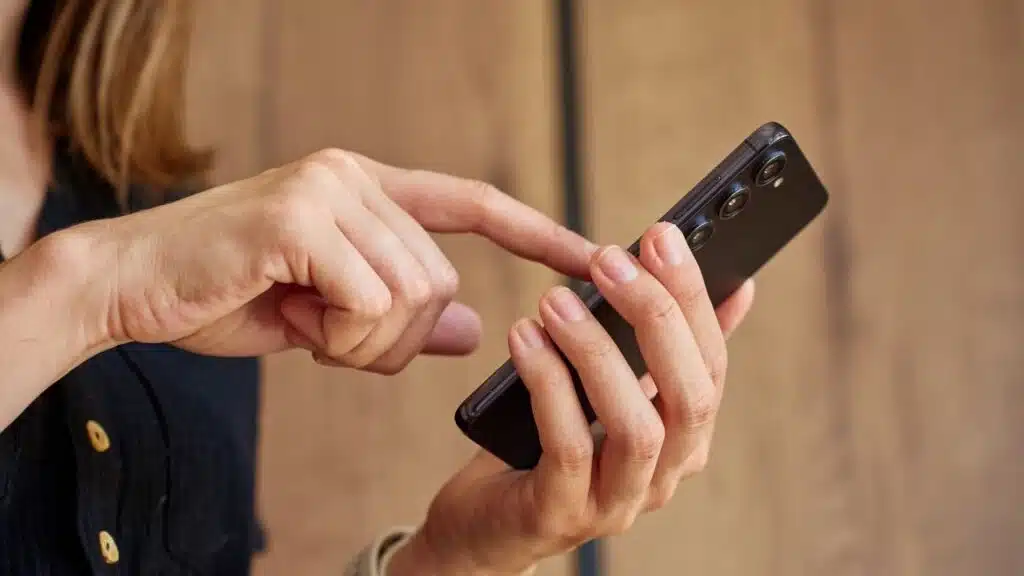
Back Tap gestures make using your smartphone faster and easier. You can do things quickly without going through menus.
- First, go to Settings on your phone.
- Then, choose Advanced options.
- Look for Smart Key or Back Tap.
- You can set a double-tap to take a screenshot.
- A triple-tap could turn on your flashlight.
- Set a double-tap for the camera too.
- Or, use a long press to wake up Google Assistant.
With these steps, you turn the back of your smartphone into a handy shortcut tool. Now, grabbing a screenshot or popping open the camera takes just a tap or two. This trick is perfect for one-handed phone use and keeps you moving fast in a busy day. Plus, setting up is as simple as visiting your settings menu and choosing what each tap does. Flip on these features and give your phone’s backside some real power!
Sharing Wi-Fi has never been easier. You can now use QR codes to connect your guests without sharing your password. Here’s how:
- Go to Settings on your Android phone.
- Tap on Network and Internet.
- Select the Wi-Fi you are connected to.
- Look for a QR Code option and select it.
- A QR code appears on the screen.
- Your guest scans this code with their smartphone camera.
- They get connected to Wi-Fi instantly.
This method avoids typing mistakes and keeps your password safe. Plus, it makes joining your network quick and painless for visitors. No more awkwardly spelling out your password or having people lean over your shoulder to see it typed in. Just a simple scan, and they’re online!
How can I check my notification history for missed alerts?
Missed an important message? Don’t worry. Your phone can show you all the notifications you missed or swiped away by accident.
Here’s how to find your notification history:
- First, open Settings on your Android phone.
- Scroll down and tap on Apps & Notifications.
- Next, choose Notifications.
- Look for Notification History and tap it.
- Now, you’ll see a list of all notifications. They’re sorted by time so you can easily find what you missed.
This feature comes with Android 11 and newer versions. It lets you see every alert your phone received in order. You won’t miss anything important again, like messages from friends or updates from apps.
Using this tool is great for keeping track of everything. If you get a lot of notifications, this can really help manage them better.
What is sound recognition and how does it improve accessibility?
Sound recognition helps people hear sounds when they can’t. It uses a smartphone’s AI to listen for important noises, like alarms or crying babies. This feature makes smartphones better for those with hearing issues.
Newer phones have tools that boost accessibility. For example, Face Pause stops the screen content if you look away. These tools use the phone’s camera and AI to spot user attention.
They make daily tasks easier and improve life for many users, especially those who need extra help with sound or focus.
Hidden Floating Windows for Multitasking
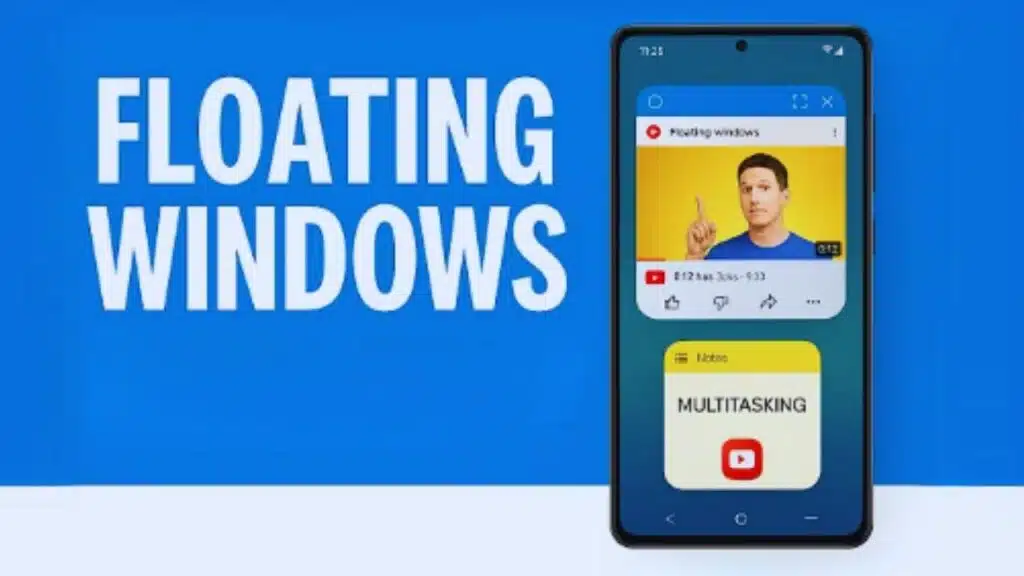
Hidden Floating Windows can change how you use your phone. They let you open apps and chat while doing other tasks. You don’t have to switch back and forth anymore. It makes multitasking easy and fun! Want to learn how to set them up? Keep reading!
Floating windows help you multitask on your smartphone. You can easily chat or check information while using another app.
- Open the Settings app on your smartphone.
- Go to Apps & Notifications.
- Look for the option named Open Floating Windows via Heads-Ups.
- Turn on this feature to allow some apps to show floating windows.
- Make sure you enable “Heads-Ups” notifications for the apps you want to use this way.
This feature works on many Android devices, especially those with custom UIs like Samsung Galaxy and Google Pixel phones. Use floating windows to switch between tasks without losing focus!
What are the best ways to use floating windows for multitasking?
Floating windows help you multitask easily on your smartphone. You can chat or browse while working on another app.
- Use a messaging app in a floating window while watching videos. This lets you respond to messages without stopping the show.
- Open a note-taking app alongside your favorite game. Jot down ideas or strategies without losing focus on your gameplay.
- Browse the internet in one floating window while using a calculator in another. This is great for shopping or budgeting, letting you compare prices easily.
- Stack multiple floating windows for quick access to apps you need often, like notes and reminders. This saves time when switching between tasks.
- Resize the floating windows to fit your needs, making sure you can see everything clearly at once.
- Use productivity tools like timers or to-do lists in their own floating windows while working on other projects. This keeps you organized and focused.
- Have music playing in a small floating window while reading articles online; this way, your tunes are always close by without blocking content.
These tricks make it easy to stay productive without missing a beat!
How can I use the Measure app as a digital tape measure?
The Measure app turns your smartphone into a digital tape measure. It uses your phone’s camera and sensors to find distances.
- Open the Measure app on your smartphone. This app is available on many Android and iOS devices.
- Point your camera at the starting point of what you want to measure. Make sure the area is well-lit for better accuracy.
- Tap the plus icon to set your starting point. This marks where you begin measuring.
- Move your phone along the object or space you want to measure. Keep it steady to help the app track the distance correctly.
- Tap the plus icon again once you reach the end of your measurement. It’ll show you how long that distance is in inches or centimeters.
- Use this tool for quick measurements around your home or office. The Measure app works best on devices with updated sensors, especially those from 2020 and later.
- Explore third-party measuring apps if you need more features like augmented reality options for even more precision.
This way, you can easily measure items without a traditional tape measure!
Takeaways
Smartphones are full of surprises. Many people miss great features that can make life easier. From quick actions with Back Tap to sharing Wi-Fi using QR codes, these tricks can save time.
Exploring your phone’s settings opens up new possibilities for fun and productivity. So, explore and discover what your smartphone can really do!
FAQs
1. How do I find my notification history on Android phones?
You can check your notification history by going to Settings, then tapping Notification management. This trick helps you see missed alerts, even if you swiped them away too fast.
2. What are developer options and why should I care?
Developer options give you access to hidden smartphone features like USB debugging or advanced tweaks for your operating system. Most folks never touch these settings, but they can help with troubleshooting or customizing how your phone works.
Yes, features like Wi-Fi Direct on Galaxy S25 models and AirDrop on iPhones let you send photos and files straight to another device nearby; no charger needed, just a few taps.
4. Is there a way to control screen time for kids using parental controls?
Absolutely! Both Android phones and iPhones have built-in parental controls that limit screen time, block certain websites in Google Chrome or Safari, and keep tabs on app use right from the lock screen.
One UI offers extra tools like better notification management while Pixel smartphones often get new tricks first, like smarter ways to search the web or use Find My iPhone, even before other brands catch up.