If your games feel choppy, your inputs delay, or your screen stutters during fights, you can usually fix League of Legends lag by separating the problem into two buckets: network lag (ping, packet loss, rubber-banding) and performance lag (FPS drops, stutter, freezing). They can look similar, but they have different fixes.
In this guide, I’ll help you diagnose what is actually happening, then walk you through the fastest fixes first, followed by deeper steps that solve stubborn problems.
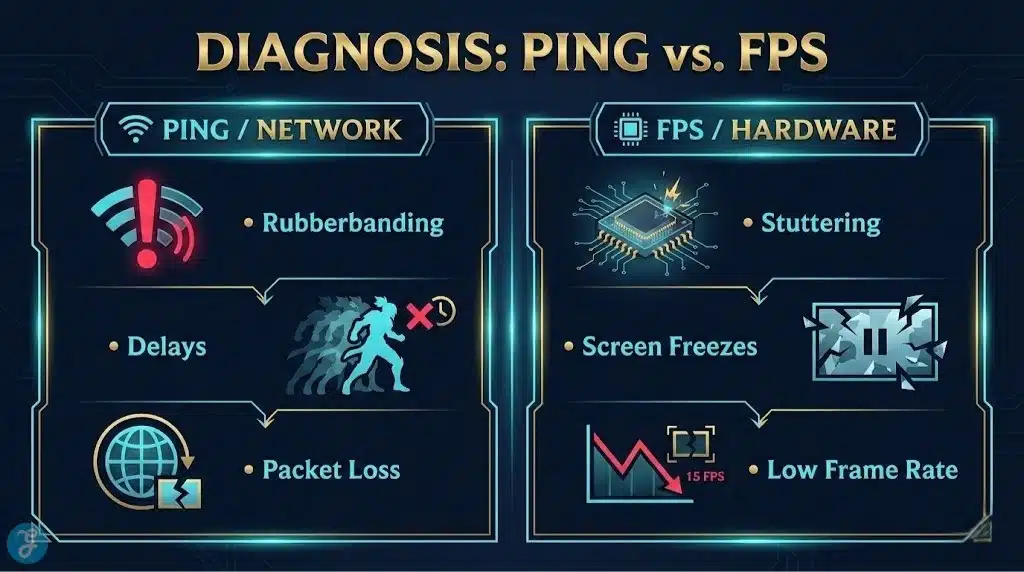
Quick Diagnosis: Is It Ping Lag Or FPS Lag
Before you change anything, identify the symptom.
-
Ping lag feels like delayed movement, skills casting late, teleporting, or rubberbanding.
-
FPS lag feels like stutter, choppy camera movement, freezes, and inconsistent smoothness.
Fast Check Inside A Match
-
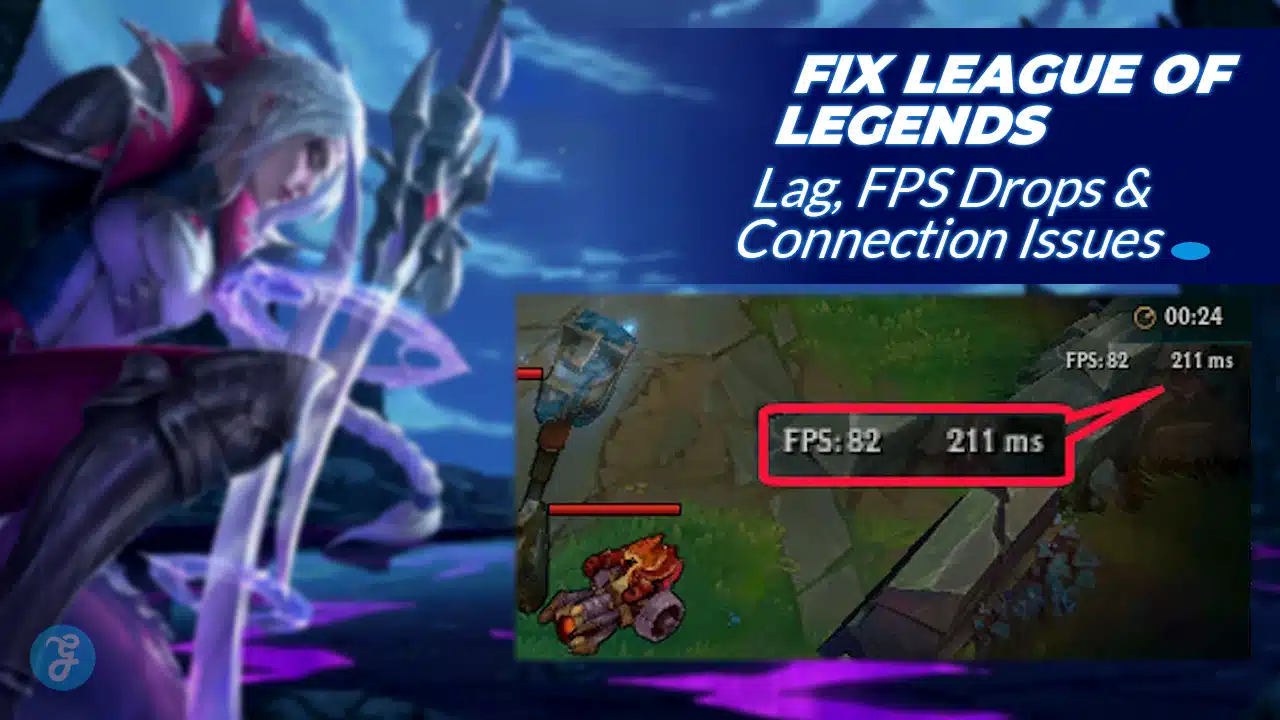
Turn on your FPS and ping display (commonly Ctrl + F) to see if ping spikes or FPS drops when the problem happens.
-
If ping jumps from stable to high, it is network-related.
-
If FPS dips hard during teamfights, it is performance-related.
Symptom Map Table
| What You Feel | What You Usually See | Most Likely Cause |
|---|---|---|
| Rubberbanding, teleporting | Ping spikes or packet loss | Wi-Fi, ISP routing, background downloads |
| Delayed abilities | Ping high and inconsistent | Server region mismatch, unstable connection |
| Choppy movement, stutters | FPS drops or frame-time spikes | Graphics settings, drivers, overheating |
| Full freeze then catches up | FPS 0 for a moment | CPU spike, disk usage, overlays, client issues |
| Smooth FPS but delayed actions | FPS stable, ping high | Network only, not GPU |
Once you know which side you’re on, you can fix the right thing instead of guessing.
Fix League of Legends Lag In 10 Minutes
Do these in order. Most players solve the issue before they reach the bottom.
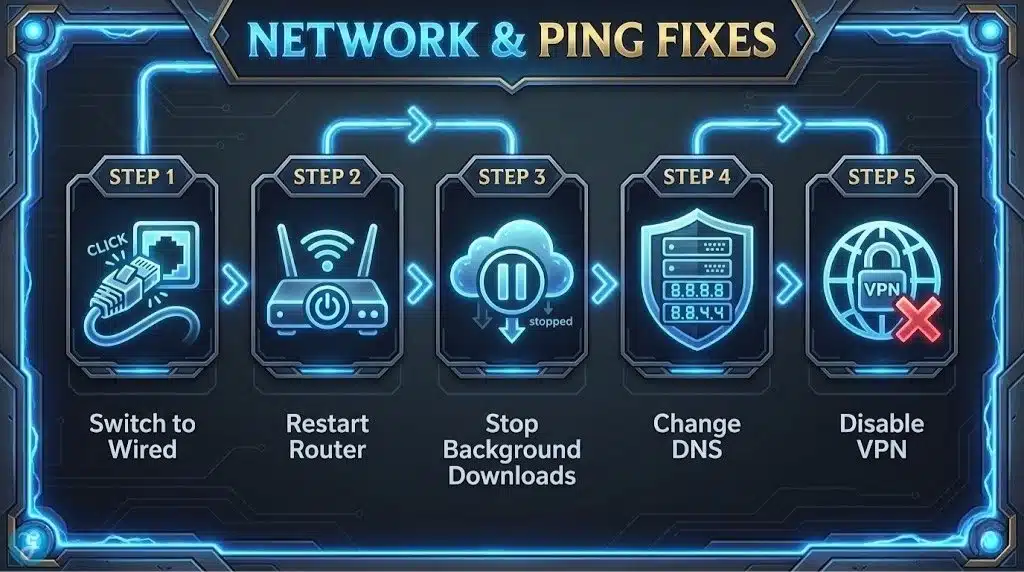
Step 1: Check Server Status And Region
-
Make sure you are playing on your correct region.
-
If servers are having issues, your fixes will not matter until the outage resolves.
Step 2: Restart Your Network Cleanly
-
Close League completely.
-
Unplug your modem and router for 30 seconds.
-
Plug in modem first, wait until stable.
-
Plug in router, wait until stable.
-
Launch League again.
This clears routing hiccups and memory issues in consumer routers.
Step 3: Switch To Ethernet
If you can, use a wired cable even temporarily.
-
Ethernet removes most jitter and packet loss caused by Wi-Fi interference.
-
If Ethernet instantly fixes the issue, your problem is Wi-Fi, not your PC.
Step 4: Stop Background Bandwidth Use
Close or pause:
-
Steam, Epic, Battle.net downloads
-
Windows updates
-
Cloud sync tools like OneDrive, Google Drive
-
Browser tabs streaming video
-
Discord screen share
You are trying to create a stable lane for League traffic.
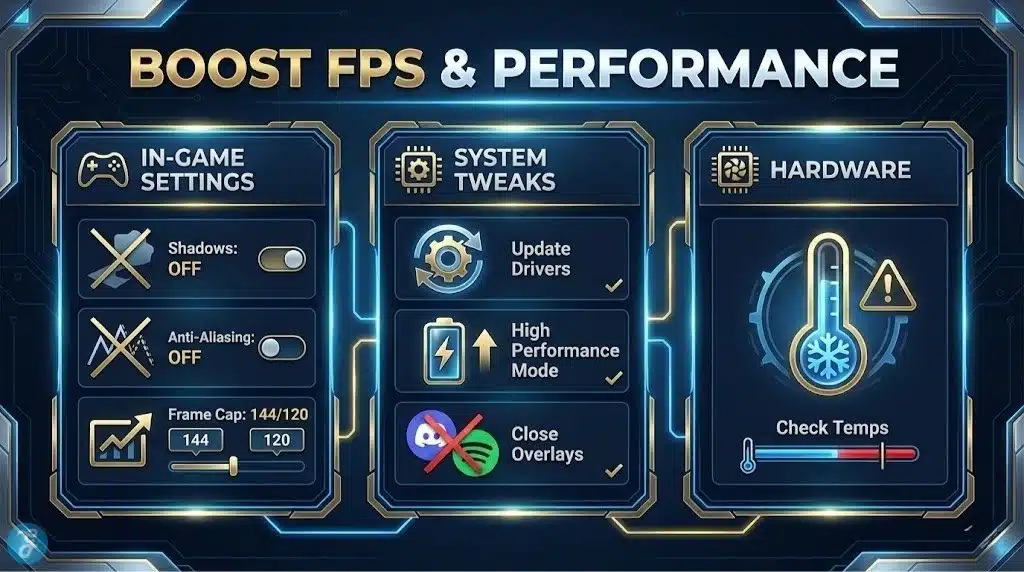
Step 5: Close Overlays
Overlays are a common reason for stutter and FPS drops.
Turn off:
-
Discord overlay
-
GeForce Experience overlay
-
Xbox Game Bar
-
Steam overlay
-
Any FPS monitoring overlays you do not need
Step 6: Use Fullscreen And Cap FPS
In video settings:
-
Set display mode to Fullscreen
-
Set a frame rate cap to something stable, like 120 or 144, rather than unlimited
A stable cap often feels smoother than higher but unstable FPS.
Fix League Of Legends Lag From Network Issues
If ping spikes, rubberbanding, or random latency jumps are your main problem, focus here.
Use A Wired Setup Or Improve Wi-Fi
If you must use Wi-Fi:
-
Use the 5 GHz band if available.
-
Move closer to the router.
-
Avoid playing through walls or across floors.
-
Keep your router away from microwaves and crowded electronics.
-
Change Wi-Fi channel in router settings if your area is congested.
Test Packet Loss
Packet loss is worse than high ping because it creates unpredictable inputs.
Signs of packet loss:
-
You move, then snap back.
-
Abilities appear late or fail to register.
-
Your ping number looks “okay” but gameplay feels wrong.
If you can reproduce the issue only during peak hours, your ISP may be congested.
Disable VPN Or Switch Routing
-
Turn off VPNs to test.
-
If you are forced to use a VPN, try another route or server location closer to your LoL region.
Some routes add jitter even when ping looks fine.
Change DNS
DNS does not “increase FPS,” but it can improve connection reliability in some cases.
Try:
-
Google DNS: 8.8.8.8 and 8.8.4.4
-
Cloudflare: 1.1.1.1 and 1.0.0.1
DNS changes are quick to test and easy to revert.
Enable QoS On Your Router
If others in your home stream or download while you play, QoS can help:
-
Prioritize your gaming device
-
Limit high-bandwidth devices
QoS reduces spikes caused by other traffic.
Open NAT And Firewall Checks
If you get frequent disconnects:
-
Allow League and Riot Client through Windows Firewall.
-
Avoid aggressive third-party firewalls unless you configure them properly.
-
If your router has strict settings, loosen them for gaming traffic.
Network Fix Checklist
-
Ethernet connected
-
Background downloads paused
-
VPN off for testing
-
Router rebooted
-
DNS tested
-
Firewall allowed League traffic
-
QoS enabled if household load is high
Fix FPS Drops And Stutter In League Of Legends
If ping is stable but the game stutters or FPS collapses during fights, you need performance stability.
Lower The Right Settings First
Some settings hit performance harder than others.
Start with:
-
Shadows: Off or Low
-
Effects: Medium or Low
-
Character quality: Medium
-
Environment quality: Medium
-
Anti-aliasing: Off
-
Wait for vertical sync: Off
Best “Smoothness” Settings
-
Fullscreen
-
Frame rate cap at a stable value
-
VSync off unless you have screen tearing that bothers you
-
Reduce effects and shadows first
Performance Tuning Table
| Goal | What To Change | Why It Works |
|---|---|---|
| Stop teamfight FPS drops | Lower effects and shadows | Big impact during clutter |
| Stop stutter spikes | Cap FPS to stable | Prevents frame-time swings |
| Reduce input delay | Fullscreen, VSync off | Less latency and overhead |
| Improve consistency | Close overlays | Overlays cause stutter |
Update GPU Drivers
Outdated or corrupted drivers can cause sudden FPS drops.
-
Update your GPU drivers.
-
If a new driver made things worse, roll back to a stable version.
Windows Power Plan
Set your power mode to performance:
-
Laptop users should stay plugged in.
-
Set Windows to Best performance where available.
Power saving modes cause CPU throttling, which looks like random stutter.
Disable Fullscreen Optimizations
For some systems, Windows fullscreen optimizations can cause stutter.
Try:
-
Right-click League executable
-
Properties
-
Compatibility
-
Disable fullscreen optimizations
Stop Background CPU Spikes
Close apps that spike CPU:
-
Browser with many tabs
-
Video encoding tools
-
Background antivirus scans
-
RGB control software that constantly polls hardware
A single CPU spike can drop your FPS to the floor during a fight.
Fix League of Legends Lag Checkpoint
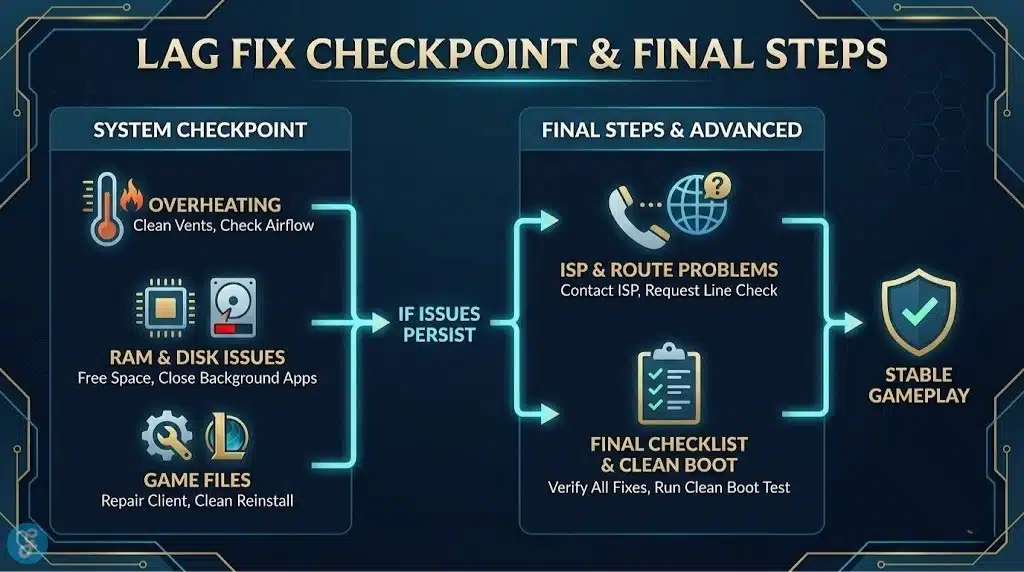
At this stage, if you still can’t fix League of Legends lag, you should confirm whether your system is overheating or paging memory. Many “mystery FPS drops” are heat and RAM issues, not settings.
Overheating And Thermal Throttling
Your laptop or PC may run fine for five minutes, then degrade.
Signs of thermal throttling:
-
FPS starts high, then slowly drops.
-
Fans get loud, then performance falls anyway.
-
Stutter happens after long sessions.
What to do:
-
Clean dust from vents.
-
Use a cooling pad for laptops.
-
Make sure your PC case has airflow.
-
Replace thermal paste if the system is old and overheating.
RAM And Disk Problems That Cause Stutter
League is not the heaviest game, but background apps can push your system into paging.
Signs:
-
Your disk usage hits 100%.
-
You stutter when effects happen.
-
Alt-tabbing becomes slow.
Fixes:
-
Close background apps.
-
Disable unnecessary startup programs.
-
Make sure League is installed on an SSD if possible.
-
Keep free disk space available.
Stutter Cause Table
| Symptom | Likely Cause | Fix |
|---|---|---|
| Stutter when abilities explode | GPU load spike | Lower effects, cap FPS |
| Stutter when moving camera | CPU spike | Close background apps, performance power plan |
| Random freezes | Disk paging | SSD install, free RAM, reduce startup apps |
| Worse over time | Heat throttling | Clean vents, cooling, airflow |
Client And Game File Fixes
Sometimes the issue is not your network or PC. It is corrupted files or a client stuck in a bad state.
Repair Game Files
-
Use the built-in repair option if available in your Riot client.
-
If repair fails, reinstall League.
Clean Reinstall If You’re Stuck
A clean reinstall is worth it when:
-
The game crashes frequently.
-
FPS issues began after a patch and never stabilized.
-
The client is slow, freezes, or fails to launch reliably.
A clean reinstall removes broken configs and corrupted assets.
Router And ISP Level Issues
If your ping is fine in other games but League spikes, the problem may be route-related.
When It’s Probably Your ISP
-
Ping spikes only at night or peak times.
-
Multiple devices feel unstable.
-
Streaming and browsing also hiccup during spikes.
In that case:
-
Try Ethernet first.
-
Try rebooting modem/router.
-
Contact ISP and report jitter or packet loss.
-
Ask for line quality checks if the problem persists.
Advanced Fixes That Often Work
If you have already done the basics, these are the next best steps.
Use A Stable FPS Cap Strategy
Instead of aiming for the highest number, aim for stable frame times.
-
If you have a 144Hz monitor, cap at 144 if your system can hold it.
-
If you cannot hold 144 consistently, cap at 120 or even 90.
-
A stable 90 often feels better than a bouncing 144.
Turn Off Unneeded Startup Programs
Use Task Manager Startup tab:
-
Disable anything you don’t need for gaming.
-
Restart your PC after changes.
Clean Boot Test
A clean boot helps identify a hidden background culprit.
-
Disable non-essential services and startup apps.
-
Test League.
-
If performance improves, re-enable apps one by one to find the offender.
Common Scenarios And The Best Fix
Scenario 1: Ping Spikes Every Few Minutes
Best path:
-
Ethernet test
-
Router reboot
-
Stop downloads
-
VPN off
-
DNS test
Scenario 2: FPS Drops Only In Teamfights
Best path:
-
Lower effects and shadows
-
Cap FPS
-
Close overlays
-
Update drivers
-
Check temperatures
Scenario 3: Random Freezes Even On Low Settings
Best path:
-
Close background apps
-
Check disk usage and RAM
-
Install on SSD
-
Repair files
-
Clean reinstall if needed
Scenario 4: Only League Feels Laggy
Best path:
-
Verify region
-
Repair files
-
Reinstall
-
Test different network route, no VPN
Final Checklist
Use this as your last pass if the problem is still here.
Network Checklist
-
Ethernet connected
-
Router and modem rebooted
-
Downloads paused
-
VPN off for testing
-
DNS tested
-
Firewall allowed League
Performance Checklist
-
Fullscreen on
-
FPS capped
-
Shadows and effects reduced
-
Overlays off
-
Drivers updated
-
Windows power mode set for performance
-
Temperatures stable
If you go through the list and one fix changes everything, keep it simple. You do not need ten tweaks if one was the real cause.
Wrap-Up
You can fix League of Legends lag quickly once you identify whether the issue is ping, FPS, or both. Start with the 10-minute steps, then move into the right section for network or performance. Most problems come from Wi-Fi instability, background downloads, overlays, unstable frame pacing, or heat throttling, and all of those have straightforward fixes when you approach them in the right order.