
Have you seen odd login attempts or slow page loads on your web server? You may face cross-site scripting, sql injection, or command injection attacks. You need clear Steps To Set Up A Secure Web Server For Your Website.
Key Takeaways
- Over 80% of breaches start on unpatched servers. Pick Linux or IBM’s AS/400. Use cron jobs on Linux or WSUS on Windows Server. Run yum or apt-get and install patches like NT SP3 in order. Log each update.
- Install Uncomplicated Firewall on Linux or Windows Firewall on NT. Set a default deny policy. Open only TCP ports 80 and 443. Add an SSL/TLS certificate with OpenSSL or Certbot and renew it before expiry.
- Disable unused services with systemctl or service commands. Block all TCP ports except needed ones. Mount file systems with noexec, nodev, nosuid flags. Turn off SSH root login, use ssh-keygen for RSA 4096-bit keys, and add YubiKey two-factor authentication.
- Deploy OSSEC, Wazuh, Tripwire, Snort, and Suricata. Schedule monthly OpenVAS or Nessus scans. Ship logs to Splunk or Kibana. Review logs daily for SQL injection, XSS, or DDoS indicators.
- Keep three backup copies on two media types with one offsite. Encrypt every set and test it monthly. Use a VPN tunnel with AES-256 for admin access. Enable MFA, add a WAF, and use DDoS shields like Cloudflare or AWS Shield.
Choose a Reliable Operating System
Most admins pick Linux to harden their web server. IBM once said AS/400 stood as safest web server on earth. Open source code helps teams fix security vulnerabilities faster. A network security expert can tune iptables and SELinux rules.
Regular security updates bring fresh patches. Windows NT ships with open holes if you skip tweaks. Linux adapts to cloud hosting, dedicated servers, or managed hosting plans. You can isolate your ip address space to guard against ddos attacks.
Intrusion detection tools run smoothly on most distributions.
Regularly Update Your Server and Software
Skipping updates lets hackers exploit known vulnerabilities. Activate auto patching on Windows Server or Red Hat Enterprise Linux.
- Activate automatic updates using cron jobs on Linux or WSUS on Windows Server to get security patches as soon as publishers release them.
- Load the latest service pack, such as SP3 for NT, after OS install then apply hotfixes in chronological order to patch obscure security problems.
- Delay patch installs for one week to catch faulty updates and avoid new errors on the web host.
- Use yum on Red Hat Enterprise Linux or apt-get on Ubuntu to fetch security patches, data encryption fixes, and command injection shields.
- Run vulnerability scans with network security tools and test for SQL injection attacks, cross-site scripting (xss), and denial of service holes after each update.
- Install mandatory post-SP3 NT hotfixes such as getadmin-fix, teardrop2-fix, srv-fix, simptcp-fix, and pent-fix to stop viruses and malicious code.
- Record each patch in server logs for security audits, to track compliance, and to spot bots or brute-force exploits.
- Configure Ansible or another patch manager to enforce consistent update states across dedicated servers, cloud hosting, or VPS hosting.
Set Up a Strong Firewall
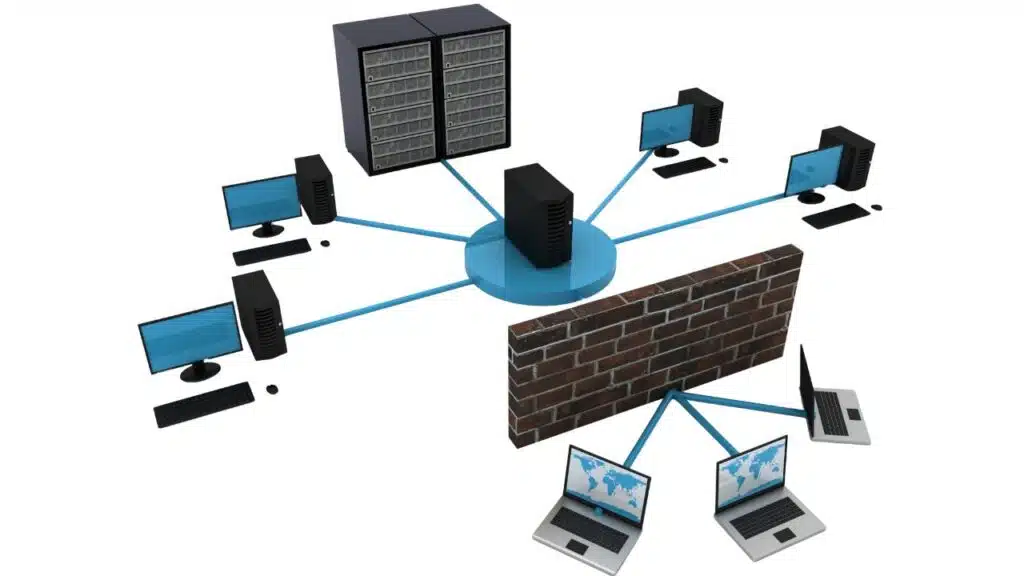
A strong firewall blocks unauthorized traffic on your network. It blocks bad packets from the internet and fends off Denial of Service and Distributed Denial of Service attacks. TCP/IP filtering lets you allow only needed ports like 80 for web traffic, which boosts web server security.
Misconfigured firewalls rank as a top server security vulnerability.
Install Uncomplicated Firewall on Linux hosts and enable Windows Firewall on Microsoft servers. Create default deny rules, then open only HTTP and HTTPS ports. Run systemctl commands to list services in Red Hat and Debian, and shut off extra ports.
Audit firewall rules each month to catch mistakes and tighten network security.
Use HTTPS with SSL/TLS Certificates
An SSL certificate, from a trusted CA like a free certificate vendor, locks your domain name behind strong encryption. It guards data in transit from eavesdropping or tampering. Web browsers, such as Chrome or Firefox, shout out warnings on HTTP pages.
That drives visitors away fast. Lack of encryption ranks high among server vulnerabilities. SSL/TLS builds a tunnel to stop cyber attacks and code injection. Search engines bump sites with HTTPS, you gain a better rank.
You must renew certificates before they expire, or you trigger security warnings. Tools like OpenSSL or Certbot help you install and update keys. Many hosting providers, even Liquid Web, add free TLS support in shared hosting or VPS hosting plans.
Encrypted sessions boost network security, they also block man in the middle exploits. Strong data encryption stops hackers from reading cookies or session tokens. Live vulnerability scans catch broken ciphers or weak keys early.
Imagine a sealed envelope, no one but you can read the letter.
Disable Unnecessary Services and Ports
Open ports and extra services invite attacks. You cut risk when you disable them.
- Run systemctl or service commands to list active daemons. Disable nonessential services to shrink your attack surface and reduce security vulnerabilities.
- Block all TCP/IP ports except 80 via built-in filtering tools. Stopping extra ports cuts denial of service (dos) risk and boosts network security.
- Harden /etc/fstab and mount user-writable directories separately. Add nosuid, nodev, noexec options in the file systems table to avoid command injection.
- Turn off boot from removable media in BIOS or UEFI if you never use USB or CD drives. This setting stops rogue hardware hacks and shields host security.
- Update Windows registry keys AutoShareServer and AutoShareWks to zero. This tweak removes default admin shares and tightens network file sharing.
- Lock the guest account until you need it, then create or delete guest profiles as you go. This habit enforces strong access controls and cuts unauthorized logins.
- Use port forwarding rules to close unused services on dedicated or virtual private network hosts. This step stops hidden listeners and keeps web server security tight.
Implement Access Controls
Insufficient access controls leave your server open to exploitation. You risk hacking, SQL injection, XSS attacks, and other security vulnerabilities.
- Whitelist only trusted IP addresses to lock down network security and block brute force attempts.
- Create a separate user with sudo privileges, disable direct root login on dedicated servers and shared hosting alike.
- Restrict remote Registry calls at SecurePipeServers\winreg under hkey_local_machine, use reg_sz rules to block outside access.
- Set the reg_dword value for RestrictGuestAccess to 1 in the registry, protect server logs from anonymous reads.
- Control Object Access audit category in the registry to track failed logins, pair logs with IDS signature rules for deep insight.
- Configure RestrictAnonymous entries to block unknown shares and user lookups, strengthen host security.
- Remove network logon rights from decoy administrator accounts, cut off false targets in penetration testing scenarios.
- Pair these settings with a virtual private network (vpn) for remote access, safeguard web application management over dynamic ip links.
Use Secure Passwords and SSH Keys
Secure logins shield your web server from exploits. Strong passwords and key pairs block automated hacks.
- Create strong passwords with at least 12 characters, combine lower and uppercase letters, numbers, and symbols to block brute force tools.
- Rotate these codes every 90 days, use a password manager like KeePassXC or Vaultwarden for safe storage and quick recall.
- Enable two-factor authentication with YubiKey or an authenticator app to add a second layer on your cloud hosting servers.
- Generate new Secure Shell key pairs with the OpenSSH ssh-keygen tool on Linux or macOS, set RSA at 4096 bits for solid data encryption.
- Edit the /etc/ssh/sshd_config file to set PermitRootLogin no, Protocol 2, and AllowGroups sshusers, this sets access controls and stops direct root login on your vps hosting.
- Block password authentication by setting PasswordAuthentication no in sshd_config to force key use and cut server logs of failed attempts.
- Store your private key in a safe folder, set file permission to 600, so no other user reads it on your dedicated server.
- Replace keys every year or after any compromise, this practice keeps network security strong and prevents exploited credentials.
Separate Development and Production Environments
Isolate web apps and databases on different machines, using a bare metal server for your database to shield sensitive records if your web server goes down. This split stops cross-site scripting attacks and SQL injection, and shrinks the blast radius like a firebreak, so a single hack can’t trash both layers.
Dev servers sit in a staging VLAN, away from live traffic, so testing code never leaps into your domain name system or server logs. You can tweak access controls, firewall rules, and data encryption in each zone, crafting distinct network security and host security policies without worry.
Physical separation on a dedicated hosting plan adds extra layers of physical security, and logs show you each stage clearly, helping spot security vulnerabilities fast. You run vulnerability scans on your staging box with tools like clamav, without ever touching production.
A DMZ gateway sits between your box and the database server, barring direct internet access to precious records. This arrangement protects strong passwords and SSH keys while you refine code, and it thwarts command injection.
Harden File and Directory Permissions
Lock down file rights. Weak settings invite hackers.
- Audit file rights using CACLS or DumpACL to view current settings on your bare-metal servers or virtual private server hosting.
- Switch to NTFS on Microsoft Windows Server 2019 to gain advanced directory security over FAT file systems.
- Mount user-writable folders like /var/log on Ubuntu 20.04 with noexec, nosuid, nodev flags in /etc/fstab to block command injection and xss attacks.
- Lock /boot as read-only and shield the GNU GRUB menu with a password to stop tampering.
- Remove default shares like admin$, C$ or IPC$ on Amazon EC2 or managed cloud instances to close gateways for attackers.
- Grant only needed rights through file control lists in your OS to tighten host security and network security.
- Enforce strong passwords and use SSH key pairs for root logins to raise secure web server defenses.
- Run weekly vulnerability scans and review server logs from Apache or Nginx to catch misconfigured rights early.
- Secure the patch folder by locking down /opt/patches to stop intruders from injecting bad code during security patches.
Install and Configure Security Tools
Online threats hit servers every day. Security tools spot intrusions fast.
- Deploy OSSEC host monitor on your Linux or Windows vps hosting, set rules to block cross-site scripting and sql injection.
- Configure Wazuh agent with Elastic Stack in cloud hosting or dedicated servers to track file changes and user actions.
- Add Tripwire integrity checker to watch critical folders, map reg_multi_sz values in registry editor and catch unauthorized edits.
- Run Snort packet sniffer on your router or network gateway to scan HTTP, SMTP and simple mail transfer protocol traffic.
- Launch Suricata traffic engine inline for fast threat drops, it flags command injection attempts in Apache or Nginx logs.
- Activate auditd or Windows audit to log registry keys, folder rights and nameservers shifts in ddns setups.
- Schedule OpenVAS or Nessus vulnerability scans monthly to catch security vulnerabilities and missing security patches.
- Integrate Graylog or Kibana with your server logs to sort events and trigger alerts on brute force or DDoS signs.
- Enable automated alerts from your HIDS and NIDS tools to warn on ssh failures, weak passwords or odd access controls changes.
- Install a web application filter in Apache or Nginx to block XSS, sql injection and other web server security threats.
Monitor Server Logs Regularly
Server logs reveal odd hits fast. They spark rapid breach response.
- Set a fixed schedule for log scans. Run scans daily or weekly to spot odd network security events.
- Save event logs on a remote host. You can use cloud hosting from your hosting provider or a dedicated server for later audit.
- Lock down log file access in the Registry Editor by setting RestrictGuestAccess=1. This step strengthens host security and access controls.
- Activate Object Access events in audit policy. This helps you track system changes and data encryption events.
- Turn on full privilege auditing (FullPrivilegeAuditing=1). This logs all uses of admin rights on the secure web server.
- Use an IDS tool like Snort or OSSEC. It checks log entries in real time for threats or anomalies.
- Scan web server logs for XSS, SQL injection, command injection, odd DNS requests, and dynamic DNS changes. This cuts cross-site scripting and injection risks.
- Link log feeds to a SIEM system such as Splunk. It sends alerts on security vulnerabilities and spikes in network traffic.
- Review logs after security patches or updates. It confirms that new code does not open new holes.
- Schedule log reviews at regular intervals. This helps detect unusual access and assists post breach forensics.
Schedule Regular Backups
Frequent backups keep your site live after a hack or crash. Follow simple steps to store copies on different media and offsite.
- Keep three copies of your website files
- Use two types of storage media
- Store one copy at a remote location
- Encrypt all backup sets for data encryption
- Test backup integrity every month
- Schedule daily backups for critical databases
- Limit backup access with strict access controls
- Include on-site drives and cloud hosting storage
- Verify dedicated servers include backup features
Use a Web Application Firewall (WAF)
Web Application Firewalls filter HTTP traffic to shield your secure web server. Code injection attacks like Remote Code Execution and cross-site scripting (XSS) hit a wall. This tool adds another layer beyond your network security and host firewall.
You can deploy it on dedicated servers, VPS hosting, or cloud hosting. You tweak its rules to stop sql injection and command injection threats.
Liquid Web pairs DDoS protection with its WAF service. That move helps you meet compliance rules for data protection. The system flags security vulnerabilities and logs them in your server logs.
Admins run vulnerability scans to test its strength. A tuned WAF cuts the risk of data theft or compromise.
Deploy a VPN for Remote Access
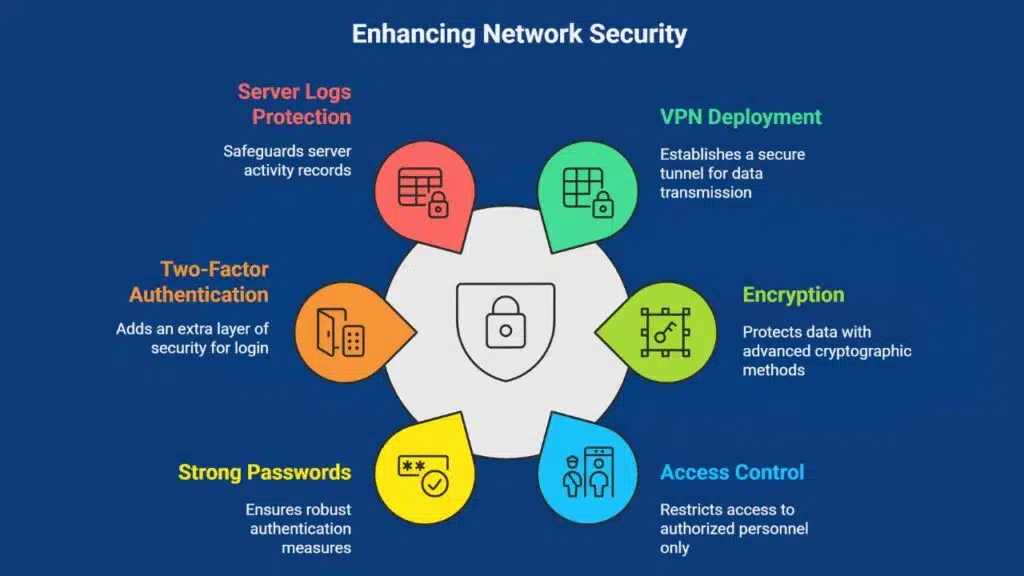
Point-to-point tunneling protocol hides data on its path. It uses AES-256 encryption to stop sniffing attacks on shared hosting, vps hosting, or cloud hosting networks. You restrict network security to a small group of admins.
A secure web server stays hidden from prying scanners on the public net.
Admins must use strong passwords and two-factor login in a VPN client. They reach host security consoles only inside the private tunnel. That method locks out direct access to admin interfaces; it boosts site safety.
You keep server logs safe and fend off sql injection, command injection, cross-site scripting probes from outside.
Protect Against (D)DoS Attacks
DoS and DDoS attacks flood server resources until services crash. Malicious actors, like rival firms or hacktivists, unleash botnets for business gains or malice. This threat ranks high among security vulnerabilities for a secure web server.
Cloud hosting plans from Liquid Web absorb junk traffic and help maintain uptime. Liquid Web offers DDoS protection for VPS hosting and dedicated servers. Network security tools, such as Cloudflare and AWS Shield, set rate limits and stop bogus requests.
Fail2ban blocks IPs that hammer SSH or web ports. Many hosting providers include DDoS shields in managed hosting plans. Monitor your domain name panel for unusual traffic spikes to spot an attack early.
Secure Database Connections
Place your data hub on a separate server and block public access. Link your site host to the data hub with a TLS tunnel or Secure Shell link. This stops attackers from probing your records through sql injection bugs.
Patch MySQL or PostgreSQL monthly with the latest security patches. Restrict each account to just the rights it needs, to reduce security vulnerabilities.
Lock down file and folder rights on your data hub. Turn on logging in PostgreSQL and scan server logs for odd logins or strange queries. Use strong passwords or Secure Shell key pairs for each admin.
Set network security rules so only your secure web server can reach the data hub. This approach also cuts off command injection attempts.
Implement Multi-Factor Authentication (MFA)
Add a login step that asks for more than a password. You enforce Multi-Factor Authentication (MFA) on SSH and web console access. This extra check makes it tough for hackers to slip past network security.
You set up MFA on your cloud hosting account and VPN. It cuts unauthorized access risk by leveraging Two-Factor Authentication (2FA) to shield your secure web server from security vulnerabilities.
You choose a YubiKey token or Google Authenticator for code generation. A text message with a one-time code also works for older systems. Pair MFA with strong passwords and SSH keys to lock down remote shells.
You test each method in a test environment every six months. You swap out weak options as better tools hit the market.
Run Vulnerability Scans Periodically
Your server needs routine checks to catch weak spots. Scans catch flaws before attackers strike.
- Deploy a vulnerability scanner like a popular network scanner or open source tool to hunt SQL injection and cross-site scripting flaws.
- Set monthly or quarterly checks to find outdated packages, misconfigured firewalls, and open ports.
- Use an external probe from your cloud hosting provider and an internal scan on your LAN for full coverage.
- Turn on Object Access auditing under Windows settings to log base object changes and spot permission gaps.
- Link scan alerts to patch automation so teams fix security vulnerabilities right after they surface.
- Save each scan report in your server logs for audit trails, compliance records, and trend analysis.
- Review open ports and old software versions that expose your web server to command injection risks.
- Combine automated checks with manual tests via an application security proxy to boost network security.
Stay Informed About Security Threats
Staff join monthly security reminders and quarter training sessions. Network teams scan the common vulnerability list weekly, and they pull updates from a cyber agency and a public firm.
These checks catch many security vulnerabilities early.
Experts update web server security rules after reviewing OWASP and attacker methods from MITRE data. Teams run vulnerability scans, review server logs and drill on phishing and travel security twice a year.
They revise policies in line with new malware and sql injection warnings.
Takeaways
Your server now wears a strong shield. SSH key pairs guard remote access, SSL/TLS locks down data, and your firewall shuts extra ports. A web application firewall cuts off XSS and SQL injection.
You run weekly vulnerability scans, track server logs, scan with a port scanner, and back up data before trouble hits. Stay curious, read security blogs, and update your software with each new patch.
This milestone means your site is ready to welcome visitors safely.
FAQs
1. What is a secure web server?
Think of your server as a bank vault. Firewalls block bad data, that is network security in action. Host security settings lock down your box. If you run gear on-site, use physical security too. Install security patches to seal gaps. Track all moves in server logs, and guard against cross-site scripting (xss), sql injection, and command injection. On Windows setups, use the aregistry editor to lock key settings.
2. How do I pick a hosting plan?
Pick a short domain name that people can type fast. Do the domain registration with a top hosting provider. Then pick a hosting plan. Use shared hosting to save cash. Try vps hosting if you need more speed. Go with cloud hosting to grow on demand. Or pick dedicated servers for full power. Check each plan for auto security patches.
3. How can I stop sql injection and xss?
Bad code in forms is an open door. Filter all user input to stop sql injection and cross-site scripting (xss). Set rules that block odd commands, this also thwarts command injection. Run daily vulnerability scans to catch weak spots. Fix any holes you find fast.
4. Why use strong passwords and security patches?
Your password is the lock on your front door. Use strong passwords with mixed letters, numbers, and symbols. They help beat brute force. Security patches are like repairs on a roof leak, they fix new flaws fast. Most hosting providers add these patches on shared hosting, vps hosting, or managed hosting. This keeps your site snug on any web hosting plan.
5. How do I review server logs and vulnerability scans?
Logs are like a diary for your site. They list every visit and action in server logs. Read them each day to spot odd traffic. Then run vulnerability scans to test your defenses. Look for xss, sql injection, and command injection tries. Fix any issues at once.