

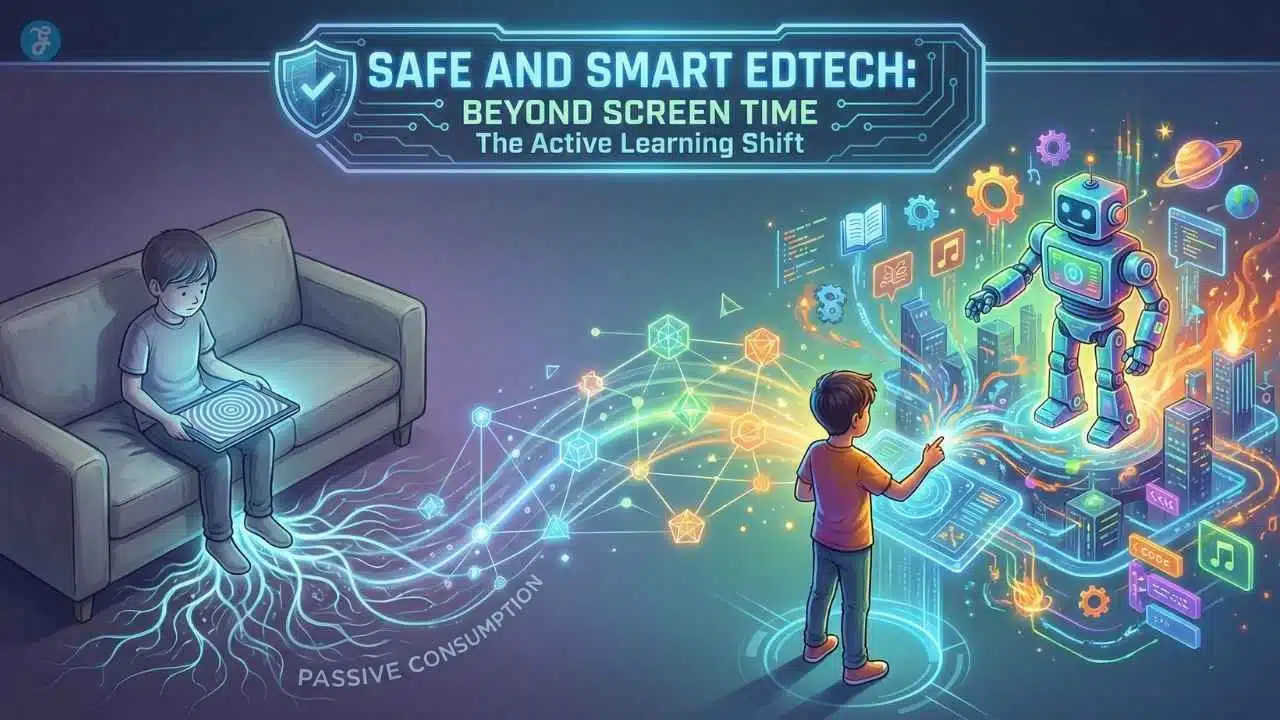
The “screen time wars” that defined the last decade are finally coming to an end. For years, parents were told that the only solution to the digital dilemma was restriction. But as we settle into 2026, the conversation has fundamentally shifted. We are no longer guarding the gates; we are teaching our children how to build them. In this new era, finding Safe and Smart EdTech for Kids is not just a luxury; it is a parenting necessity.
The goal is no longer to simply limit technology, but to leverage it to raise a generation of creators, thinkers, and innovators. This guide is your definitive roadmap. We are moving beyond the fear of screens and exploring how to optimize them. We will dismantle the myths, look at the data, and provide you with actionable strategies to turn your child’s tablet from a digital pacifier into a powerful creative studio.
Whether you are navigating the terrible twos or the tumultuous teens, the principles of safety, intentionality, and active learning remain the same.
Key Takeaways
| What To Do | Why It Matters | What It Looks Like At Home |
| Pick purposeful screen time, not default feeds | The device teaches something either way | “We use screens to learn, create, and connect.” |
| Prefer active learning over passive consumption | Action builds memory and confidence | Practice, projects, teach-back moments |
| Go ad-free for young kids whenever possible | Ads hijack attention and can raise privacy risk | Clean apps, parent gates, simple interfaces |
| Use parental controls to support routines | Controls reduce friction and risk | Downtime, app limits, and install approval |
| Measure outcomes, not just minutes | Minutes don’t show impact | Sleep, mood, progress, family harmony |
The 2026 Reality Check: What Kids Are Really Doing On Screens
Kids don’t just “use screens.” They play games, watch short videos, do homework, message friends, explore AI features, and bounce between apps built to keep them engaged. That mix matters because not all screen time is equal, and not all “educational” content teaches.
The modern challenge is that many devices open into algorithm-driven feeds, autoplay, and reward loops. If you do nothing, the device still shapes habits. It may train focus and curiosity, or it may train scrolling and impulsive clicks.
The good news is you don’t need to become a tech expert to steer the experience. You need a simple decision framework, a few default settings, and a home rhythm that makes sense for real life.
What “Safe And Smart” Means In 2026
In 2026, “safe” is not only about blocking inappropriate content. It also includes protecting your child from systems that quietly shape behavior, tracking, targeting, endless recommendations, and design tricks that make stopping difficult.
“Smart” isn’t about using the newest tools. It’s about using technology intentionally so your child gains something that lasts: stronger reading, better math fluency, clearer thinking, creative output, or real confidence in a skill.
A simple way to remember the goal is this:
“Safe protects your child’s attention and privacy. Smart grows your child’s skills and independence.”
When a tool does both, it belongs in your home routine.
What Counts As “Smart Screen Time” With A Clear “Red Flags” List
When parents ask, “Is this app good?” they’re usually asking four questions at once:
- Does this teach something real?
- Is it safe and age-appropriate?
- Will it fit my child’s personality and needs?
- Will it make life calmer—or spark more conflict?
Use this framework to answer those questions quickly.
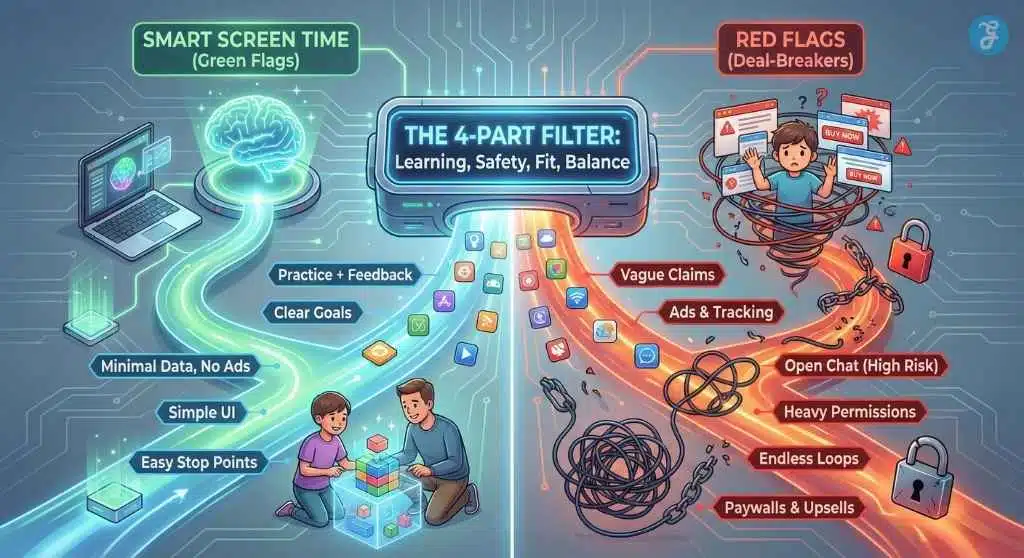
The 4-Part Filter: Learning, Safety, Fit, Balance
| Filter | Questions To Ask | Green Flags | Red Flags |
| Learning Value | What skill improves? How do we know? | Practice + feedback, clear goals | Vague “educational” claims |
| Safety & Privacy | Ads? tracking? chat? permissions? | Minimal data, no ads, parent gate | Ads, open chat, heavy permissions |
| Fit For Age | Can my child use it well? | Simple UI, short sessions | Overstimulating, confusing menus |
| Balance | Does this support our day? | Easy stop points | Endless loops, autoplay, constant rewards |
If a tool fails badly in Safety & Privacy, it’s usually not worth “trying anyway.” You can find learning elsewhere without taking that risk.
The Red Flags Parents Should Treat As Deal-Breakers
Some problems are “manageable.” Others are not worth negotiating with. Treat these as deal-breakers, especially for younger kids:
- Open chat or unmoderated social features (high risk, low learning value)
- Aggressive in-app purchases or paywalls tied to frustration (“stuck? pay to win”)
- Endless content loops with no natural stopping points
- Heavy permissions that don’t match the app’s learning purpose
- Ad-heavy experiences that interrupt learning and encourage impulsive taps
If you see two or more of these at once, the safest move is to replace the app rather than “manage it better.”
Age-Based EdTech Blueprint For 2026
One of the biggest reasons families struggle is trying to use one rulebook for every age. But toddlers, grade-school kids, tweens, and teens have very different needs and very different vulnerabilities.
Instead of asking, “How much screen time is okay?” ask, “What job should screens do at this age?”
Ages 2–4: Calm, Short, Guided
At this stage, the best EdTech behaves like a gentle learning toy. You want repetition, basic concepts, and language exposure—without ads, fast pacing, or “endless” design.
Choose experiences that feel simple and contained. If the app makes stopping hard, it’s not toddler-friendly, even if it looks cute.
Ages 5–7: Foundations And Confidence
Kids in this range thrive on structure and quick wins. They’re building reading fluency, number sense, and emotional self-control.
Short, predictable sessions work best. You’ll get more progress from consistent routines than from occasional long stretches.
Ages 8–10: Skill-Building And Projects
This is where you can shift from “learning apps” into “learning systems.” Kids can handle longer sessions if the activity has clear goals and satisfying progress.
This is also a great age to begin creation tools and beginner project paths, including early coding.
Ages 11–13: Independence With Guardrails
Tweens want autonomy and are ready for deeper work. But they’re also highly vulnerable to distraction, social pressure, and algorithm-driven content.
This age benefits from shared rules that feel fair: explain the “why,” build routines, and keep the guardrails visible rather than secret.
Ages 14–17: Real Outputs, Real Responsibility
Teens do best when tech supports real-world outcomes: portfolios, skills, learning for a goal, and building things that matter.
Instead of policing every minute, focus on sleep protection, notification control, and purposeful creation.
The One-Minute App Test
You don’t need 30 reviews and a spreadsheet to decide if an app is worth it. Use this five-question test.
Ask These 5 Questions
- What skill does this build, specifically? If you can’t name a skill in one sentence, it’s probably not educational.
- Does my child actively respond or create? Active learning beats passive watching.
- Can my child stop easily without a meltdown? If the app is designed to make stopping painful, expect battles.
- Is it ad-free (especially for young kids)? Ads disrupt learning and can pull kids into risky clicks.
- Does it collect more data than it needs? If the permissions feel excessive, skip.
From Passive To Active: The Learning Ladder That Works
A child can spend an hour on a “learning app” and still practice nothing meaningful. The difference is engagement type.
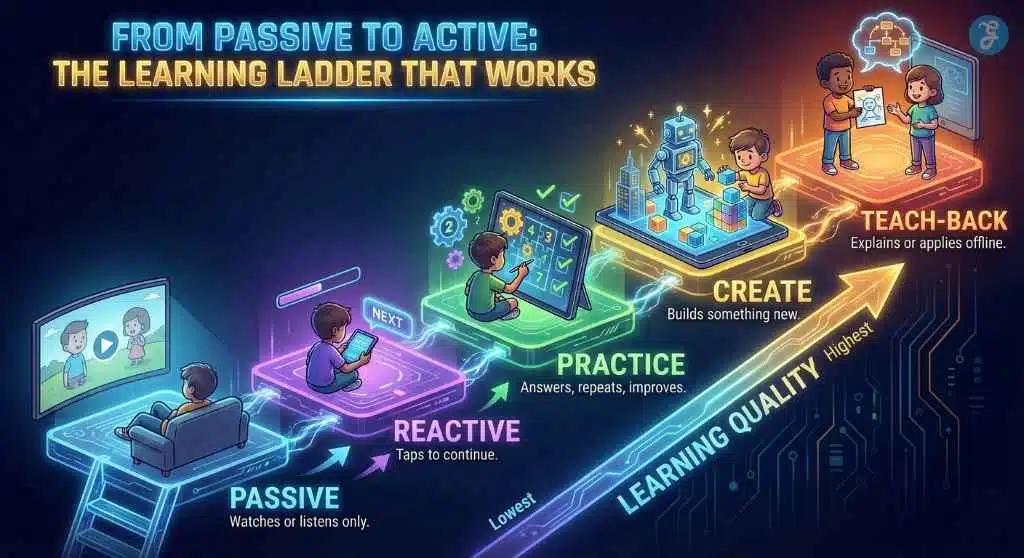
Use this ladder to evaluate learning quality:
| Level | What The Child Does | Learning Quality |
| Passive | Watches or listens only | Lowest |
| Reactive | Taps to continue | Low |
| Practice | Answers, repeats, improves | Good |
| Create | Builds something new | High |
| Teach-Back | Explains or applies offline | Highest |
Your goal is not to eliminate passive content forever. Your goal is to make passive content the exception, not the default.
Teach-Back: The Fastest Parent “Upgrade”
Teach-back doesn’t require a lecture. It can be one sentence:
- “Show me how you solved that.”
- “What’s one thing you learned?”
- “Can you teach me the new word?”
That tiny moment converts screen time into memory.
Choosing The Safe and Smart EdTech for Kids Device
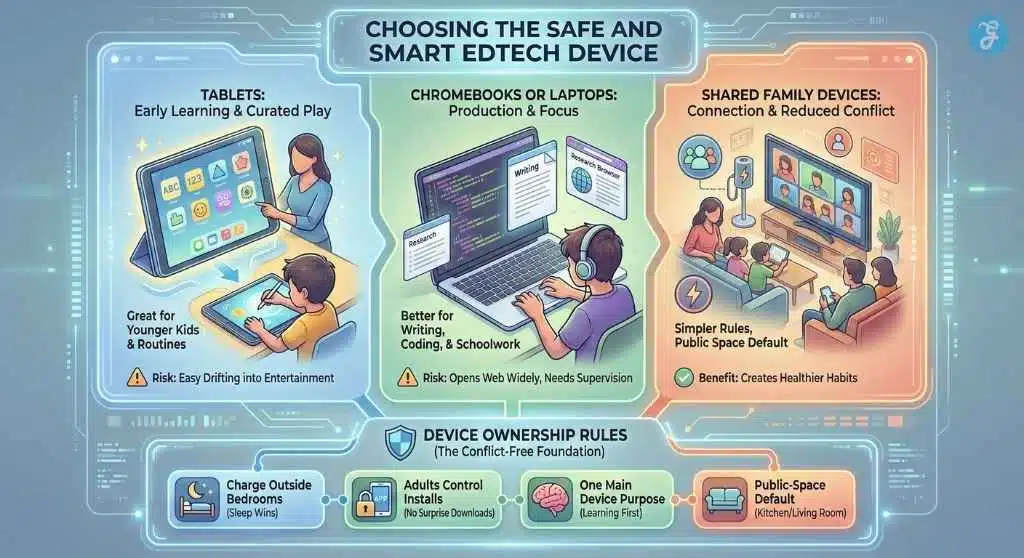
Apps matter, but the device choice shapes the entire experience. Some devices naturally encourage quick switching and passive consumption. Others encourage longer focus and production. That’s why choose a proper device and learn how to set up parental controls on Android and iOS.
Tablets
Tablets are excellent for younger kids and early learning routines—especially when the home screen is curated into a “learning-only” environment. The risk is that tablets also make drifting into entertainment very easy.
Chromebooks Or Laptops
Keyboard devices are better for writing, research skills, schoolwork, and coding. They tend to promote longer focus. They also open the web more widely, which makes filters and supervision more important.
Shared devices are underrated. They reduce ownership battles, simplify rules, and keep screens in public spaces. For many families, shared devices create healthier habits than “personal devices for everyone.”
A simple rule helps: if you want your child to consume, a tablet makes it easy. If you want your child to produce, a keyboard device helps earlier than you think.
Device Ownership Rules That Save Parents Years Of Stress
If you’re considering a “personal device,” decide the rules before the device enters the house. The simplest approach is to treat devices like a family car: your child uses it, but it’s still managed by adults.
Here are the rules that prevent the most conflict:
- Devices charge outside bedrooms (sleep wins every time)
- Adults control app installs (no surprise downloads)
- One main device purpose per season (learning-first, balance-first, or connection-first)
- Public-space default for younger kids (kitchen/living room beats bedroom)
These rules reduce power struggles because they remove the “ownership debate.” Your child doesn’t feel targeted—this is just how your home works.
Screen Time That Counts: Why Gamification Can Improve Learning

Gamification is often misunderstood. It doesn’t mean turning school into a casino. Done well, gamification in education helps to make goals clear, provide quick feedback, and make persistence rewarding.
Learning games don’t distract from learning. They make practice feel doable.
Gamification That Helps Vs. Gamification That Hooks
Healthy gamification tends to reward mastery, effort, and improvement. Risky gamification tends to reward streaks, endless engagement, and spending.
Here’s the parenting reality: if the reward becomes the reason your child plays, learning becomes a side effect. You want the opposite.
A Parent Rule That Keeps It Simple
Prefer apps that reward skill progress. Be cautious with apps that reward time spent, daily streaks, or constant checking.
Motivation Without Addiction: The Difference Parents Can Feel
A good learning game leaves your child feeling capable—like they achieved something. A risky game leaves your child feeling restless—like they didn’t get enough.
Watch what happens after the session:
- If your child transitions smoothly, the tool likely supports regulation.
- If your child spirals into “one more, one more,” the tool may be relying on compulsion.
You don’t need to label the game as “bad.” You can simply use it differently: shorter sessions, clearer stopping points, and a required offline break before another round.
The Toddler Standard: Ad-Free Learning By Default
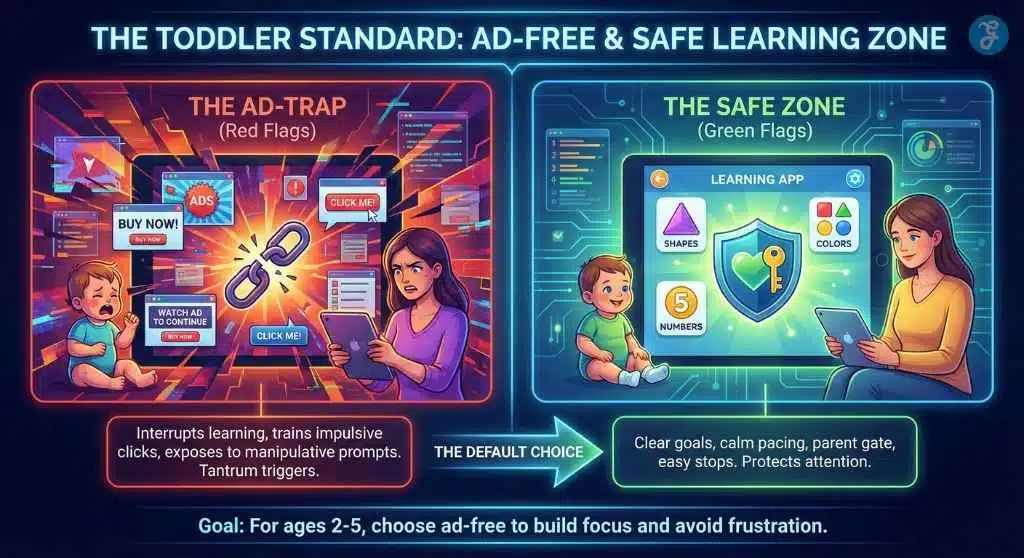
Toddlers don’t have the cognitive defenses to handle ads, manipulative prompts, or confusing menus. Even when they can’t read, visuals can push them toward clicks and accidental exits.
For ages 2–5, the safest rule is simple: choose the best ad-free learning games for toddlers.
What To Look For In Toddler Learning Apps
- Clear learning goal (letters, sounds, counting, matching)
- Calm pacing and simple interface
- Parent gate and child-safe navigation
- Offline mode if available
- Easy stopping points
If an app creates tantrums at “time to stop,” don’t assume your child is being difficult. Many apps are engineered to resist endings.
Internet Safety Guide for Parents: Privacy, Ads, And Algorithms
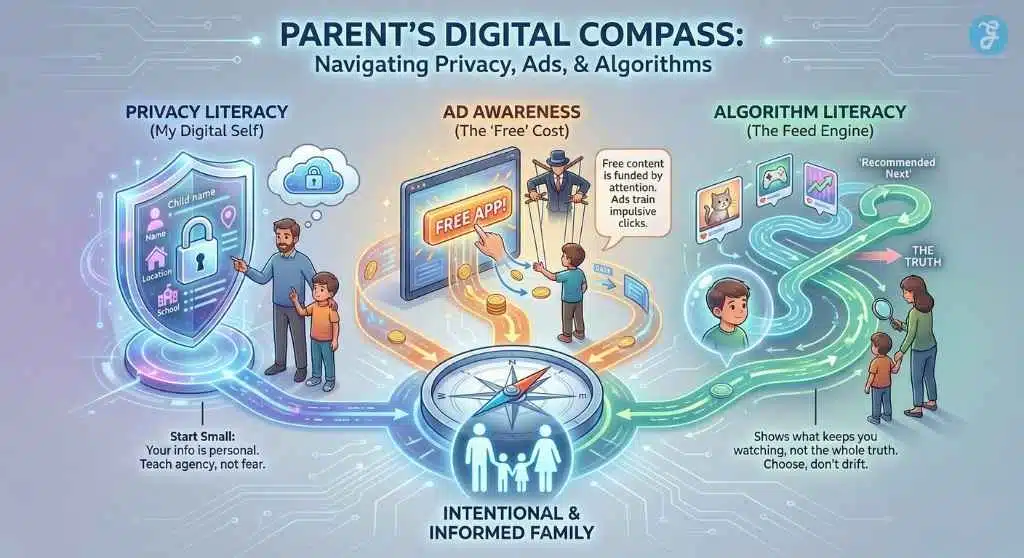
Internet safety in 2026 isn’t only about strangers. It’s also about systems: data collection, ad tracking, recommendation engines, and design tricks that push clicks.
The goal isn’t to make kids afraid of the internet. It’s a parent’s guide to internet safety to make families informed and intentional.
Privacy Basics Parents Should Teach Early
Kids can understand privacy when you explain it as “information about you.” Start small:
- Your name, location, and school are personal
- Photos and voice can identify you
- Apps often want data to personalize content and ads
This isn’t fear-based. It’s literacy-based.
How To Talk About Privacy Without Scaring Kids
A lot of kids shut down when they hear “danger.” A better approach is curiosity and empowerment.
Try these age-friendly scripts:
- For younger kids: “Some apps try to learn about you. We only use apps that are made to help kids learn safely.”
- For grade-school kids: “If an app asks for information, it should explain why. If it doesn’t, we say no.”
- For tweens/teens: “Algorithms don’t show the ‘truth.’ They show what keeps people watching. Your job is to choose, not drift.”
This keeps the conversation calm and gives kids a sense of agency instead of fear.
Ads And Algorithms: Why “Free” Isn’t Always Free
A lot of “free” content is funded by attention and data. That funding model can shape the experience toward:
- More scrolling
- More clicking
- More impulsive behavior
For kid-focused learning, it’s often worth choosing tools that aren’t built on those incentives.
Parental Controls In 2026: Guardrails That Don’t Break Trust
Parental controls work best when they do two jobs:
- Reduce exposure to risky content and features
- Support routines so you’re not negotiating every session
They don’t work when kids feel tricked, spied on, or punished with surprise restrictions.
A Healthy “Controls Mindset”
Tell your child what you’re doing and why:
- “I’m setting bedtime downtime to protect your sleep.”
- “I’m limiting installs so we only add apps we agree on.”
- “I’m blocking ads because I want your brain free for learning.”
That transparency reduces conflict and builds long-term trust.
The Three Controls Most Families Need First
- Bedtime downtime
- Install approval
- In-app purchase protection
Once those are in place, you can refine content filters and app limits.
The Routine Comes First (Controls Just Back It Up)
If kids only experience restrictions, they’ll fight restrictions. If kids experience a predictable routine, controls feel like part of the environment—like school hours or bedtime.
A simple routine that works for many families:
- Screens happen after priorities (homework, reading, chores)
- Screens happen in a predictable window (same general time daily)
- Screens end with a transition (snack, walk, shower, family time)
When the routine is stable, you’ll need fewer rules—and you’ll enforce them less often.
The Silent Trouble Makers: Notifications, Autoplay, And Micro-Distractions
Sometimes the biggest issue isn’t the app. It’s the environment around the app. Notifications train kids to check, react, and switch tasks quickly. Autoplay removes stopping points. “Recommended next” prompts create endless loops. If you want a calmer home, start here.
High-Impact Settings That Pay Off Fast
- Turn off most notifications
- Disable autoplay where possible
- Reduce suggested content
- Keep the home screen minimal and purpose-built
This isn’t about restricting learning. It’s about protecting attention.
Passive To Active Learning for Kids: Transforming a Tablet Into an EdTech Tool

A “tablet classroom” doesn’t mean eight hours of worksheets. It means your device opens into learning, not distraction. A helpful mindset shift is to treat active screen times for kids like sports practice: a little structure unlocks big results. A “classroom device” isn’t a device with more apps. It’s a device with fewer distractions and a clear purpose.
Here’s an example of a simple 25-minute “classroom session” for a grade-school child:
- 3 minutes: warm-up review (easy questions)
- 12 minutes: focused practice (one skill)
- 8 minutes: create something (story, drawing, coding block project)
- 2 minutes: teach-back (“what did you improve?”)
This format makes learning visible and reduces the most common problem parents face: sessions that drag on without clear progress.
Step 1: Create A Classroom Space
Use a child profile if possible. Keep the home screen clean. Limit the number of apps to what you actually want your child to do.
A good starting set is:
- One core learning tool
- One practice tool
- One creativity tool
- One project path (optional)
- One calm game (optional)
Step 2: Use Session Design (Not Just Time Limits)
Time limits alone can lead to “binge then crash.” Session design makes screen time feel complete.
A simple structure:
- Warm-up (easy wins)
- Practice (real learning)
- Create (output)
- Teach-back (one takeaway)
Step 3: Make Progress Visible
Kids stick with learning when they see improvement. A weekly check-in does more than daily nagging.
Accessibility And Neurodiversity: Make EdTech Work For More Kids
Some kids thrive with digital learning. Others get overwhelmed fast. That doesn’t mean EdTech is “bad.” It means the tool and the child are mismatched.
What To Look For If Your Child Gets Overstimulated
Choose tools with:
- Calm design (not loud, not flashing)
- Short lessons and clear progress
- Adjustable difficulty without shame
- Reading supports like text-to-speech when needed
A Parent Rule That Builds Compassion
If a tool dysregulates your child, it’s not a character flaw. It’s feedback. Shorten sessions, simplify the environment, or switch to a calmer tool.
Coding Journey For Kids: Python and Beyond
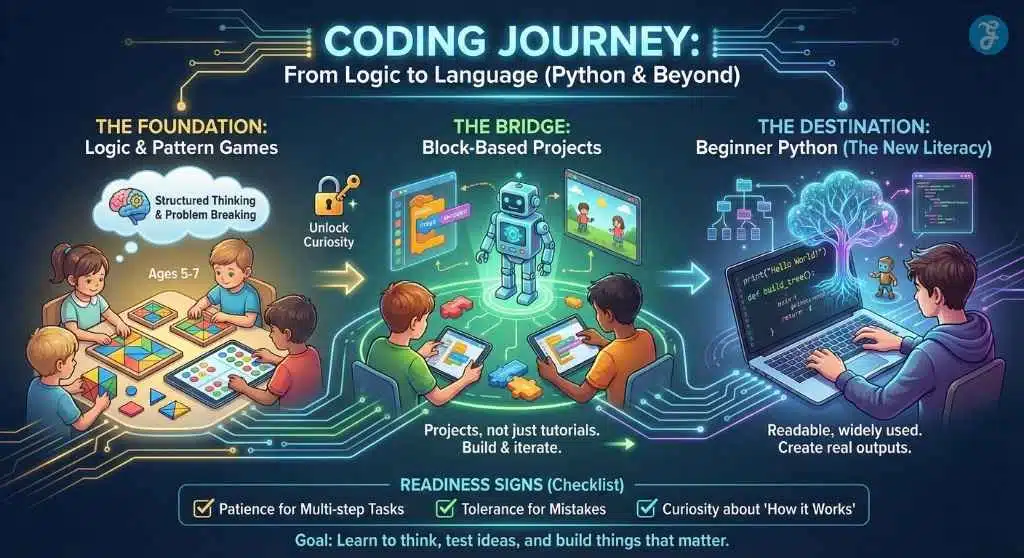
Coding is less about becoming a developer and more about learning structured thinking. Kids who code learn how to break problems into steps, test ideas, and iterate.
Python for kids coding often becomes the “first real language” because it’s readable and widely used. But it shouldn’t come first for every child.
A Practical Progression
Many kids do best with:
- Logic and pattern games
- Block-based coding (projects, not just tutorials)
- Beginner Python when they’re ready
- Small projects that produce something they can show
How To Tell If Your Child Is Ready For Python
Look for:
- Patience for multi-step tasks
- Tolerance for small mistakes
- Curiosity about “how it works”
If frustration is high, keep building confidence with blocks and guided projects first.
AI In The Classroom: Adaptive Learning Without The Hype
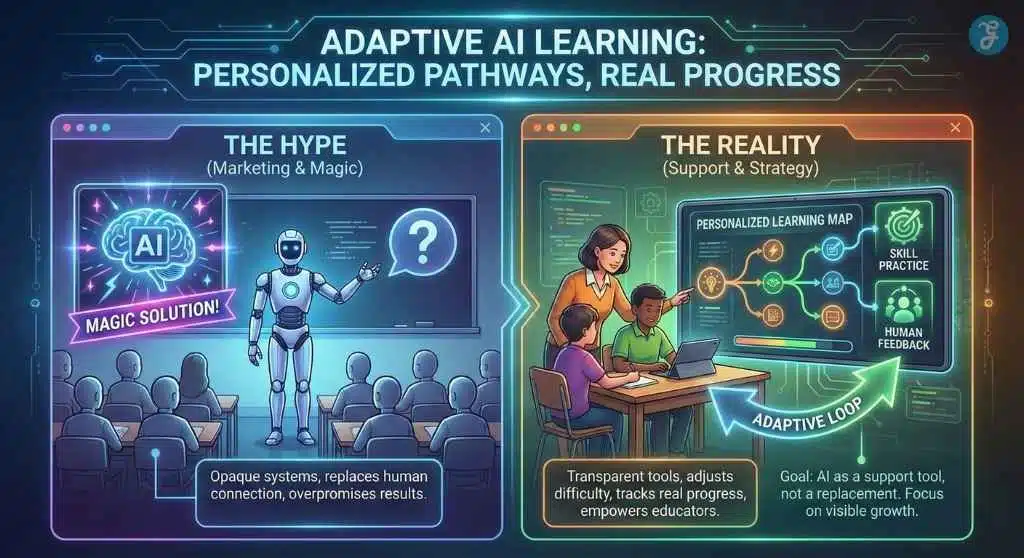
AI is now part of many learning platforms. Sometimes it’s truly helpful. Sometimes it’s marketing wearing a lab coat.
Parents don’t need to panic. They need a calm way to evaluate and AI-powered adaptive learning guide.
What Adaptive Learning Should Do When It’s Real
- Adjust difficulty based on performance
- Recommend practice based on weak spots
- Provide feedback that improves understanding
- Track progress in a visible way
Where Parents Should Be Careful
Be cautious if:
- The system is a black box with no explanation
- It collects sensitive data without a clear purpose
- It replaces human learning conversations entirely
Homeschooling Tech Stack: Essential Toolkit For Modern Parents
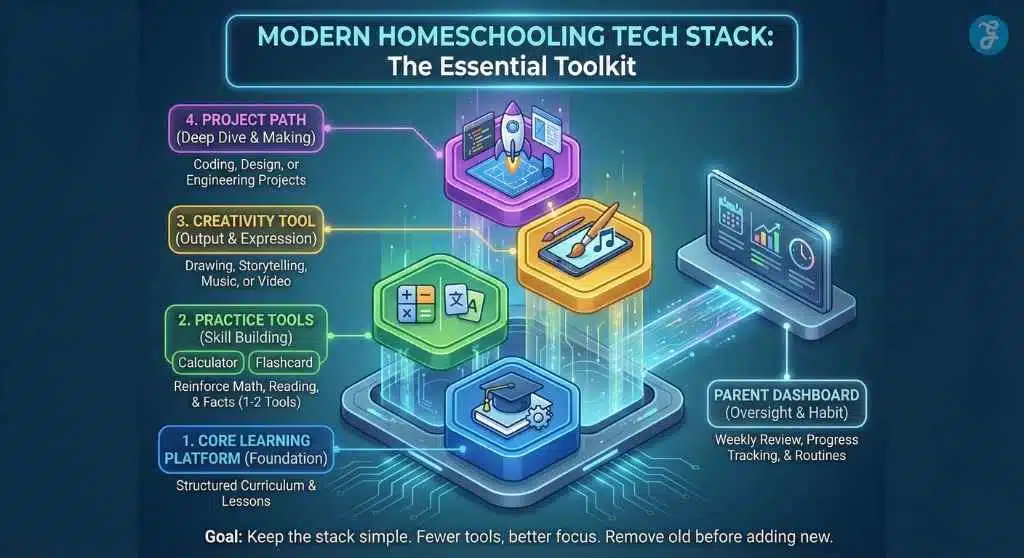
Even families who don’t homeschool build a “learning stack” now: skill practice, homework help, reading routines, creativity tools, and progress tracking.
The key is not having more tools. It’s having the best homeschooling tools that work well together.
Keep The Stack Simple
A practical maximum:
- One core learning platform
- One or two practice tools
- One creativity tool
- One project path (coding, design, building)
- A parent dashboard or weekly review habit
If you add something new, remove something old. That keeps the device focused.
Digital Detox: Balance and Replace Method for Kids
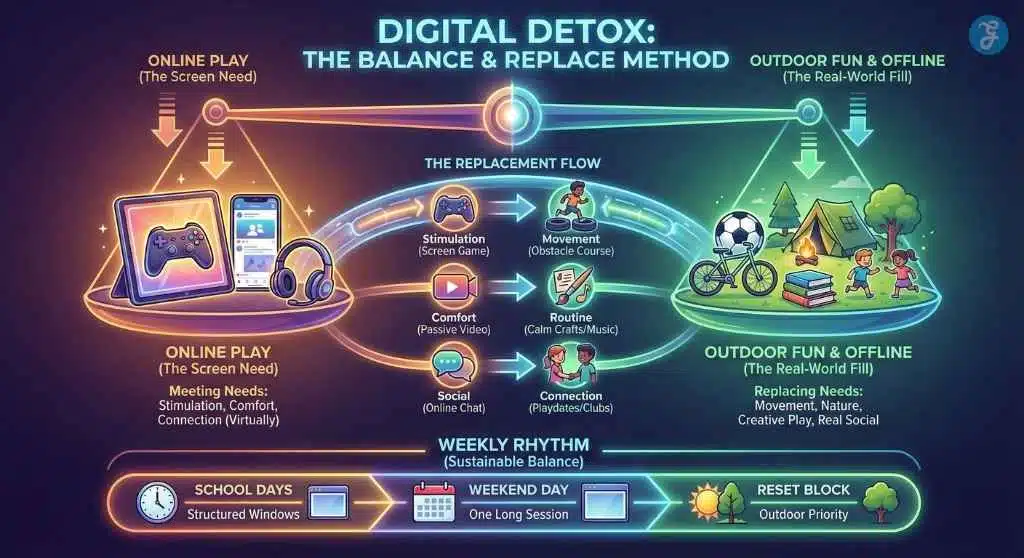
Digital detox for kids doesn’t have to mean harsh punishment or dramatic resets. Most kids need a rhythm that keeps screens from becoming the only source of comfort, fun, or identity.
Replace, Don’t Just Remove
If screens provide excitement, replace them with movement and challenges. If screens provide comfort, replace them with routines and connection. If screens provide social life, replace them with real-world social time where possible.
Replace The Need, Not Just The Screen
Screens usually meet a need. If you remove screens without meeting the need another way, kids don’t become “healthier”, they just become frustrated.
Common needs and better replacements:
- Need: stimulation → movement challenges, sports, obstacle courses, scavenger hunts
- Need: comfort → predictable routines, music, quiet crafts, family connection
- Need: control → give choices (“bike or walk?” “paint or build?”)
- Need: social → playdates, clubs, calls with family, team activities
When kids feel their needs are still met, resistance drops dramatically.
A Weekly Rhythm That Works
- Structured screen windows on school days
- One longer planned a session on a weekend day
- One weekly “reset block” that prioritizes outdoor play and family activities
A Family Tech Agreement That Prevents Daily Negotiations
Families burn out when rules are invented in the moment. A simple agreement keeps expectations stable.
| 3 Yes | 3 No |
| Yes to learning and creating | No devices at bedtime |
| Yes to predictable screen windows | No secret apps/accounts |
| Yes to calm, respectful use | No ads for little kids |
This isn’t about control. It’s about clarity. Kids respond better to stable rules than to sudden crackdowns.
How To Introduce The Agreement So Kids Actually Buy In
Don’t announce it like a punishment. Introduce it like a family upgrade.
A simple rollout:
- Tell your child you want screens to feel “easier” and less stressful for everyone.
- Ask what they want from screen time (fun, connection, games, learning).
- Share your non-negotiables (sleep protection, safe apps, no secret accounts).
- Agree on the screen window and stopping routine.
- Try it for two weeks, then review together.
Kids cooperate more when they feel heard—even if the final rules are still firm.
Quick Start: The 7-Day Reset Plan
If your home feels stuck in constant screen battles, start small. This one-week reset focuses on the highest-impact changes first.
- Day 1: remove the noisiest app
- Day 2: set bedtime downtime
- Day 3: turn off notifications
- Day 4: switch younger kids to ad-free learning defaults
- Day 5: add one creativity tool (drawing, storytelling, coding blocks)
- Day 6: set one outdoor ritual
- Day 7: family check-in and adjust
This plan builds momentum because it’s doable. It also creates early wins that make the longer plan easier.
The 30-Day Family Digital Plan (Built For Real Life)
If you want a full system—not just a quick reset—use this month’s plan. It reduces chaos and increases learning without turning parenting into a tech management job.
Week 1: Audit And Choose A Goal
List the top apps your child uses and identify what each app “does” emotionally: learning, social, comfort, boredom, creativity.
Then choose a primary family goal:
- Learning-first
- Balance-first
- Connection-first
Week 2: Add Guardrails And Routines
Set:
- Bedtime downtime
- Install approval
- Purchase protection
- age-appropriate content filters
Build one simple daily rhythm: screens happen after priorities, in a predictable window, with a clear end.
Week 3: Upgrade Content Quality
Replace passive feeds with active learning and creation. Reduce ad exposure. Choose tools with clear learning goals and built-in stopping points.
Week 4: Measure Outcomes And Adjust
Instead of arguing about minutes, track impact:
- Sleep
- Mood after screens
- Learning progress
- Family conflict
- Offline interest
If outcomes improve, your system is working. If outcomes worsen, shorten sessions, simplify apps, and remove the most stimulating content first.
The Parent Dashboard: Measure Outcomes Instead Of Minutes
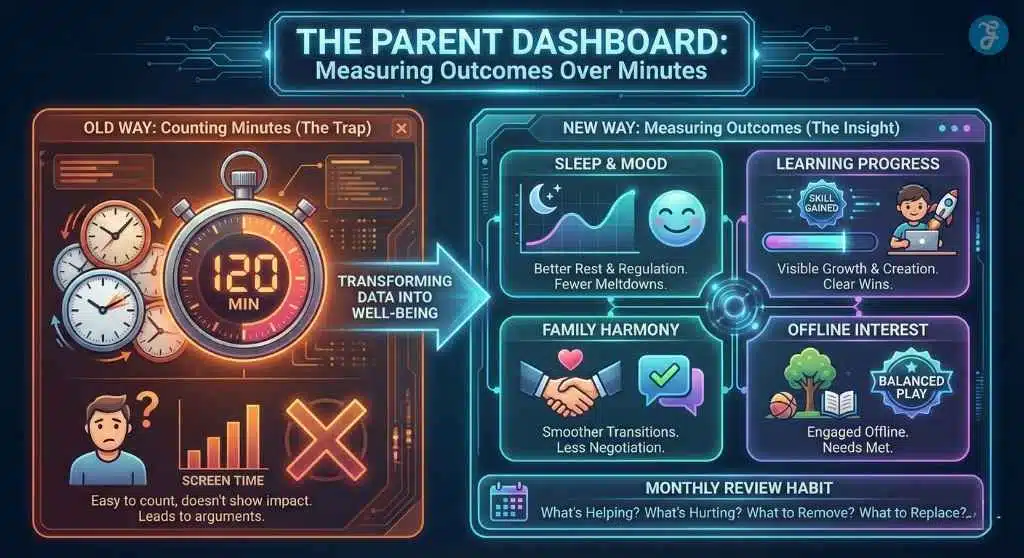
Minutes are easy to count, but they don’t tell you what screens are doing to your child’s day. Outcomes do.
Watch for:
- Improved sleep and smoother bedtime
- Calmer mood after screen sessions
- Visible learning progress over weeks
- Fewer negotiations and fewer meltdowns
- Continued interest in offline play
A monthly 15-minute review is enough for most families:
- What’s helping?
- What’s hurting?
- What do we remove?
- What do we replace it with?
That rhythm keeps tech from slowly drifting back into “default mode.”
Common Mistakes Parents Make With Kids’ EdTech [And Simple Fixes]
Parents don’t fail at EdTech because they don’t care. They struggle because the modern digital environment is designed to pull attention—kids’ attention and parents’ attention too. The good news is that most problems come from a handful of repeat mistakes. Fixing them doesn’t require perfection, just a better default.
Mistake 1: Treating All Screen Time Like It’s The Same
A math practice session and a short-form video feed are not equal. One builds skill; the other often builds habit.
Simple fix: Decide what screens are “for” in your home. Then prioritize active learning and creation. If a tool doesn’t build a skill or produce an output, it shouldn’t be the default.
Mistake 2: Chasing Minute Limits Instead Of Building A Routine
When rules change daily, kids argue daily. Time limits without routine often create binge behavior (“I have 30 minutes, I must use all of it right now”).
Simple fix: Use a predictable screen window. Pair it with a clear stopping ritual—snack, shower, walk, reading, or family time. Your goal is a smooth transition, not a perfect number.
Mistake 3: Downloading Too Many Apps Too Fast
More apps usually mean more switching, more distraction, and more “but I want this one now” arguments. It also makes it harder for parents to notice what’s actually helping.
Simple fix: Cap the device to a small, intentional set:
- One core learning tool
- One or two practice tools
- One creativity tool
- One project path (optional)
- One calm game (optional)
If you add something new, remove something old.
Mistake 4: Allowing “Free With Ads” For Young Kids
Ads don’t just interrupt learning. They train impulsive clicks, create accidental exits, and can expose children to prompts they can’t interpret responsibly.
Simple fix: For toddlers and younger kids, choose ad-free by default whenever you can. If you must use a free version, limit it to supervised sessions only and avoid apps with heavy banners or frequent pop-ups.
Mistake 5: Using Parental Controls As A Substitute For Conversation
Controls are helpful, but kids still need understanding. Without conversation, controls can feel like punishment or secrecy, and kids will try to bypass them.
Simple fix: Tell your child what you’re controlling and why. Use simple explanations:
- “This protects sleep.”
- “This blocks ads.”
- “This keeps learning time focused.”
Trust reduces rebellion.
Mistake 6: Giving A Personal Device Without Clear Ownership Rules
Many families discover too late that “personal device” becomes “private device.” That shift increases conflict and risk.
Simple fix: Treat devices like a family car: your child uses it, but adults manage it. Keep charging outside bedrooms, require install approval, and keep younger kids’ devices in public spaces by default.
Mistake 7: Ignoring The Transition After Screen Time
Some kids look “fine” during a session and melt down when it ends. That’s a sign the content is overstimulating or the stopping points are weak.
Simple fix: Shorten sessions, turn off autoplay, reduce high-intensity games, and add a built-in “cooldown” transition. A two-minute stretch or snack can change the tone of the whole evening.
Mistake 8: Assuming “Educational” Means “Safe”
Plenty of apps labeled educational still include aggressive tracking, upsells, or design tricks that keep kids engaged for the wrong reasons.
Simple fix: Use the One-Minute App Test:
- Skill goal
- Active engagement
- Easy stopping
- Ad-free (especially for young kids)
- Minimal permissions
If it fails in safety or privacy, replace it.
Mistake 9: Skipping Offline Replacements
If screens meet your child’s need for stimulation, comfort, or social connection, removing screens without replacement leads to resistance and frustration.
Simple fix: Replace the need:
- Stimulation → movement/outdoor challenges
- Comfort → routines, music, calm crafts
- Control → offer choices
- Social → playdates, clubs, family calls
When needs are met, arguments drop.
Frequently Asked Questions [2026 Edition]
1) How Much Screen Time Is Too Much For Kids?
It depends less on the number and more on the impact. If your child sleeps well, stays active, manages emotions, and still enjoys offline life, your routine is probably working. If screens replace sleep, movement, or relationships, start by improving content quality and structure before chasing strict minute limits.
2) Are Educational Apps With Ads Ever Okay?
For older kids, sometimes, if the ads are minimal, non-manipulative, and the app is genuinely valuable. For younger kids, ad-free is the safer default because ads interrupt learning and can train impulsive clicking. If you’re unsure, choose the option that protects attention.
3) What Makes A Game Truly Educational (Not Just “Cute”)?
A truly educational game has a clear skill goal, requires active responses, provides feedback, and shows progress over time. If your child can “play” without thinking, the learning is probably thin. If your child improves in a measurable way, that’s the sign you want.
4) How Can I Make Parental Controls Work Without Creating Constant Fights?
Use controls to support routines, not to punish. Be transparent, keep rules predictable, and explain the purpose: sleep protection, safer browsing, fewer distractions. When kids know what to expect, they argue less.
5) Is AI Tutoring Safe For Kids?
It can be helpful when it supports practice and feedback, and when parents can understand what it’s doing. Be cautious with tools that collect excessive data, feel opaque, or replace real conversations. The safest approach is to treat AI as a support tool, not the “teacher.”
Final Thoughts: Raise A Builder, Not A Scroller
You don’t have to win every screen-time debate to raise a digitally healthy child. You only need a clear home standard and a system you can repeat. When you choose active learning, protect privacy by default, prioritize ad-free experiences for younger kids, and build sustainable routines, your child learns something bigger than any app lesson: technology is a tool, not a trap.
That’s the real goal of Safe and Smart EdTech for Kids in 2026—raising a learner who can focus, create, and make good choices in a world built to distract.