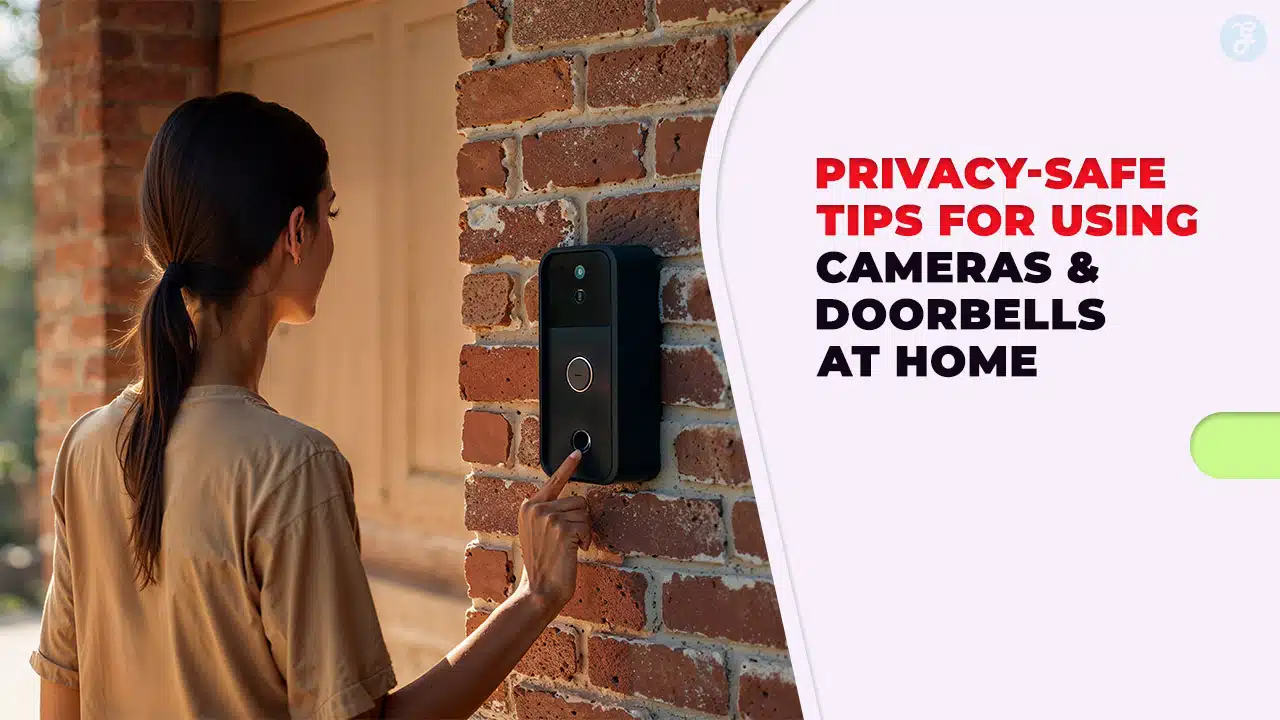
You know the tradeoff: doorbell cameras and home security cameras can stop package theft, but the wrong camera settings can also capture more than you intended.
The goal is simple, get the deterrent and the video footage you need, while protecting neighbors, visitors, and your Wi-Fi network from avoidable exposure.
This guide walks you through privacy-first placement, secure log in habits, cloud storage choices, local storage options, and the practical tweaks that reduce porch piracy without turning your front porch into a public feed.
Read on for 15 privacy-safe tips you can apply today.
Understanding Privacy in Home Camera and Doorbell Use
Most privacy problems with security cameras happen for two reasons: the lens is aimed too wide (field of view) or the device records audio when it does not need to.
Start by treating your camera like an exterior light. You want it to cover your entry points, not your neighbor’s windows, yards, or the public sidewalk.
Also think about audio. Video is usually the main security value. Audio often creates the biggest legal and relationship risk.
In the U.S., consent rules for recording conversations vary by state. The Reporters Committee for Freedom of the Press notes that about 11 states have all-party consent requirements in many situations, so recording audio can be much riskier than recording video. If you are not sure, disable audio by default and only enable it when you have a clear need and clear consent.
- Aim for your property line: angle the lens so your porch, steps, and driveway are in-frame, while neighbor areas are out-of-frame.
- Use privacy zones: block windows, gates, or yards that you do not need for home security.
- Keep indoor cameras out of private rooms: do not place cameras in bathrooms or guest bedrooms.
- Decide on retention up front: store only what you need for incidents like porch piracy, then delete the rest.
Selecting Privacy-Focused Doorbell Cameras and Home Security Cameras
When you compare doorbell cameras, focus less on flashy features and more on the controls that help you limit data capture and limit who can see it.
A strong privacy setup usually comes from a combination of device features (privacy zones, local storage, encryption) and account features (two-factor authentication, access logs, user permissions).
Choose devices with built-in privacy controls
At minimum, look for these controls inside the app: privacy zones, motion detection zone control, microphone on or off, and a fast way to pause recording.
If your household uses voice assistants, be selective about integrations. Linking a camera to voice assistants, streaming screens, or a Chromecast-style device can expand where your live stream appears. Only connect what you truly use.
Opt for models with customizable privacy zones
Custom privacy zones matter because “just tilt the camera” often forces you into a worse angle for package theft coverage. A good privacy zone tool lets you block a neighbor’s window while still keeping your own steps and package drop area visible.
As you test the zones, do it at night too. Night vision can reveal reflective surfaces and angles you did not notice during the day.
Do not guess at weather resistance (IP rating)
If you are mounting security cameras outdoors, check the IP rating in the specs. IP codes come from the IEC 60529 standard: the first digit rates protection against solids like dust, and the second digit rates protection against water. For example, “6” means dust-tight, and “5” means protected against water jets.
| IP rating example | What it means in plain terms | What you should do |
|---|---|---|
| IP65 | Dust-tight, protected against water jets | Solid baseline for many outdoor installs, especially under eaves or porch cover |
| IP67 | Dust-tight, rated for temporary immersion (up to 1 meter for 30 minutes) | Consider for exposed locations or areas that see heavy wind-driven rain |
Enhance Your Home Network Security
Your home network is the real “security system hub.” If someone gets into your router, they may not need to hack a camera at all.
CISA’s home Wi-Fi guidance emphasizes basics that still prevent many attacks: change default router credentials, keep firmware updated, use WPA3 (or WPA2 AES), disable WPS and UPnP, and use a guest network for IoT devices.
Establish a strong, unique Wi-Fi password
Set a unique Wi-Fi password that you do not reuse anywhere else, and change the router admin password too. Those are separate credentials on many routers.
- Rename your network (SSID): do not include your last name, address, or unit number.
- Turn off remote management: if you do not use it, you do not want it exposed.
- Use a guest network for IoT devices: cameras, doorbot devices, smart plugs, and similar gear can live there.
Activate network encryption and firewall protection
Enable WPA3-Personal if your router supports it. If not, use WPA2 with AES (not older modes that mention TKIP).
Keep the router firewall on, review the device list for unknown log in attempts, and remove any device you do not recognize.
Keep Software Up-to-Date
Updates are not about “new features.” They are about closing the holes attackers already know how to use.
Turn on automatic updates where possible for your security cameras, doorbells, and router firmware. If a device requires manual updates, put a recurring reminder on your calendar.
- Update the camera app: app updates often include security fixes and account protections.
- Update firmware: check inside the device settings menu for camera firmware and router firmware.
- Replace abandoned gear: if your router or camera no longer gets security updates, it is a long-term risk on your home network.
Implement Strong, Unique Device Passwords
If you take one step that pays off fast, it is this: change every default password and stop reusing credentials.
Use a password manager so you can create unique logins for each doorbell camera, each cloud storage account, and your router admin account. You will spend less time resetting passwords and more time actually securing your setup.
Also check for shared access. If you let a family member view the live stream, give them their own login instead of sharing yours.
Activate Two-Factor Authentication for Enhanced Security
Two-factor authentication (also called multi-factor authentication) protects you when a password leaks through phishing scam emails or credential stuffing.
Prefer an authenticator app or a hardware security key over SMS when you can. SMS is better than nothing, but it is not the strongest option.
- Turn on 2FA for the camera account: this protects cloud storage and live stream access.
- Turn on 2FA for your email: attackers often target email first, then reset passwords.
- Review “logged in” devices: sign out any phone, tablet, or web browser session you do not recognize.
Manage Unnecessary Device Features
Every extra feature can increase the number of places your video footage can go. If you do not use a feature, turn it off.
Disable audio recording when unnecessary
Audio is the fastest way to create accidental legal exposure, especially if your camera can pick up conversations from a sidewalk or shared hallway.
If you want the deterrent without the microphone risk, keep audio off and rely on motion detection, night vision, and clear video.
Switch off remote viewing when not needed
Remote viewing is useful, but it expands your threat surface. If you rarely check live view, consider limiting it to specific users, devices, or times.
Also avoid “quick share” links for clips unless you truly need them. The more you share, the harder it is to control where footage ends up.
Strategically Install Cameras and Doorbells
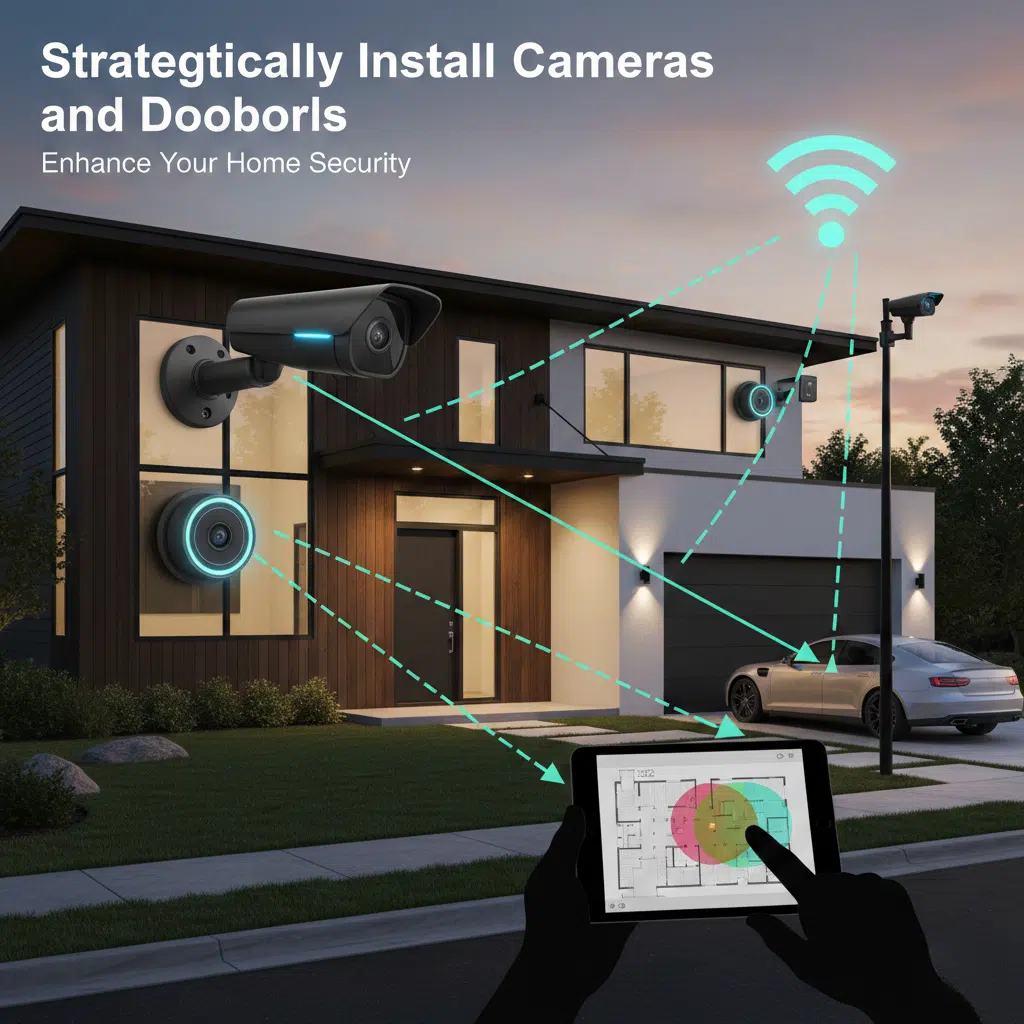
Great hardware can still fail if you mount it too high, too low, or too wide. Install is where privacy and performance meet.
As a real-world baseline, manufacturer guidance commonly recommends doorbells at about 48 inches (1.2 meters) from the ground, and outdoor cameras around 8 to 10 feet (2.5 to 3 meters) high so they are harder to tamper with while still capturing usable detail.
| Device | Placement target | Why it matters |
|---|---|---|
| Video doorbell | Chest height, roughly 48 inches | Captures faces and the package drop zone, reduces missed motion near the door |
| Outdoor security camera | Roughly 8 to 10 feet high, angled down | Reduces tampering while keeping facial details and license plates more readable |
Avoid cameras facing neighbors’ properties
Before you drill, open the live view on your smartphone and confirm exactly what will be recorded. If you can see into a neighbor’s window, you need to adjust the field of view or use a privacy zone.
Tell neighbors you are installing cameras and explain what you are recording (your porch and driveway). That quick conversation prevents a lot of conflict later.
Minimize camera coverage of public spaces
Use motion detection zones so your system alerts you for activity on your property, not every pedestrian on the sidewalk.
If your home is close to a public walkway, you can still protect packages by focusing the motion zone on the final few feet around your door and the package drop location.
Adjust Motion Detection Zones and Sensitivity
Motion tuning is how you stop alert fatigue. If your phone goes off all day, you will ignore the one alert that matters.
Many cameras use PIR (passive infrared) sensors or analytics to detect people. Installation guidance from camera makers often notes that PIR motion is more sensitive to side-to-side movement than movement straight toward the camera, so angle and zone placement can make a big difference.
- Draw a tight motion zone: include your steps and package drop area, exclude the street.
- Lower sensitivity near traffic: cars, headlights, and reflections drive false alerts.
- Turn on person recognition: it can cut noise from pets and trees, depending on your model.
- Retest at night: night vision and HDR (high dynamic range) can change what triggers motion detection.
Encrypt Your Stored Video Data
Think of encryption as two layers: encryption while the video travels (in transit) and encryption where it sits (at rest).
For cloud storage, confirm the provider states it encrypts uploads and stored recordings. For local storage, encrypt the drive or the backup if your device allows it.
Privacy-first rule: if you would not feel comfortable with a clip being seen by the wrong person, store it for the shortest time that still meets your needs.
If your model offers end-to-end encryption as an optional mode, read what features you lose before enabling it. Some systems disable sharing, smart alerts, or viewing on additional screens when encryption is turned on.
Understand Your Rights with Device Manufacturers
Camera privacy is not just about your settings, it is also about the company behind the device.
In a 2023 action, the Federal Trade Commission alleged that a major home security camera company failed to restrict employee access to customer videos and failed to implement basic security protections, which is a useful reminder to choose vendors carefully and lock down account access.
- Check retention controls: can you set how long cloud storage keeps clips?
- Check sharing defaults: are sharing links off by default, and can you revoke them?
- Check account access: does the vendor support multi-factor authentication and device-level access logs?
- Check data use: does the policy describe if video footage is used for product improvement or analytics?
If you do not like the answers, pick a device that supports local storage so you keep more control in-house.
Refrain from Publicly Sharing Video Footage
Posting clips online can expose neighbors, kids, addresses, and daily routines. Even with good intentions, you can create a privacy problem that is bigger than the original incident.
- For crimes: share directly with police departments, not public feeds.
- For neighbors: describe what happened first, then share only the relevant clip if needed.
- Before sharing: crop the frame to your property and blur faces or identifying details when possible.
Properly Store or Delete Video Recordings
Good storage is boring on purpose. It is predictable, limited, and easy to manage.
If you use cloud storage, turn on two-factor authentication and review account activity. If you use local storage like a NAS or NVR, protect it with a strong password and keep it updated.
Export and keep only what you need for insurance or evidence, then delete older recordings. That reduces exposure if an account is compromised later.
Periodically Update Privacy Settings on Devices
Camera privacy is not “set it and forget it.” Apps change, new features roll out, and integrations sneak back on after updates.
Check your camera settings every three months: privacy zones, motion detection areas, audio, shared users, and any devices that are currently logged in.
- Quarterly review: tighten motion zones before busy delivery seasons.
- After any complaint: re-check field of view and adjust angles the same day.
- After a router change: confirm WPA3 (or WPA2 AES) is still enabled and guest network rules still apply.
Inform Visitors About Onsite Cameras
Visitors should not have to guess if a camera is recording them, especially if audio is enabled.
A simple sign near your entry helps. It also reduces misunderstandings with delivery drivers and guests.
If you live in an all-party consent state or you are unsure about audio rules, keep audio off and rely on motion detection and video.
Most households notice a breach late, after something feels off. Instead, build a quick routine that catches problems early.
- Check access history: look for unfamiliar log in locations, devices, or times.
- Review shared users: remove anyone who no longer needs access.
- Rotate passwords after incidents: if you suspect compromise, change the camera password and the email password.
- Save key clips safely: for package theft or larceny-theft incidents, export the clip and store it securely.
Pair camera monitoring with physical basics: lock windows, reinforce doors, and use smart lighting so your whole home security system works as a deterrent.
Essential Privacy Tips for Smart Home Devices
If you want a quick reset, here is the short list that prevents most issues with security cameras.
- Keep the lens tight: porch and driveway, not neighbors and sidewalks.
- Keep audio off by default: enable only when you have a clear need and clear consent.
- Use strong account security: unique passwords, multi-factor authentication, and regular checks of who is logged in.
- Pick storage intentionally: local storage for control, cloud storage for convenience, or a mix based on your risk tolerance.
- Review every quarter: camera settings, privacy zones, motion detection, and integrations with apps, voice assistants, and streaming devices.
That is the difference between “cameras everywhere” and real data protection that still keeps your home safer.
Takeaways
Privacy-safe home security is achievable. You just need a plan for placement, storage, and access.
Choose doorbell cameras and home security cameras that let you control the field of view, motion detection zones, and local storage or cloud storage.
Lock down your Wi-Fi network with strong passwords and two-factor authentication, keep firmware updated, and limit sharing of video footage.
Do those things consistently, and you will reduce porch piracy and package theft without creating new privacy risks.
FAQs on Privacy-Safe Tips For Using Cameras & Doorbells At Home
1. What basic privacy steps should I take with doorbell cameras and home security cameras?
Set strong, unique passwords, enable two-factor sign in, and update firmware often to protect data protection. Limit the camera field of view in camera settings, use local storage when you can, and review video footage and habits regularly.
2. How can I prevent package theft and porch piracy while keeping privacy?
Use motion alerts, set night vision to record the porch only, and avoid sharing live streams with the public. A whole home security system can help deter thieves, and keep footage private until you need to share it.
3. Should I choose cloud storage or local storage for my video footage?
Cloud storage gives remote access, but it can raise data protection risks, so weigh that risk. Local storage keeps files in your home and can lower exposure, pick the option that fits your needs and habits.
4. Do features like hdr (high dynamic range), high dynamic range, night vision, and dynamic range affect privacy?
Yes, these features improve clarity and make video footage more useful as proof, they can capture more detail. Adjust camera settings to avoid recording neighbors or public areas you do not own.
5. Will cameras help with home security, give insurance credit, or lead to an arrest?
Yes, cameras strengthen home security and some insurers offer a credit for a whole home security system. Clear video footage can help police, and it may support an arrest, but share files securely and protect data protection before you send them.