Listen to the Podcast:
There are often rules about what you can do on school wifi networks, and unfortunately, these rules often include online games. This cannot be very pleasant, especially if you only want to play your favorite games during lunch or after work. This is, of course, to ensure students pay attention in class. It could also be to save bandwidth because if everyone played online games, speeds would slow down too much. A VPN can unblock games on a school network, which is good news.
A Virtual Private Network (VPN) changes your IP address so your school’s wifi network can’t see what you’re doing online and block you. Even better, a VPN can do more than help you play games that are blocked. It encrypts your internet traffic, which keeps your information safe from hackers and school snoops. You’ll also get unlimited bandwidth, which means you can play the game as much as you want without lagging due to throttling. If you are worried about “How to unblock games on a school computer?” Keep reading this blog post to find out the ways.
What are Blocked Games?
Blocked games are websites that schools, colleges, and businesses block by using internet filters or putting them on a blacklist. However, it is important to consider the potential academic benefits of games, such as improved problem-solving and critical thinking skills. You can find an example of critical thinking essay and learn more about this topic. As was already said, many schools, colleges, and companies stopped game sites from helping students focus because they didn’t think they were appropriate for kids to visit at school.
And to stop people from going to game sites, they use Internet filters and blacklist some game sites. These filters stop people from going to any game sites.
It takes time, but some game websites are still unblocked. This is because you can’t cover the whole internet, and https://game websites are less likely to be blocked.
Why do Schools Block Games and Other Content?
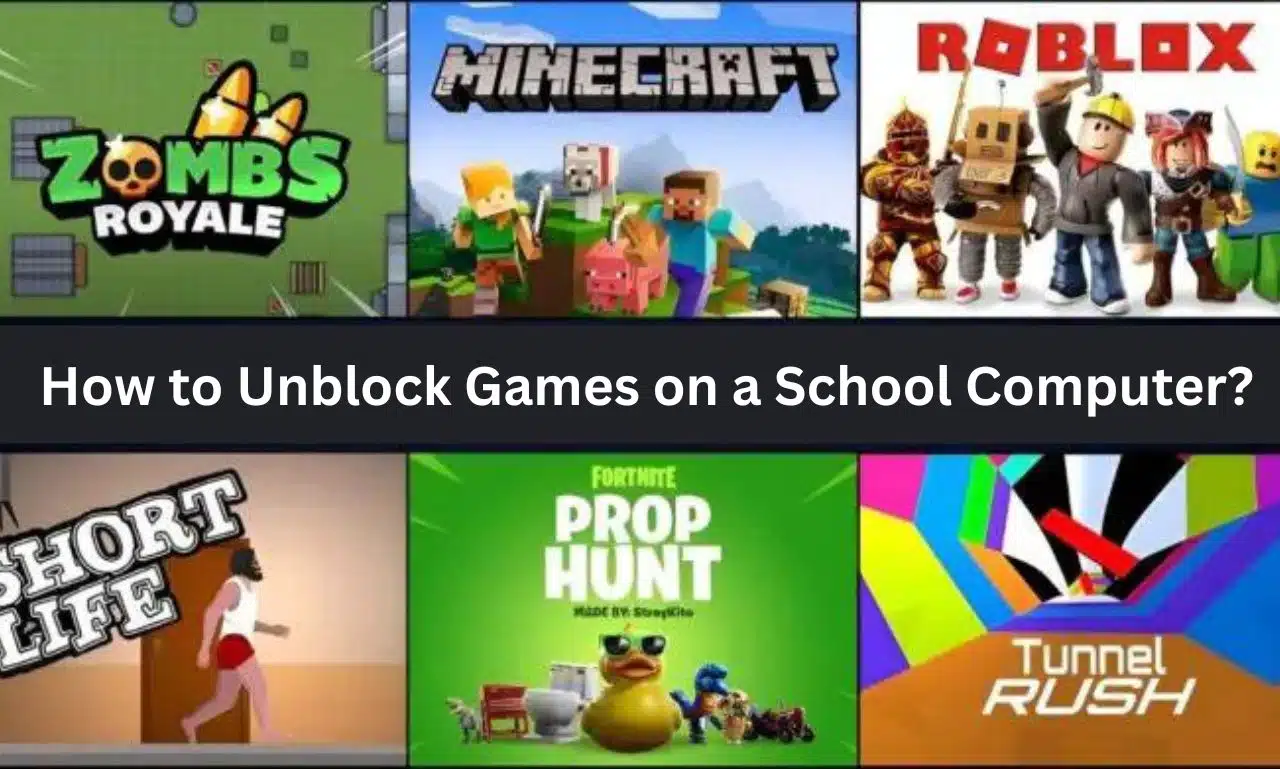
It can be frustrating when you try to use your favorite apps and websites and find that your school’s WiFi network has blocked you. This is happening more and more in schools all over the world. The idea is that they don’t want students to be distracted by things like Fortnite. Instead, they want you to pay attention in class. This is a perfect point; we don’t want you to use an app to play games when you should be working.
The problem with blocking content is that you can’t play unblocked games when it’s OK, like during lunch or recess. You may need to send a Snapchat message to your friend to tell them where to meet you after school, but again, you won’t be able to connect if the WiFi network restricts access. Sometimes, you need to unblock content, and VPN can help.
How to Unblock Games Banned By Administrator?
If you try to play games on a computer that an organization provides, the computer likely has a password, and you won’t be able to play the game you want. Putting passwords on computers is a common way to keep important information safe and secure.
Here’s how to get rid of those limits and play the games you want:
- Go to the computer’s “Control Panel” and click “User Accounts and Family Safety.”
- From the list of options, choose “Change password” and then “Remove password.”
- If you know a new password, type it in.
- Confirm that you want to remove the password, then restart the computer to see if the changes took effect.
- Play whatever game you want.
If you know the password, the first choice will work. What if you don’t know the password but still want to play the game on an administrator’s computer? In that case, you can set up another login profile on the same computer that doesn’t need a password. This has to be done while the computer is on and being used.
Here is how you can unblock games on a school computer that an admin banned:
- Click Settings, then Accounts, then Your Info. Here, instead of the option from the list, choose to Sign in with a local account.
- Type in your official Microsoft account password and click Next.
- Give the account a username and e
- Click the “Next” button, then click “Finish.” You don’t need a password to get into the same computer.mpty the password field.
How to Unblock Games on a School Computer?
So, first of all, I strongly suggest you use a VPN if possible. A VPN will not only help you get around this block, but it will also encrypt your internet traffic. So, no one, not even the school staff, can see what you do on your computer.
How to Unblock Games on a School Computer with a VPN?
VPN for the first time? It’s quick and easy to use to get into games that have been blocked. Just follow the step-by-step instructions below, and you’ll be ready to play in no time:
Here’s how to use a VPN to play games on a school computer:
- First, you must sign up with a trustworthy VPN service. We recommend NordVPN for getting around blocks on games in particular.
- Now you can put the VPN app on your device by downloading it. All VPNs listed below have apps for desktop computers and mobile devices.
- Install the app and then sign in. Your IP address can now be changed by connecting to a server. The faster your connection should be, the closer the server is to you. This is important for gaming!
- You should now have full access to all of your favorite online games.
- If you still can’t play games on a school computer, try clearing the cookies from your browser. If problems keep happening, talk to customer service.
How to Unblock Games on a School Computer Use Public Proxy Servers?
A public proxy server is another great way to get school computers to let you play blocked games. Public proxies like HMA and Proxfree let users change their IP address to a different location so they can access websites that are blocked in their country.
So, you can use a public proxy server by visiting their websites or adding a proxy extension to your browser.
Even so, a proxy server isn’t as safe as a VPN server because it doesn’t encrypt your internet traffic. It also has many users, slows it down, and causes annoying pauses.
Unblock Games Use Your Mobile Hotspot
Mobile hotspots are a big deal in the internet world because they let people connect to the internet using their mobile data.
So, you can also use your mobile data to play games on your school computer that has been blocked. You must turn on the hotspot feature and connect your school computer.
You can also use the USB tethering feature, which lets you use your phone as a modem for your computer. All you have to do is connect your phone to the computer with a USB cable. Just like finding ways to stay online, preparing for Microsoft AZ-900: Practice Test Dumps requires resourcefulness and the right tools to succeed.
Use a Different Web Browser
Some schools only block online games on browsers that all school computers can use. Use a different browser to get around their blocks if that’s the case.
You could download it, but that might not be the best idea. For one thing, the firewall might stop other browsers from downloading links. Second, the school’s administrators might notice if you download a different browser on the school computer.
Use a mobile browser like Firefox Portable instead. Put it on a USB stick; the browser will run from that.
Edit Your Computer’s Hosts Files
If you don’t like using a browser, let’s try something else: adjusting the Hosts files on your school computer. This will only work if the school blocks websites this way instead of using a firewall.
Still, you might want to give it a try. All you must do is go to Local Disc (C:), Windows, System32, drivers, etc. You’ll see a file called “hosts” there.
Just open it and look for the names of the gaming sites you want to visit. When you find the row, you can either get rid of it or change the wrong IP address to the right one.
Use HTTP instead of HTTPS
Because SSL certificates are installed on HTTPS websites, they are much safer and more reliable than HTTP websites. So, many schools only block the HTTPS versions of websites and leave the HTTP versions open.
So, you can always use the HTTP version of a website instead of HTTPS to play your favorite online game at school, and the same goes for the other way around.
For example, if https://abcdgames.com is blocked on your school computer, you can try to access https://abcdgames.com instead. But remember that HTTP sites aren’t trustworthy, so don’t disclose sensitive information.
Try URL Shortening Websites
Sites like Bitly and TinyURL that shorten URLs can help you play games on your school computer by changing the original URL to a shorter one.
Also, most schools only block the official website, which is good for everyone.
Use Tor
The Onion Router, which used to be called Tor, is one of the most used browsers to get around geo-restrictions. Also, it will encrypt all of your internet traffic, making you completely anonymous.
But Tor has also gotten bad press for being used as a proxy browser. This is because the Tor network is run by Tor volunteers, who are unknown and unofficial. So, we don’t know how reliable traffic encryption is since it could be anyone, even a hacker.
Also, your school can find the traffic easily using a tool like Caploader that can accurately capture internet traffic. Plus, there is a list of Tor’s server addresses that your school can use to block Tor. So, I would advise you to be careful if you choose the Tor browser.
Best Websites to Play Unblocked Games
If you play even a few of the games above, we can promise you that you will become hooked on them. The best part is that you can play all these games for free because most schools and workplaces don’t block them. But the question is, where can you play more games that don’t require a password?
Don’t stress out about it! I’ll take care of you. I’ve compiled a list of some of the best websites where you can play many free games that are not blocked.
- WEIGUO Games
- Crazy Games unblocked
- Unblocked Games 66 EZ
- Cool Math Games
- Tyrone Unblocked Games
- BoredBro
- Unblocked Vevo
- SonSaur Games
- Unblocked Games 76
- BoredButton
Is using a VPN to Unblock Games on a School Computer Legal?
Some things you can do online are against the law, like torrenting content owned by someone else. However, it is legal to use a VPN and to use one to unblock games. But if your school has blocked games, using a VPN to get to them is probably against the rules. This could lead to some punishment. Because of this, you should think about the possible consequences before you use a VPN to unblock games and be careful if you do.
Conclusion
Using DNS filtering or a firewall, your school can quickly stop people from playing games on the school network and computers. Since they don’t want you to waste the school network’s bandwidth on things like gaming and streaming, it’s a good move. They also tell you to pay attention in school.
But because it’s very unfair of you, you can quickly get games back on a school computer using the simple hacks we’ve already discussed.
Frequently Asked Questions (FAQs)
How do online games affect students’ mental health?
Students’ mental health is affected by online games because spending too much time playing them can make them feel lonely, anxious, and depressed. Also, there aren’t many games that are hard to stop playing, which makes people less motivated and less productive.
How can I play banned games at my school?
You can connect a VPN like Express VPN to your computer and play games that aren’t allowed at your school. You can also use a server called a proxy. To use a Proxy server, you must find a free one online and then change your game’s settings to connect to the Proxy server. You should be able to play the game at school now. If you are still having trouble, you can play games like Tetris or Snake that are not blocked. Most schools don’t have rules against these games.
How do I unblock a file on my school computer?
If you want to open a file your school’s filters have blocked, you might need to ask a teacher or administrator for help. If the file is blocked for a different reason, like having a virus, you may be able to unblock it by using the security software on your computer.
How do I unblock a file in a folder?
If you want to unblock a file in a folder, you can do so by right-clicking on the file and choosing “Unblock.
Which browser is the best for unblocking sites?
The same things that make Tor one of the best browsers for privacy also make it a great way to get into blocked sites. But some secure browsers, like Avast Secure Browser, have built-in VPNs that can get around content blocks. These browsers offer extra privacy and security features, like protection against phishing and web tracking.
Why do we require an Unblocked Game?
The games are essential if you want to learn to do more than one thing at once, improve your mental growth, and slow the aging process. Well, each type of game has its pros and cons. Playing games occasionally isn’t a big deal, but it can help you improve your skills.