
In an era where the digital landscape shifts faster than we can swipe, ensuring our children’s online safety has become a paramount concern for every modern household. As we navigate 2026, the complexity of apps, the ubiquity of high-speed 5G/6G connectivity, and the sheer volume of content available make digital parenting a full-time job. Whether you are handing your tablet to a toddler for a quick learning session or giving a teenager their first smartphone, knowing how to set up parental controls on Android and iOS is the foundational step in creating a secure digital environment.
It is no longer just about blocking mature content; it is about curating a balanced lifestyle where technology serves as a tool for growth rather than a source of distraction. The challenge, however, lies in the details. Operating systems update annually, moving menus and changing features. What worked in 2024 might be obsolete today. Furthermore, “locking down” a device completely can often backfire, creating a digital wedge between parent and child. The solution is a hybrid strategy: using the robust, built-in tools provided by Google and Apple to set boundaries, while simultaneously populating those safe spaces with high-value, engaging platforms like Edutorial.
This comprehensive guide will walk you through every toggle, switch, and setting you need to know for both major platforms. We will move beyond the basics to explore advanced configuration, the importance of “whitelisting” productive apps, and how to maintain peace of mind without becoming a digital helicopter parent.
Key Takeaways
- Dual Approach: Effective digital safety requires both system-level restrictions (Android/iOS) and curated content ecosystems like Edutorial.
- System Mastery: Learn the specific nuances of Google Family Link (Android) and Apple Screen Time (iOS) for the 2026 software versions.
- Whitelisting: Restricting “bad” content is only half the battle; whitelisting educational apps ensures productive screen time.
- Communication: Technical controls must be paired with open dialogue about digital boundaries.
- Privacy: New features in 2026 prioritize your child’s data privacy while allowing parental oversight.
The Digital Landscape of 2026: Why Native Controls Aren’t Enough
Before we dive into the technical setup, it is crucial to understand the “why.” By 2026, the average screen time for children aged 8-12 has stabilized at a high average, but the nature of that screen time has changed. We are seeing a shift towards “immersive” social platforms and AI-driven content feeds that can be difficult to filter with simple keywords.
Native parental controls are excellent gatekeepers. They can stop a child from downloading an unverified game or visiting a restricted website. However, they are often binary; they block, or they allow. They rarely distinguish between mindless consumption and mindful engagement.
This is where the concept of the “Edutorial Bridge” comes in. If you simply block all fun apps, the child views the device as a restrictive brick. If you block the dangerous ones but leave the door open for high-quality educational gaming, like the suite of apps offered by Edutorial, you transform the device. You aren’t just saying “No” to TikTok; you are saying “Yes” to Alphabet Magic or logic puzzles that build cognitive skills.
Effective parental control is about filtering out the noise to make room for the signal.
Before You Start: Scripts for the “Digital Talk”
Setting up controls is the easy part; explaining them to your child is the challenge. If you spring these restrictions on them without warning, it can feel like a punishment. Instead, frame it as a safety tool. Use these age-appropriate scripts:
- For the “Young Explorer” (Ages 5-9):
“Think of this tablet like a car. Just like you need a seatbelt to ride in a car safely, this tablet needs ‘safety settings’ to work properly. These settings help us find the best games for you and keep the scary stuff away.” - For the “Tweener” (Ages 10-13):
“I’m giving you this phone because I trust you, but the internet is full of algorithms designed to trick even adults. These controls aren’t about spying on you; they are about training wheels. Once you show you can manage your screen time and ignore bad content, we can take the training wheels off together.” - For the “Digital Native” (Ages 14+):
“I respect your privacy, but my job is to protect your digital reputation. One bad screenshot or accidental click can stick with you forever. We are going to set these boundaries today, but if you feel they are unfair in a month, come to me with a proposal, and we can negotiate.”
How to Set Up Parental Controls on Android [2026 Updated]
Android’s ecosystem, powered by the latest Android 16/17 updates, relies heavily on the integration between the device’s core settings and the Google Family Link app. Google has streamlined this process significantly in recent years, making it less clunky and more intuitive.
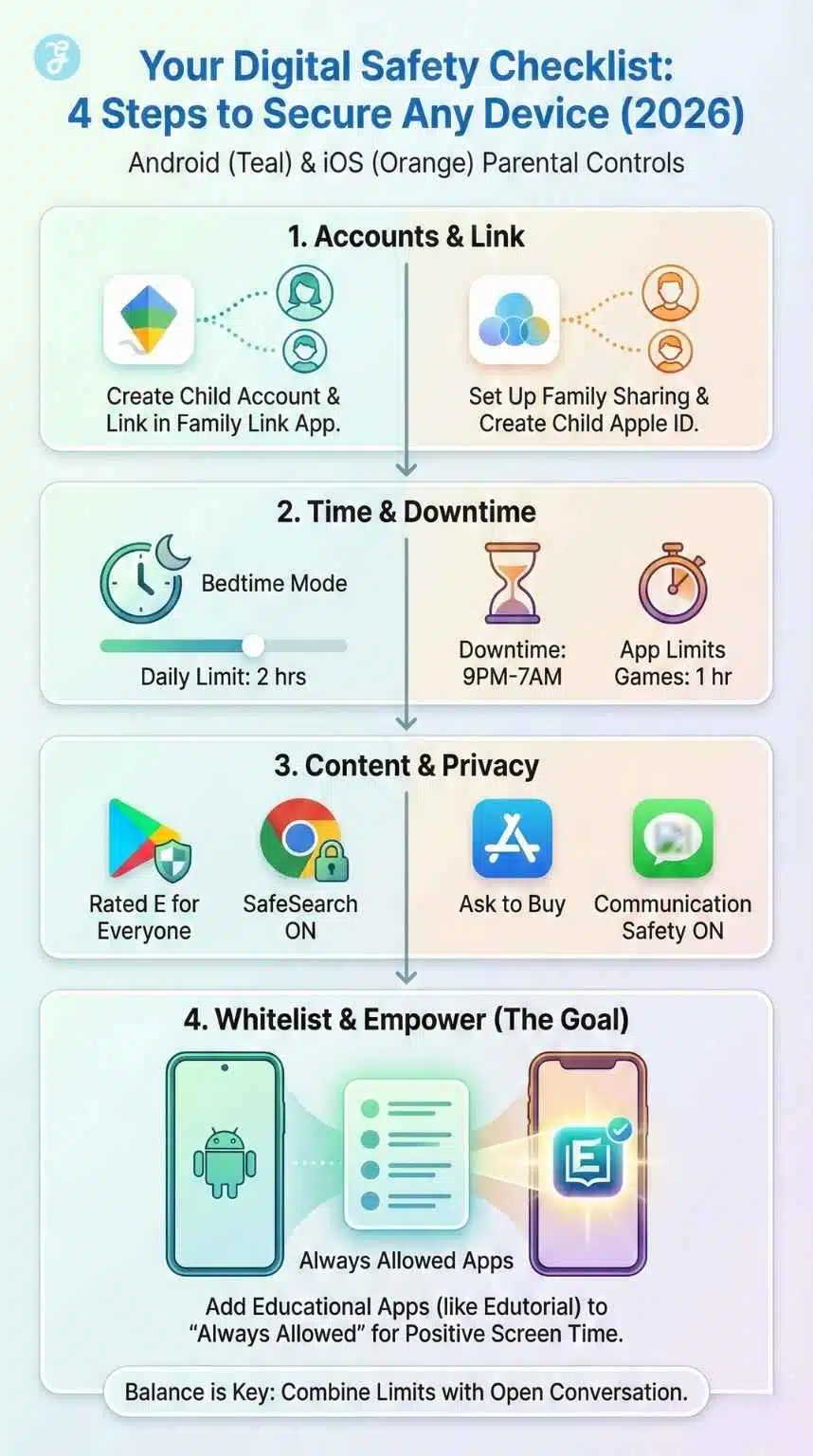
Step 1: The Foundation – Google Family Link
If you haven’t already, the first step is creating a Google Account for your child. In 2026, Google requires this for any user, regardless of age, to ensure compliance with digital privacy laws.
- Download the App: Install Google Family Link on your (the parent’s) device.
- Create/Link Account: Open the app and tap the + icon to add a child. If your child already has an account, you will link it here. If not, Google will guide you through creating a “Child Account” (under 13, or applicable age in your region), which automatically triggers stricter privacy defaults.
- Device Setup: Pick up your child’s Android device. Go to Settings > Google > Parental Controls. Sign in with the child’s account. The device will recognize that it is being supervised and will automatically prompt for the parent’s authorization.
Step 2: Managing Screen Time and Downtime
This is the most used feature for a reason.
- Daily Limits: In the Family Link dashboard, select your child’s profile and find the “Daily Limit” card. You can set individual limits for each day (e.g., 2 hours on weekdays, 4 hours on weekends).
- Bedtime (Downtime): This is non-negotiable for sleep hygiene. Set a “Bedtime” (e.g., 9:00 PM). At this time, the phone will “Lock,” and the screen will go gray, accessible only for emergency calls.
- Bonus Feature: In 2026, Android introduced “Focus Mode” integration for kids. You can trigger a “Homework Time” mode that pauses entertainment apps but leaves calculator and educational apps active.
Step 3: App Blocking and Whitelisting (The Edutorial Strategy)
Not all screen time is equal. You don’t want your child burning their 2-hour limit on educational apps.
- Review Apps: When your child tries to install a new app, you will get a notification on your phone to “Approve” or “Deny.”
- Set “Always Allowed”: Navigate to App Limits. Find your Edutorial learning apps. Tap them and select “Always Allowed.”
- Why do this? This ensures that even if your child uses up their 2 hours of “entertainment” time, they can still open Edutorial apps to practice math, reading, or logic. It reinforces the idea that learning is always accessible.
- Block Categories: You can proactively block entire categories like “Social” or “Dating” so apps in those groups never even appear in the Play Store for them.
Step 4: Content Restrictions & SafeSearch
- Play Store: Go to Manage Settings > Controls on Google Play. Set content restrictions based on age ratings (e.g., PEGI 3, PEGI 7, or Everyone 10+). This filters out violent games.
- Chrome Browsing: Toggle “Try to block explicit sites” on. For younger children, use the “Allow only approved sites” list. This is a whitelist-only mode where they can only visit websites you have typed in (e.g., editorialge.com, wikipedia.org).
- YouTube Kids: Ensure the YouTube app is restricted or swapped entirely for YouTube Kids, linked to your Family Link profile for history monitoring.
How to Set Up Parental Controls on iOS [2026 Updated]
Apple’s approach is centralized under Screen Time. With iOS 19/20, Apple has doubled down on privacy and “Communication Safety,” using on-device AI to protect children without sending data to the cloud.
Step 1: Enabling Screen Time & Family Sharing
- Family Sharing: On your iPhone, go to Settings > [Your Name] > Family Sharing. Add your child’s Apple ID. If they don’t have one, create a “Child Account” from this menu.
- Turn on Screen Time: Grab your child’s device (or use your device if Family Sharing is synced). Go to Settings > Screen Time.
- The Passcode: Tap “Lock Screen Time Settings” and create a 4-digit passcode. Crucial: Do not use a code your child knows (like the house alarm or your birthday). This code prevents them from changing the limits you set.
Step 2: Downtime and App Limits
- Downtime: Schedule a block of time away from the screen. During Downtime, only apps that you choose to allow and phone calls will be available.
- App Limits: You can set daily time limits for app categories. For example, you might set a 1-hour limit for “Games” and “Social Networking.”
- One More Minute: A common friction point is when a game cuts off mid-level. You can toggle off the “Block at End of Limit” if you want to be lenient, but for strict control, ensure this is ON.
Step 3: Content & Privacy Restrictions
This is the “nuclear” option menu where the granular controls live.
- iTunes & App Store Purchases: Go to Store Purchases & Re-Downloads. Set “Installing Apps” to Allow (but require password) or Don’t Allow.
- In-App Purchases: Set this to Don’t Allow. This is the #1 way parents lose money to “free” games.
- Web Content: Select “Limit Adult Websites”. For Edutorial users, we recommend the specific “Allowed Websites Only” list for children under 10. You can add specific URLs for their school portal and Edutorial resources.
Step 4: Communication Safety & Sensitive Content
Updated for 2026, this feature is a game-changer.
- Check for Sensitive Photos: Enable this feature in Screen Time. Your child’s iPhone will use on-device machine learning to detect nudity in photos sent or received in Messages, AirDrop, and other apps. If detected, the image is blurred, and the child is warned.
- Legacy Contact: Ensure you are set as the recovery contact for their account in case they forget their password.
Step 5: The “Always Allowed” List
Just like on Android, you want to prioritize positive content.
- Go to Settings > Screen Time > Always Allowed.
- Here, you will see a list of apps. Tap the green (+) plus sign next to your educational apps
- Now, even when “Downtime” kicks in at 8 PM, your child can still access these approved learning tools if they wish to read or solve puzzles before sleep.
The “Mixed Family” Dilemma [Android Parents + iOS Kids]
It is common for parents to have Android phones while their children use iPads. In 2026, cross-platform management is possible but requires a specific setup:
- For Android Parents managing iPhones: You cannot use the “Screen Time” settings from your Android phone directly. You must set up the controls physically on the child’s iPhone and protect them with a passcode. To manage approval requests remotely, install the Apple Support app or use the web-based Apple ID portal, though native control is limited.
- For iOS Parents managing Androids: This is easier. Simply download the Google Family Link app for iOS (available on the App Store). It gives you full control over the child’s Android device directly from your iPhone.
Comparison: Parental Controls on Android and iOS
To help you decide which ecosystem fits your family better, here is a quick comparison of how they handle the key pillars of parental control.
| Feature | Android (Family Link) | iOS (Screen Time) |
| Setup Difficulty | Moderate (Requires separate app) | Easy (Built into Settings) |
| Time Extensions | Grants “Bonus Time” in 5-minute increments | “One more minute” or 15-minute requests |
| App Approval | Push notification to parents’ phones | “Ask to Buy” notification |
| Hard Locking | Can “Lock Now” be done instantly remotely | Can disable apps, but “Phone” remains active |
| Location | Integrated Google Maps accuracy | “Find My” precise tracking |
| Web Filtering | Strong (via Chrome SafeSearch) | Strong (via Safari Restrictions) |
| Edutorial Integration | Whitelist via “Always Allowed” | Whitelist via “Always Allowed” |
The “Good Content” Strategy: Why Edutorial Matters
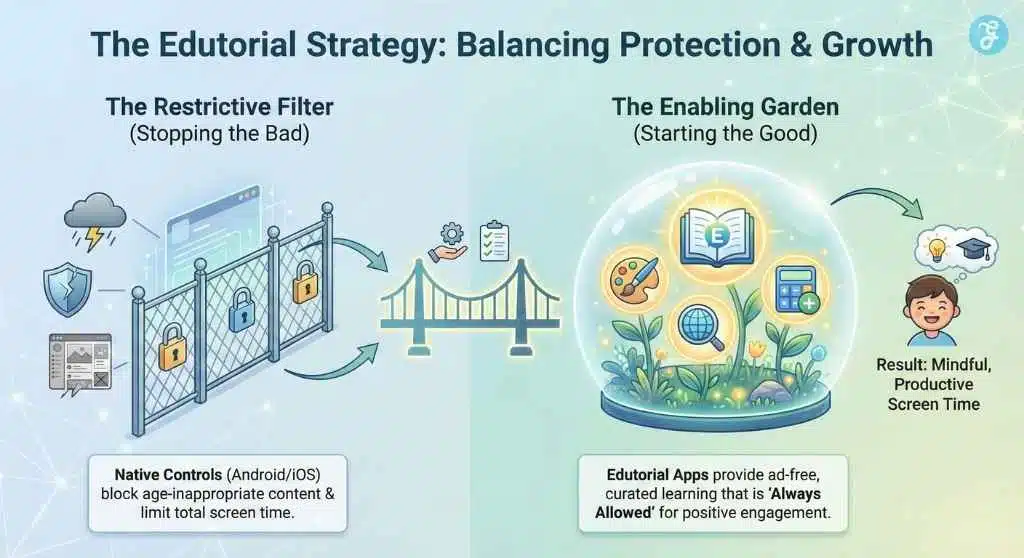
We have talked a lot about stopping bad things. But parental controls are incomplete without starting good habits. If you create a digital vacuum by removing TikTok and Roblox, you must fill it with something engaging, or your child will resent the device.
Edutorial, a learning game for toddlers, is designed to sit perfectly inside these parental control frameworks.
- Safety First: Edutorial apps are built without third-party ad trackers. This means you don’t need to worry about “In-App Purchases” restrictions because the economy of the app is safe.
- Educational Looping: The apps use gamification, similar to the addictive mechanics of casual games, but apply them to phonics, math, and logic.
- The “Yes” Bucket: When your child asks, “Can I play on my phone?”, you can say, “You have used your game time, but you can play educational apps as much as you want.” This shifts the dynamic from restriction to permission.
Advanced Tips for the Tech-Savvy Parent
For those who want to go beyond the basic operating system settings, here are three advanced tips for 2026.
Router-Level Controls (The Home Gatekeeper)
Your phone’s controls only work on the device. But what about the Smart TV or the old gaming console? Most modern Wi-Fi 6E/7 routers have built-in parental controls. You can pause the internet for specific devices (MAC address filtering) at dinner time. This is a great “kill switch” that backs up your Android/iOS settings.
The “Psychological Contract”
Before handing over the device, sign a literal document with your child. A “Digital Contract” outlines the rules: “I will not share my password,” “I will not bully others,” and “I understand Mom/Dad can check my phone.” Physicalizing the rules makes them feel more real than a software toggle.
Guided Access (iOS) / App Pinning (Android)
If you are handing your own phone to a toddler, don’t rely on general controls.
- iOS: Triple-click the side button to enable Guided Access. This locks the phone into ONE specific app (e.g., a video player or drawing pad) and disables the touch screen in certain areas.
- Android: Use App Pinning (found in Security settings). This pins a specific app to the screen so the child cannot swipe home or switch to your email.
Troubleshooting: When Controls Fail or Glitch
Even 2026 technology isn’t perfect. Here is how to handle common glitches:
“My child is using an app past the time limit!”
The Fix: Check if the app is on the “Always Allowed” list. Also, on iOS, check if you accidentally toggled “Block at End of Limit” to OFF. On Android, ensure the device is actually connected to the internet; sometimes limits don’t sync immediately if the child is offline.
“Family Link isn’t showing my child’s location.”
The Fix: On the child’s device, open Google Maps and ensure “Location Sharing” is turned ON and set to “High Accuracy.” Power-saving modes often kill the GPS signal.
“The controls disappeared!”
The Fix: Smart kids sometimes discover that “Factory Resetting” the device wipes controls. If the device suddenly looks brand new, they likely reset it. You will need to re-login and re-apply the Family Link/Screen Time setup.
Frequently Asked Questions (FAQs)
Can my child bypass these parental controls?
In 2026, it is very difficult to “hack” these controls without the passcode. However, children are smart. They might guess your PIN if they watch you type it, or they might try to change the time zone on the phone to trick the “downtime” counter. The best defense is keeping your PIN secret and occasionally checking the “Screen Time” activity log for irregularities (e.g., usage at 3 AM).
Do these controls apply to incognito mode?
Yes. On both Android and iOS, enabling parental controls automatically disables “Incognito Mode” or “Private Browsing” in the native browsers (Chrome/Safari). If they download a third-party browser to bypass this, your “App Install” permission setting should catch it before they can open it.
Will setting up parental controls delete my child’s data?
No. Setting up controls is a settings overlay; it does not delete photos, contacts, or app data. However, if you convert an adult account to a child account (which is rare/difficult), there might be some data migration. It is always best to start with a fresh child account or apply supervision to an existing one.
Use the “App Limits” feature. You don’t have to ban Instagram or Snapchat entirely. You can set a strict limit of 30 minutes per day. Furthermore, inside those apps, you should check their internal settings (Privacy Checkup) to ensure their account is set to “Private” and they aren’t discoverable by strangers.
Is Edutorial free to use?
Edutorial offers both free and premium tiers. The free tier provides access to essential learning tools and games, supported by our safe-content guarantee. The premium tier unlocks the full library of advanced educational modules and detailed progress tracking for parents, ensuring a completely immersive, distraction-free environment.
Final Thought: Parenting in the Age of AI
As we move through 2026, the line between the “real world” and the “digital world” has all but vanished. Your child’s phone is their classroom, their playground, and their social hub.
Learning how to set up parental controls on Android and iOS is not about policing your child; it is about scaffolding their experience. It is about building a digital fence that keeps the wolves out while giving them enough space to run, play, and learn. By combining the hard limits of Family Link and Screen Time with the soft, enriching environment of educative screen time, you are not just protecting your child; you are preparing them to be responsible digital citizens.
Take an hour this weekend. Sit down with your child’s device. Configure these settings. It is a small investment of time that pays dividends in safety, peace of mind, and the healthy development of your child’s mind.