
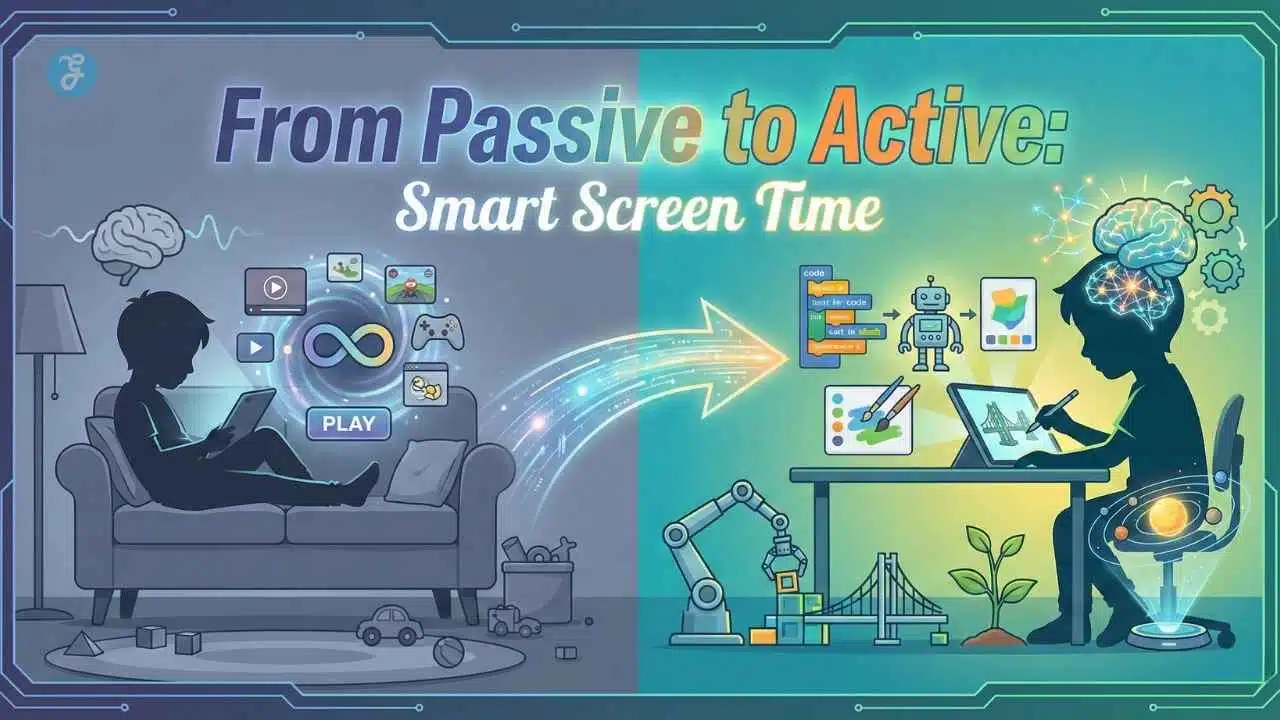
If you are like most parents in 2026, handing a tablet to your child likely comes with a pang of guilt. You might worry about the “zombie stare”, that glazed-over look they get while endlessly scrolling through auto-played videos. But here is the truth that recent educational research has finally clarified: the enemy is not the screen itself; the enemy is passivity.
The latest studies on cognitive development suggest that “screen time” is an outdated metric. It lumps together two fundamentally different activities: mindlessly consuming content and actively creating it. The solution to the digital dilemma isn’t necessarily to ban devices, but to fundamentally shift how they are used. By pivoting to Active Screen Time for Kids, you can transform that source of guilt into a powerful “digital classroom” that builds logic, design skills, and emotional intelligence.
This comprehensive guide will walk you through exactly how to make that shift, from the psychology behind it to the specific buttons you need to click in your settings today.
Key Takeaways
- Shift the Metric: Stop counting minutes and start measuring engagement. 30 minutes of coding is better than 10 minutes of passive scrolling.
- Lock It Down: Use Guided Access (iOS) or App Pinning (Android) to ensure educational time doesn’t drift into entertainment time.
- Tool Up: Invest in a stylus to promote fine motor skills and a “creator” mindset.
- Be Present: Use the “Three Question Rule” to verify they are actively thinking, not just tapping.
- Prioritize Creation: Audit their apps. If an app doesn’t allow them to make, solve, or design something, consider deleting it.
The Core Difference: Active vs. Passive Screen Time
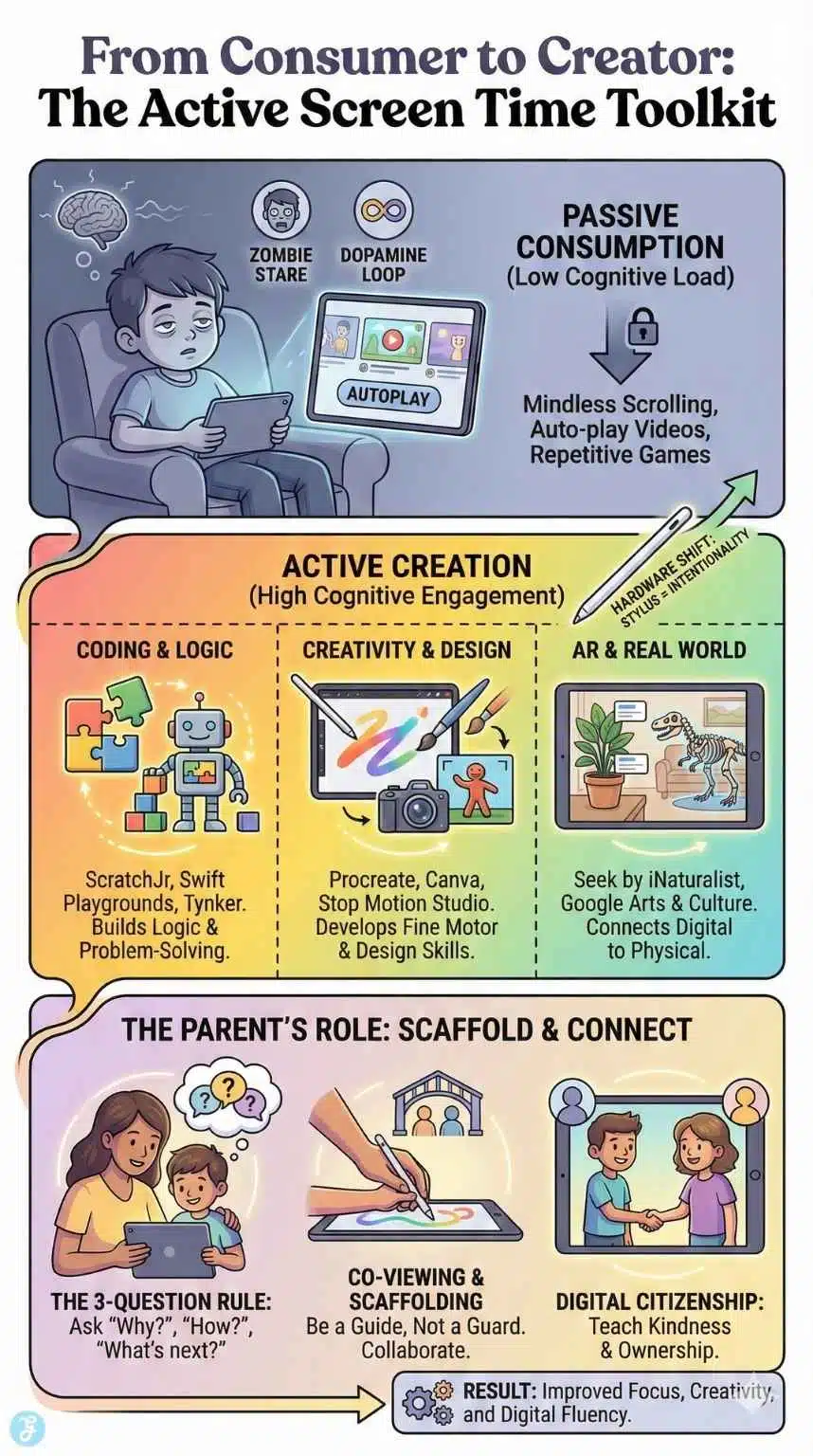
Understanding the distinction between active and passive use is the single most important factor in managing your child’s digital diet. Experts now categorize screen time based on “cognitive load”—how much work the brain is doing during the interaction.
Passive Screen Time (Consumption)
This is the digital equivalent of eating junk food. It requires minimal effort and offers little nutritional value for the brain.
- The Activity: Watching YouTube (especially with autoplay on), scrolling through TikTok or Shorts, playing repetitive “clicker” games that require no strategy.
- The Brain State: Low cognitive load. The brain enters a “receiving” mode where critical thinking shuts down. Dopamine is released in anticipation of the next visual stimulus, which can lead to irritability when the device is taken away.
- The Outcome: Shortened attention span, “zoning out,” and potential behavioral issues due to overstimulation without engagement.
Active Screen Time (Creation)
This is the “vegetables and protein” of the digital world. It requires focus, decision-making, and fine motor skills.
- The Activity: Coding a game, editing a video, drawing with a stylus, solving complex logic puzzles, or using a math app that adapts to their skill level.
- The Brain State: High cognitive engagement. The child is “leaning in” rather than leaning back. They are problem-solving, making aesthetic choices, and debugging errors.
- The Outcome: Improved executive function, digital fluency, creativity, and a sense of accomplishment.
The “Brain Check”: Is It Active?
How can you tell if an app is truly active? Look at your child and ask these three questions:
- Are their hands moving meaningfully? (Are they drawing or tapping with purpose, or just swiping?)
- Are they talking? (Active users often narrate their process: “I need to find the blue block.”)
- Is there an end product? (Did they make a drawing, a song, or a level?)
| Feature | Passive Screen Time | Active Screen Time |
| Primary Action | Watching, Listening, Scrolling | Creating, Solving, Designing |
| User Role | Consumer | Creator / Director |
| Pacing | Algorithm-controlled (Autoplay) | User-controlled |
| Social Aspect | Isolating | Often collaborative (showing work) |
| Educational Value | Low / Incidental | High / Intentional |
The Software: Top Apps to Build Your Digital Classroom [2026 Edition]
To turn a tablet into a classroom, you must delete (or hide) the consumption apps and front-load the device with creation tools. Here are the best-in-class apps for 2025, categorized by the skills they teach.
1. Coding & Logic (The New Literacy)
Coding is no longer just for future computer scientists; it is the modern version of learning logic and cause-and-effect.
- ScratchJr (Ages 5-7): This remains the gold standard for early learners. Instead of lines of text, kids use “blocks” of instructions (like “move right,” “jump,” or “shrink”) to animate characters. It teaches the foundational logic of sequencing without the frustration of typing.
- Swift Playgrounds (Ages 8+): Apple’s gamified environment for teaching “Swift,” the actual programming language used to build iPhone apps. It feels like a video game—you control a character navigating a 3D world—but the only way to move the character is by writing real code. It bridges the gap between game and tool perfectly.
- Tynker: This platform is excellent for growing with your child. It starts with block-based coding similar to Scratch, but allows users to graduate to Python and JavaScript. It also integrates with Minecraft, allowing kids to “mod” their own games, which is a massive motivator.
2. Creativity & Design (The Digital Canvas)
Digital art is a legitimate skill set that encourages patience and observation.
- Procreate (iPad): While it is a paid app, it is a one-time purchase that unlocks a professional-grade art studio. When paired with a stylus, it allows children to experiment with oil paints, charcoal, and watercolors without the mess. The “timelapse” feature records their drawing process, which they can watch back to see how they constructed their image—a powerful tool for self-reflection.
- Canva for Education: This is often free for K-12 students (check with your school). It teaches graphic design principles like layout, font pairing, and color theory. Kids can use it to make birthday cards, posters for school projects, or even presentations.
- Stop Motion Studio: This app transforms the tablet’s camera into a movie production tool. Kids can take their physical toys—LEGOs, action figures, or clay—and animate them frame by frame. It teaches patience, storytelling, and the physics of movement.
3. Augmented Reality (AR) & Science
AR uses the tablet’s camera to overlay digital information onto the real world, breaking the “bubble” of the screen.
- Seek by iNaturalist: This app is “Shazam for nature.” Your child points the camera at a bug, flower, or tree, and the app uses image recognition to identify it. It encourages outdoor exploration, using the screen as a tool to understand nature rather than escape it.
- Google Arts & Culture: This app allows kids to virtually walk through the world’s most famous museums. They can project a life-sized dinosaur skeleton into their living room or zoom in on the brushstrokes of a Van Gogh painting.
The Hardware: Tools That Shift the Mindset
Sometimes, changing the physical accessories of the tablet can change the psychological approach to using it.
The Stylus Effect
Research indicates that using a stylus (like an Apple Pencil, Logitech Crayon, or a generic active stylus) engages different neural pathways than finger-swiping.
- Fine Motor Skills: Holding a stylus mimics the “pincer grasp” required for writing with a pencil. It strengthens hand muscles that swipe-based gaming ignores.
- Intentionality: You cannot “doom scroll” effectively with a pencil. A stylus signals to the brain that “this is a time for writing, drawing, or precision,” shifting the device from a toy to a tool.
Rugged Cases with Kickstands
If a tablet is lying flat on a lap, it invites slouching and passive watching.
- The “Workstation” Setup: Get a case with a sturdy kickstand. When the tablet is propped up upright on a table, it resembles a monitor. This encourages a better posture and signals “work mode.” Add a Bluetooth keyboard, and suddenly the “entertainment device” is a writing processor.
Parental Controls: Locking in the Learning
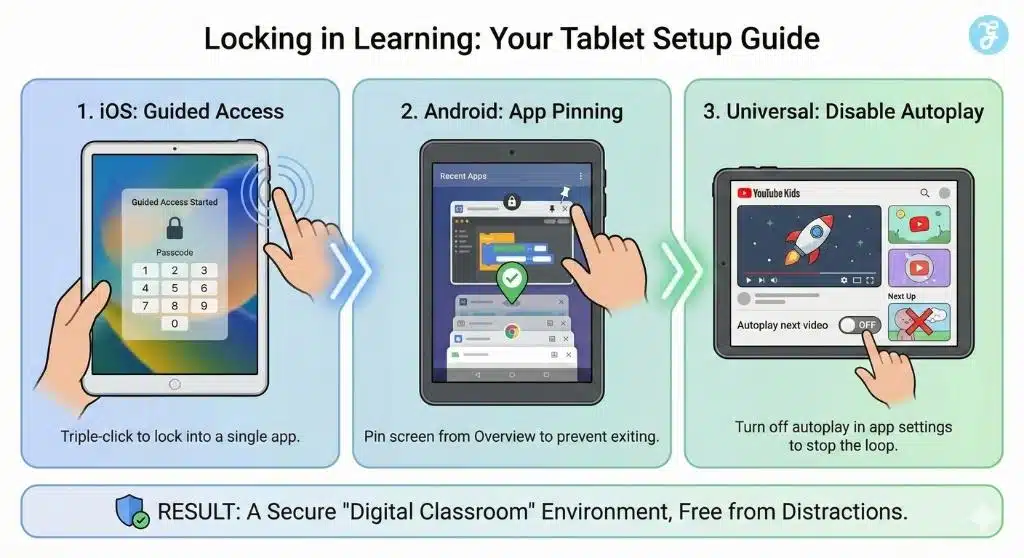
The best intentions will fail if the YouTube icon is just one click away. You must use the operating system’s built-in tools to “fence in” the playground.
For iPhone/iPad: Guided Access
Guided Access is the single most effective tool for parents. It locks the iPad into a single app, disabling the “Home” button so the child cannot exit.
How to set it up (iOS 18+):
- Go to Settings > Accessibility > Guided Access.
- Toggle it ON and set a passcode (different from your screen unlock code).
- Open the educational app you want your child to use (e.g., ScratchJr).
- Triple-click the side button (or home button on older models).
- Tap Start.
Result: The child can explore that specific app fully, but they cannot switch to games or videos. To exit, you triple-click and enter your code.
For Android: App Pinning
Android has a similar feature that keeps the device locked to one screen.
How to set it up:
- Go to Settings > Security (or “Biometrics and Security”) > Other Security Settings.
- Find App Pinning (or “Pin Windows”) and turn it ON.
- Open the app you want to use.
- Swipe up to view your open apps (Overview).
- Tap the app’s icon at the top and select Pin.
Result: The child is locked into that app. To unpin, you typically hold the Back and Overview buttons simultaneously.
Disabling Autoplay
If you do allow video apps (like YouTube Kids), you must go into the settings and turn off Autoplay. This simple change forces a “decision point” at the end of every video. The child has to actively choose to watch another, breaking the hypnotic loop of the algorithm.
The Parents’ Role: Scaffolding and Co-Viewing
Technology is a tool, not a teacher. The “classroom” effect happens most effectively when a parent acts as a scaffold—supporting the learning until the child can do it alone.
The “Three Question Rule”
When your child is using a tablet, try not to ignore them. Instead, interrupt (gently) with curiosity. Ask three questions to force them to verbalize their thinking:
- “Why did you choose that color for the background?”
- “How do you earn points in this game?”
- “What do you think will happen if you press that button?”
This converts the screen time from a solitary experience into a social, linguistic one. It forces the child to practice metacognition, thinking about their own thinking.
Co-Viewing and Co-Playing
Instead of using the tablet as a babysitter, use it as a bridge.
- The Multiplayer Mindset: Many active apps allow for collaboration. In Minecraft, you can build a house together. In a drawing app, you can play “exquisite corpse” (where you draw a head, and they draw the body).
- The “Show and Tell”: Establish a rule that screen time must end with a “show and tell.” If they spent 30 minutes on the iPad, they need to show you the code they wrote, the picture they drew, or the house they built. This creates accountability and pride.
Digital Citizenship
Active screen time is the perfect sandbox for teaching online ethics.
- Ownership: If they create a piece of art, ask them, “Is this yours? How would you feel if someone took it and said it was theirs?” This introduces concepts of copyright and plagiarism.
- Kindness: If they are playing a game with chat (like Roblox, under supervision), discuss how they speak to others. “We are kind in real life, so we are kind on the screen.”
Active Screen Time & Neurodiversity (ADHD/Autism)
For neurodivergent children, the distinction between active and passive screen time is not just educational—it is often therapeutic. Research from 2024 and 2025 highlights that while passive scrolling can sometimes exacerbate symptoms of inattention or sensory overload, active screen time can be a superpower for the neurodiverse mind.
-
The “Hyperfocus” Advantage: Children with ADHD often struggle with boredom but thrive in “hyperfocus.” Active apps like Minecraft (in Creative Mode) or Tynker allow them to channel that hyperfocus into complex world-building or coding projects, turning a “symptom” into a productive skill.
-
Predictability and Logic: For children on the autism spectrum, the social world can feel chaotic and unpredictable. Coding offers a safe harbor—a world where if X, then Y always happens. Apps like Scratch provide a controlled environment where they can experiment with cause and effect without the social anxiety of failure.
-
Visual Communication: Some neurodiverse children find verbal communication challenging. Digital art apps like Procreate or comic creators allow them to express complex emotions and narratives visually, bridging the communication gap with parents and teachers.
Real-World Integration: Bridging the Gap
The ultimate goal of active screen time is to have it spill over into the real world.
- From Screen to Paper: If they are drawing on the iPad, challenge them to recreate that drawing with physical markers. Compare the two. Which was harder? Which looks better?
- From Code to Lego: Use the logic from coding apps to build physical structures. “You used a loop in your code to repeat an action. Can you make a repeating pattern with these Legos?”
- From Video to Backyard: After using an AR app to identify bugs, go outside without the tablet and see if they can remember the names of the insects they find.
Frequently Asked Questions (FAQ)
How much “Active Screen Time” is safe for my child?
While active screen time is better than passive, the American Academy of Pediatrics still recommends balance. For active use, strict time limits are less critical than they are for passive consumption, but you should still ensure screens don’t displace sleep, physical play, or face-to-face interaction. A good rule of thumb for ages 6+ is to focus on content quality and stop when you see signs of fatigue or overstimulation.
Is YouTube Kids considered “Active” screen time?
Generally, no. Watching videos is inherently passive. However, it can be active if used as a tutorial. For example, if your child is watching a “How to Draw” video and is physically drawing along with it on paper, that is active engagement. If they are just watching other kids play video games, that is passive.
My child gets angry when I turn off the tablet. What should I do?
This is often a dopamine drop. Passive apps are designed to keep dopamine high; when you cut it off, the brain crashes. Active apps (like coding or drawing) have natural “stopping points” (finishing a level, completing a drawing). To minimize meltdowns, give warnings (“5 minutes left”), and try to transition them to a physical activity immediately (e.g., “Time’s up, let’s go have a snack”).
Are educational games actually educational?
Not all of them. Many “educational” apps are just digital flashcards wrapped in flashy animations (often called “chocolate-covered broccoli”). True educational apps require problem-solving. Look for apps like Khan Academy Kids or DragonBox series, which teach concepts through mechanics rather than just memorization.
At what age should I introduce active screen time?
Experts generally suggest avoiding almost all screen time under 18-24 months (except video chatting). From ages 2-5, active screen time should be highly scaffolded—meaning you are doing it with them. By age 6 or 7, children can start using creation tools like ScratchJr independently, but supervision is still key.
Final Thought: The Digital Diet
Think of your child’s tablet like their diet. You wouldn’t ban food just because candy exists. You would teach them to eat vegetables, proteins, and fruits, and treat candy as an occasional indulgence.
By transforming their tablet into a classroom—filled with tools for art, code, and logic—you aren’t just managing their screen time; you are preparing them for a future where digital fluency is as essential as reading and writing. The goal isn’t to disconnect them from technology, but to connect them to their own creativity through technology. Start small: download one coding app today, buy a stylus, and watch them switch from a consumer to a creator.