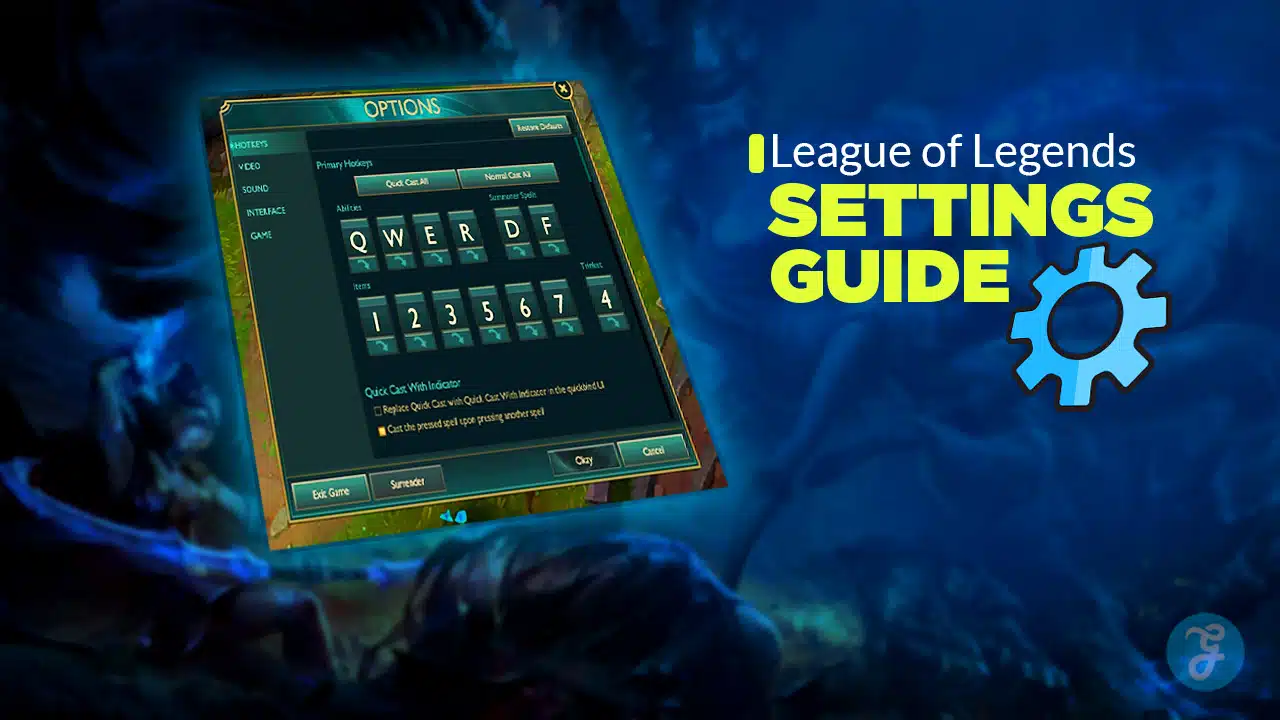
League Of Legends Settings Guide content often falls into one of two traps. It either tells you to copy a pro’s config with no context, or it dumps a checklist that feels overwhelming. This guide takes a smarter path. You start with defaults, build clean muscle memory, then adjust settings as your play reveals what you actually need. The end goal is simple: comfortable controls, readable visuals, stable FPS, and eventually a confident switch to Quick Cast for faster, more consistent plays.
If you follow the progression in order, you will avoid the most common mistake players make, changing everything at once and never learning what helped.
Why Defaults Are The Best Starting Point
The default settings are not perfect, but they are predictable. They are built to work across champions, roles, and skill levels. Most importantly, defaults give you a stable baseline so you can tell when a change is helping or hurting.
When you start on defaults, you train fundamentals first. You learn spacing, last hitting, camera control, and ability timing without also fighting your settings. Once your gameplay becomes consistent, you can make changes that solve real problems you notice in your own matches.
The Biggest Problem With Copying Pro Settings
A pro’s settings are optimized for their habits, their champion pool, and their years of muscle memory. If you copy those settings day one, you might feel faster for a game or two, then your mistakes pile up. You miss abilities, misclick in fights, or panic because your inputs do not match what your brain expects.
A better approach is to earn each change. Defaults first, then upgrades as needed.
The “One Change At A Time” Rule
The quickest way to ruin your consistency is to adjust ten settings at once. If you do that, you will not know which change caused the improvement or the problem.
For this League Of Legends Settings Guide approach, make one meaningful change, then play several games. If the change works, keep it. If it hurts, revert it and move on.
Step One: Optimize FPS And Game Stability
Before keybinds, before interface tweaks, you want stable performance. League is a timing game. FPS drops and stutters destroy last hits, kiting, and reaction windows. Your goal is consistency, not a huge number in the corner.
FPS Target: What You Actually Need
For most players, a steady 90 to 144 FPS feels excellent if your monitor supports it. If you are on a 60 Hz display, a stable 60 FPS with low stutter can still feel clean.
The worst experience is high FPS that drops in teamfights. Smooth is better than impressive.
Recommended Video Settings For Stable FPS
Start with defaults, then adjust in this order.
-
Lower Shadows
Shadows are expensive and usually do not help you play better. Reducing them often gives a noticeable FPS boost. -
Reduce Effects Quality
Teamfights can spike particle effects. Lowering effects can reduce drops without making the game unreadable. -
Lower Character Quality Only If Needed
Champions need to be clear. Keep character quality decent unless your PC struggles. -
Cap FPS To Prevent Spikes
If uncapped FPS causes heat or stutters, cap it to a number your system can hold in fights. A steady cap feels better than bouncing. -
Turn Off Extra Eye Candy You Do Not Need
If you notice stutter, remove features that add visual load but do not help decision making.
Window Mode And Input Feel
Most players prefer borderless or fullscreen for a smoother feel, but your best option depends on your system. The key is choosing the mode that minimizes alt-tab delay and keeps performance stable.
Test both in real matches, not in practice tool. Teamfights are the real stress test.
Network Settings And Clarity
Settings cannot fix bad internet, but you can reduce confusion. You want the game to feel responsive and predictable.
If your ping is unstable, keep your gameplay simple. Avoid “tight window” combos until your connection is stable, or you will blame your settings for a network issue.
Step Two: Build Clean Camera Habits On Defaults
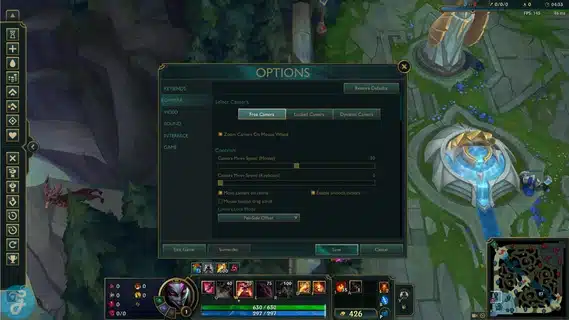
Camera habits are a hidden skill. If your camera control is messy, you will miss fights, lose track of flank angles, or panic in skirmishes. Defaults give you a standard starting point.
Locked Camera Versus Semi-Locked
Many new players start with locked camera because it feels safe. That is fine early. The problem is that locked camera limits your awareness and makes skillshots harder to line up at range.
A better progression is:
-
Start with what feels comfortable.
-
Learn to unlock briefly to check angles.
-
Transition toward unlocked control as your comfort grows.
The Spacebar Reset Habit
One of the best habits you can learn early is using spacebar to snap back to your champion. Even when you play unlocked, spacebar becomes your “home button.” You can pan to check a fight, then instantly return to your character for kiting and dodging.
Keep that habit simple and consistent.
Mouse Sensitivity And Camera Speed
Do not crank camera speed so high that your screen flies around. You want enough speed to track fights, but not so much that your camera overshoots.
Adjust slowly. If you notice you lose your champion during fights, reduce camera speed. If you cannot check side angles fast enough, increase it slightly.
Step Three: Interface Settings That Improve Decision Making
Interface is not about making the game pretty. It is about making information readable when you are under pressure. The best interface settings reduce mental load.
Make The Minimap Work For You
Your minimap is your early warning system. If it is too small, you will miss roams and jungle paths. If it is too large, it can distract you.
A strong default-based approach is:
-
Increase minimap size slightly if you often miss roams.
-
Keep it in a location your eyes naturally check.
-
Train yourself to glance every few seconds, especially when waves are neutral.
Clarity Settings That Help In Fights
You want to instantly read:
-
Your health and mana
-
Enemy health
-
Cooldowns and summoners
-
Who is in range, and who is missing
If your screen feels cluttered, simplify. If your screen feels empty, add the specific information you keep forgetting. The goal is personal clarity, not someone else’s template.
Health Bars, Names, And Targeting Readability
Keep enemy health bars clear. In teamfights, you need to know who is low and who has shields. If you struggle to focus targets, emphasize settings that make enemies and their health more readable.
This is one of those adjustments that often gives immediate improvement.
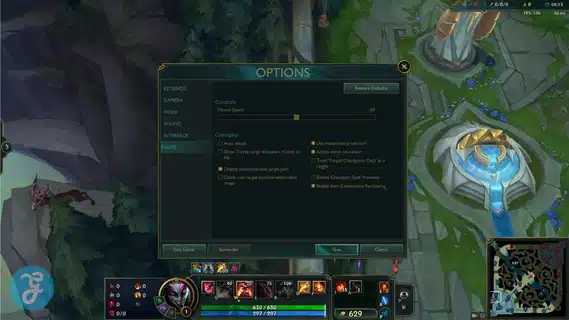
Step Four: Keybinds The Right Way
Keybinds are where players often over-optimize too early. The correct approach is to keep defaults long enough to build comfort, then change binds only when you can describe the specific problem you are solving.
This League Of Legends Settings Guide progression keeps your muscle memory stable while you improve.
Start With Default Ability Keys
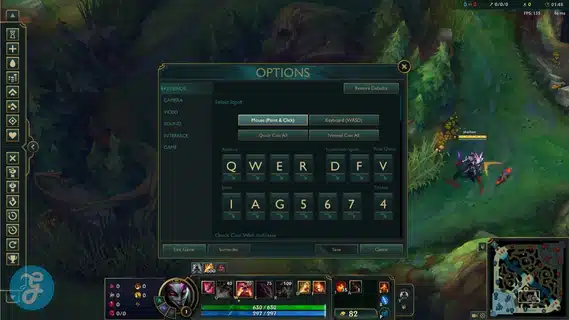
Default Q, W, E, R is a standard for a reason. It maps cleanly to your hand position and works across every champion.
Play on defaults until you can cast abilities without looking at your keyboard. If you still need to glance down, it is too early to redesign your binds.
Learn Smartcast Concepts Before Switching
Before you move to Quick Cast, you should understand what changes in your brain.
-
Normal cast shows the indicator, then you click or release.
-
Quick Cast fires instantly on press or release, depending on your setup.
Quick Cast reduces time between decision and execution. It also increases miscasts if your aim is sloppy.
That is why the order matters. You learn accuracy and spacing first, then you earn speed.
The Most Important Binds To Consider Changing Later
These are the binds that often improve comfort once you understand your habits.
-
Attack Move and Attack Move Click
If you want better kiting, you need an input that makes attacking consistent without misclicking the ground. -
Target Champions Only
This reduces the chance you accidentally hit a minion when you want a kill, especially under towers. -
Self Cast Modifiers
Helpful for shielding yourself quickly without extra clicks. -
Pings
Faster pings improve teamwork and reduce misunderstandings.
Do not change all of these at once. Pick the one that solves your biggest current issue.
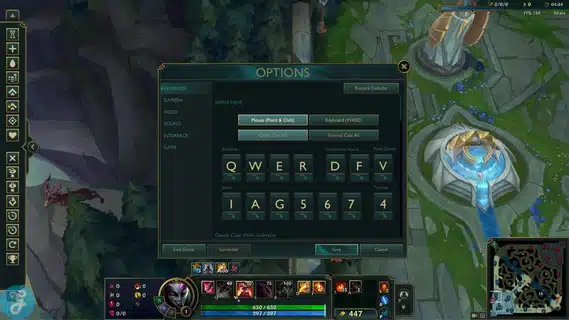
Step Five: The Quick Cast Progression That Actually Works
Eventually, Quick Cast becomes one of the highest value upgrades you can make. It speeds up combos, reduces hesitation, and makes your casting more consistent once your aim is trained.
The mistake is switching too early and then building bad habits. The correct plan is a gradual transition.
Phase 1: Default Cast While You Learn Ranges
In early learning, indicators are useful. They teach you spell ranges, hitboxes, and spacing. This phase is about understanding where your abilities start and end.
Stay here until you can predict ranges without staring at indicators every time.
Phase 2: Quick Cast With Indicator For Training
This is the best bridge setting for many players. You get faster casting while still seeing the indicator when you need it.
Use this phase to build confidence. Practice in normal games, not just practice tool, because real movement and pressure changes your aim.
Phase 3: Full Quick Cast For Most Abilities
Once you stop relying on indicators, move to full Quick Cast for most spells. Your goal is faster execution and fewer input steps.
You do not have to switch every ability at once. Many players keep certain spells on normal cast longer, especially high-impact skillshots or abilities that require precise placement.
Phase 4: Champion-Specific Refinements
This is where you customize like a strong player, not like a confused one. Your settings evolve because your champion pool evolves.
You might:
-
Keep normal cast for an ability that needs careful placement.
-
Use Quick Cast for fast combos.
-
Adjust indicator behavior for consistency.
At this stage, your settings match your play, not the other way around.
Practical Setup: A Simple Order You Can Follow
If you want a clear plan, follow this sequence. It keeps your learning smooth.
-
Stabilize FPS and reduce stutter.
-
Clean up camera habits and use spacebar reset.
-
Adjust interface for minimap and health bar clarity.
-
Keep default keybinds until you stop looking at your keyboard.
-
Add one advanced bind that solves a real problem.
-
Transition into Quick Cast in phases, not all at once.
This is the difference between getting better and feeling lost.
Common Mistakes That Hold Players Back
You can avoid weeks of frustration by dodging these traps.
Changing Everything After One Bad Game
One bad match does not mean your settings are wrong. It usually means you made a decision error, took a bad fight, or missed a timing. If you change settings every time you lose, you never build consistency.
Quick Cast Too Early
Quick Cast is powerful, but it punishes sloppy fundamentals. If you do not know your ranges, you will throw abilities into empty space and lose fights you could have won.
Switch when you are ready, not when you feel impatient.
Ignoring Attack Move And Targeting Tools
Many players focus on flashy binds and ignore the tools that directly improve fights. Attack move options, targeting clarity, and champion-only targeting often matter more than fancy remaps.
Interface Clutter
If your UI is noisy, your brain gets tired faster. You want information that helps decisions, not decoration.
Wrap Up
Defaults give you a reliable base. Small adjustments help you solve problems you actually experience in real games. Then Quick Cast becomes the upgrade that unlocks faster, cleaner execution once your aim and ranges are solid.
If you follow that progression, your settings become an advantage instead of a distraction. League Of Legends Settings Guide improvements should feel like upgrading your tools, not learning a new keyboard every week.