Have you ever been browsing the web, and suddenly your browser throws up a massive warning sign? Fixing SSL Certificate Errors in Chrome and Firefox is a skill every internet user needs today. Your heart sinks because you see those dreaded words. “Your connection is not private” or “SSL Certificate Error” flashes across your screen. This frustrating moment stops millions of people from accessing websites they need.
The good news is that you can fix this yourself without calling tech support. The process is actually pretty straightforward once you know what to look for. A January 2026 report from W3Techs found that over 112 million SSL certificates exist on the internet right now. The US alone hosts over 62 million of them.
Because they protect everything from your bank account to your email, browsers take them very seriously. Yet errors still pop up constantly because certificates expire, dates get out of sync, or security settings go haywire.
These problems are usually not signs of a hacker. They are just technical hiccups that happen to everyone. I am going to walk you through exactly what causes these connection issues. I will show you the exact, step-by-step fixes that I use to get back online quickly.
Understanding and Fixing SSL Certificate Errors In Chrome And Firefox
SSL certificate errors pop up when your browser spots a problem with a website’s security credentials. These connection issues act as your browser’s way of saying something does not add up here. It will block your access to the site until you figure it out.
What is an SSL Certificate Error?
An SSL certificate error pops up when your browser cannot verify that a website’s security protocol is legitimate. Your computer talks to the website’s server and checks if the digital certificate matches what it should be.
If something does not line up, your browser throws up a red flag. This protects you from visiting fake websites that try to steal your information.
Security is not something that happens because of the cave, it happens because of the crossing. – Avi Rubin
According to the 2026 Google Transparency Report, roughly 95% of web traffic in the US is now encrypted via HTTPS. Certificate validation happens automatically in the background every single time you visit one of these secure sites.
Your browser compares the certificate authority information, checks the encryption details, and makes sure the dates are current. If the certificate fails this check, you will see an error message on your screen.
Common Types of SSL Certificate Errors
Websites throw up browser errors for specific reasons. Knowing exactly what they mean helps you apply the correct fix quickly.
For example, Chrome uses specific codes like NET::ERR_CERT_DATE_INVALID, so you know exactly what failed. Here is what you might see when browsing the web.
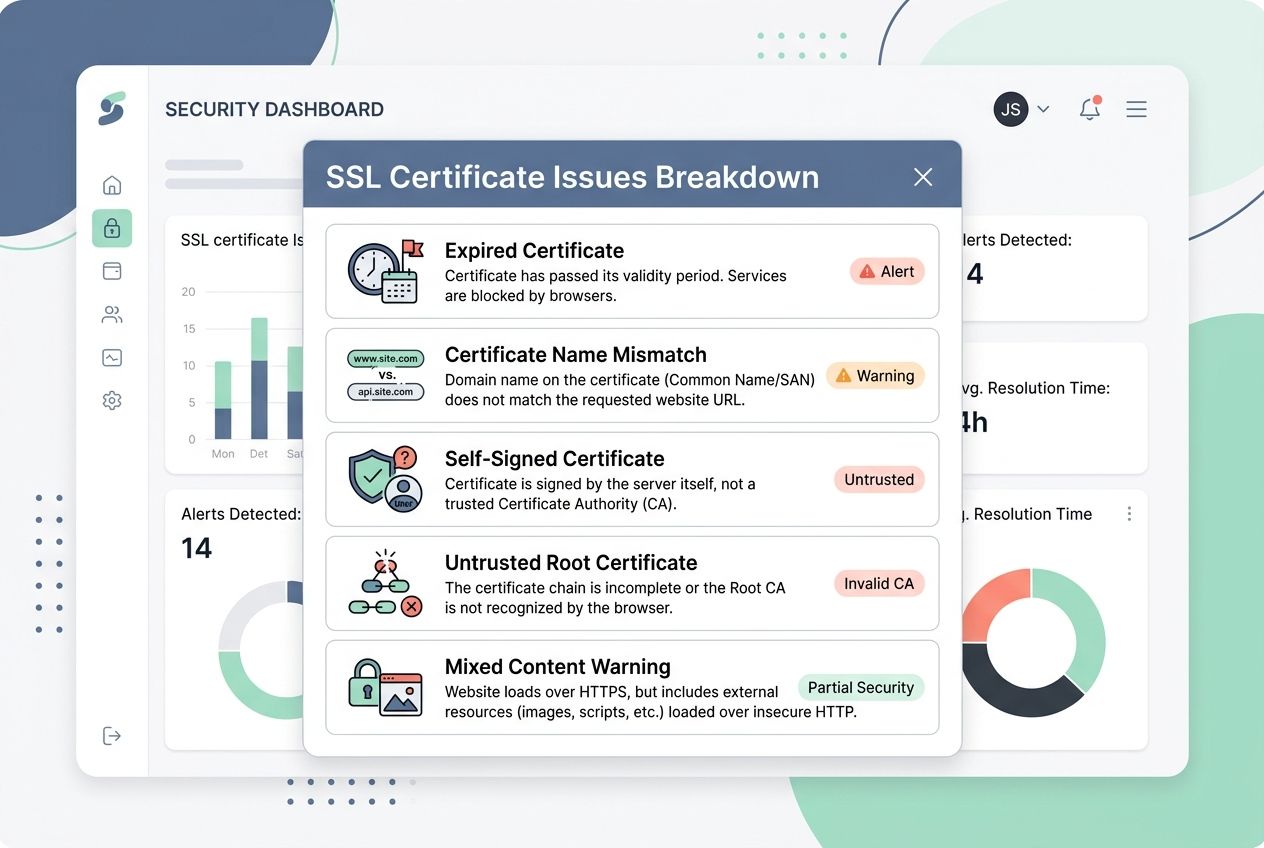
| Error Type | What It Means | Why It Happens |
|---|---|---|
| Expired Certificate | The website’s SSL certificate passed its end date. Browsers reject it like an old ticket at the gate. | Website owners forget to renew before the expiration date arrives. The certificate simply ran out of time. |
| Certificate Name Mismatch | The domain name on your screen doesn’t match the one on the certificate. Think of it as showing up to the wrong address. | Website owners install certificates for the wrong domain. Subdomains sometimes cause this issue too. |
| Self-Signed Certificate | The website created its own certificate instead of getting one from a trusted authority. It’s like writing your own permission slip. | Website owners bypass official channels, often during testing or development phases. They skip the proper verification process. |
| Untrusted Root Certificate | Your browser doesn’t recognize the certificate issuer. Browsers maintain lists of trusted providers, and this one’s not on it. | The issuing authority lacks proper credentials. Outdated browsers might not include newer certificate authorities in their lists. |
| Certificate Revocation | The certificate got cancelled before its expiration date. It’s like a credit card being flagged as fraudulent. | Security breaches occur on the website. The private key gets compromised or leaked online. |
| Mixed Content Warning | The page loads both secure (HTTPS) and insecure (HTTP) resources. It’s a security mismatch on the same page. | Developers link to images, scripts, or stylesheets using HTTP instead of HTTPS. Old code often contains these mixed references. |
| Hostname Mismatch | The certificate doesn’t cover the specific hostname you’re trying to access. The certificate is for example.com, but you’re visiting www.example.com. | Certificates need explicit approval for each hostname. Wildcard certificates can prevent this, but not all sites use them. |
| Weak Signature Algorithm | The certificate uses outdated encryption methods. Modern browsers reject these as security risks. | Older certificates relied on weaker algorithms like SHA-1. Browsers have phased out support for these vulnerable methods. |
Common Causes of SSL Certificate Errors
Several things go wrong behind the scenes to trigger these error messages on your screen. Your browser stops trusting the secure connection because something does not add up between what the website claims and what your computer actually sees.
Expired SSL Certificate
Your digital certificate has an expiration date, just like a driver’s license. Once that date passes, your certificate stops working.
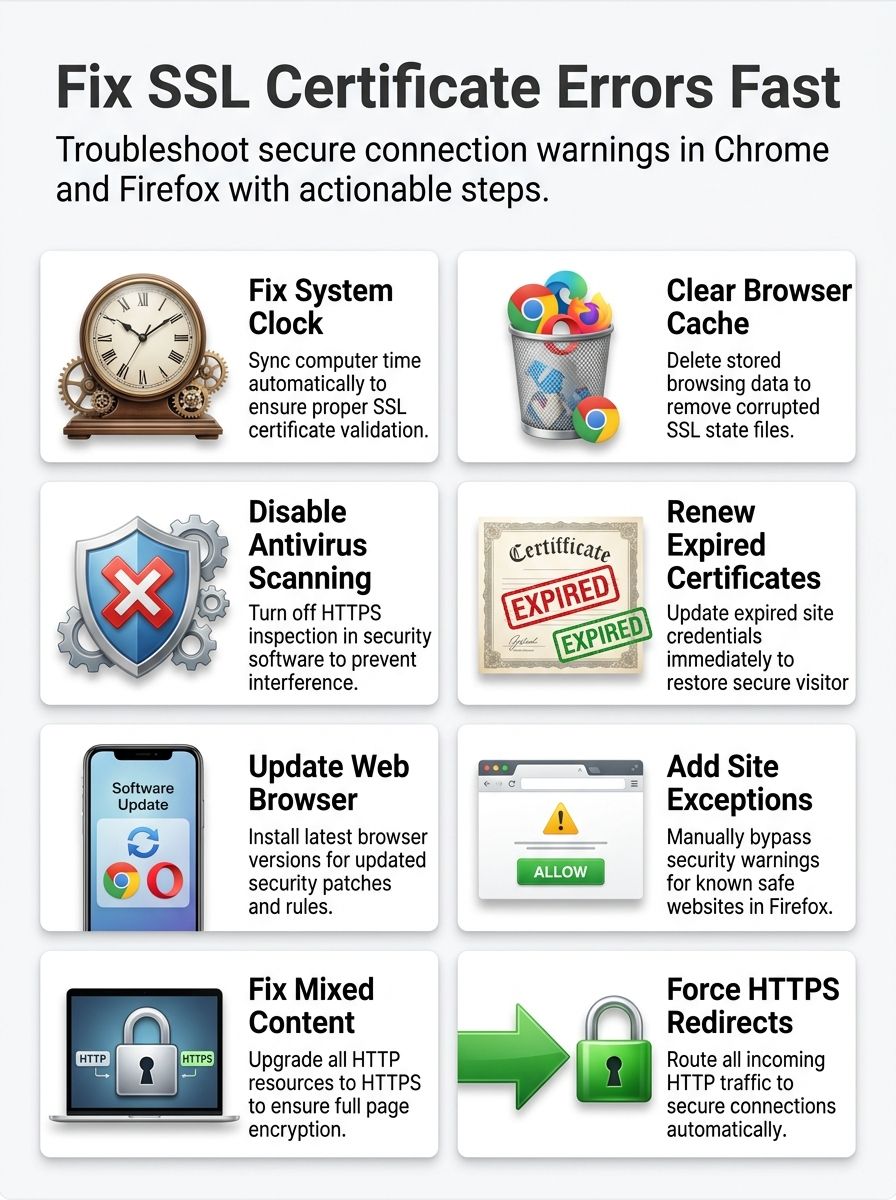
Browsers like Chrome and Firefox will immediately throw up a security error because the certificate authority no longer backs it up. This specific problem is becoming much more frequent for two very critical reasons:
- March 2026 Rule Changes: The CA/Browser Forum reduced the maximum lifespan for all SSL certificates to just 200 days.
- Shorter Provider Defaults: Major providers like Let’s Encrypt are already transitioning to 45-day certificates to improve network security.
This shorter lifespan means website owners who do not automate their renewals will face expired certificates constantly. The fix is straightforward, as you simply need to renew your certificate before the expiration date arrives.
Incorrect Date and Time Settings
Beyond an expired credential, your computer’s internal clock can sabotage your browsing faster than you would think. Your device’s system settings control how your internet browsers validate security protocols.
When these settings drift out of sync, your browser rejects valid certificates as fraudulent. For instance, many Windows users report on internet forums that their default time server, time.windows.com, occasionally fails to sync.
An incorrect system clock is like showing up to a party on the wrong date. Your host will not recognize you, no matter how legitimate your invitation is.
This mismatch triggers validation failures that block your connection. Fixing this problem takes just minutes by adjusting your system time.
SSL Certificate Revocation
A certificate authority can revoke trust certificates before they expire. This happens when the certificate holder fails to renew on time or when a data breach occurs.
Your browser actively checks a revocation list to see if a credential is still valid. If it appears on that list, Chrome and Firefox stop the connection instantly and display an error.
This process acts as a crucial safety net for your privacy. It keeps your personal information completely secure from compromised servers.
Mixed Content Warnings
Your browser displays another obstacle when it detects mixed content on a website. This occurs when a page loads over a secure HTTPS connection, but some internal elements come through an unencrypted HTTP link.
Your browser sees this split and raises a red flag. It blocks those unsecured parts to protect your browsing data.
Mixed content typically falls into two distinct categories:
- Active Mixed Content: This includes scripts, stylesheets, and frames that can alter your page behavior or steal information.
- Passive Mixed Content: This covers images, videos, and audio files that pose less risk but still trigger warnings.
Website owners must fix mixed content by switching all HTTP links to HTTPS. You can help by reporting these connection issues to the site administrators.
Fixing SSL Certificate Errors In Chrome
Google Chrome gives you several straightforward ways to fix SSL certificate errors and get back to browsing safely. We will focus on the exact steps that work for the current 2026 versions of Chrome.
Check and Update Date/Time Settings
Your browser checks your device’s date and time against the SSL certificate’s validity period. If your system clock is off, your browser will reject the certificate.
Incorrect date settings trigger the specific NET::ERR_CERT_DATE_INVALID code in Chrome. Follow these simple steps to fix your clock.
- Right-click the clock display on your Windows taskbar or Mac menu bar.
- Select “Adjust date/time” or open your System Settings.
- Enable the option to “Set time automatically” so your system synchronizes with an internet time server.
- Restart Chrome completely to allow it to refresh its security checks.
Your connection failed message should disappear once your system clock accurately reflects the real date.
Clear Browser Cache and SSL State
Clearing your browser cache and SSL state can solve many connection issues that pop up out of nowhere. This simple fix removes old data that blocks secure connections.
To clear your Chrome cache, follow these straightforward instructions:
- Type chrome://settings/clearBrowserData directly into your address bar and hit enter.
- Make sure the time range is set to “All time” to remove everything stored in your browser.
- Check the boxes next to “Cookies and other site data” and “Cached images and files.”
- Click the blue “Clear data” button.
Windows users should also clear their operating system’s SSL state. You can do this by typing “Internet Options” into the Windows search bar, selecting the “Content” tab, and clicking the “Clear SSL state” button.
Ensure the Website’s SSL Certificate is Valid
Your browser shows an error when the website’s security credentials fail verification. You need to check if the certificate itself is actually valid.
- Click on the security icon next to the web address in your browser.
- Select “Connection is secure” and then click the certificate icon to view its details.
- Check the expiration date to see if it has passed.
- Verify that the domain listed matches the website you are visiting exactly.
You can also use online checker tools like SSL Shopper to scan the website. These tools provide a detailed report about the web security configuration.
Disable Antivirus SSL Scanning
Sometimes your antivirus software can block secure connections without you realizing it. Many programs scan SSL traffic to check for threats, which interferes with Chrome’s native checks.
This feature is commonly called “HTTPS scanning” or “Web Shield,” depending on your software brand.
- Open your antivirus software and look for the network protection or web security tab.
- Locate the specific feature that scans encrypted connections.
- Disable this feature by unchecking the box or switching the toggle to off.
- Restart Chrome and visit the website again to see if the error clears.
If the error persists, consider adding the specific website to your antivirus whitelist instead of leaving the scanner disabled.
Fixing Errors Specifically in Firefox
Firefox handles security certificates a bit differently from Chrome. While Chrome relies on your computer’s operating system, Firefox uses its own internal certificate store by default.
Because of this, Firefox users face their own set of specific error codes, like SEC_ERROR_EXPIRED_CERTIFICATE. Here are the best ways to fix them.
Check for Certificate Expiration
Checking certificate expiration dates stops most security problems before they start. Firefox makes this easy to verify directly from the address bar.
- Click the lock icon next to the website address showing the error.
- Select “Connection secure” and click “More Information” from the dropdown menu.
- Click the “View Certificate” button on the security tab.
- Find the “Validity” section to see the exact expiration date.
If the date has passed, the website owner must renew their credentials. Avoid entering sensitive information on the site until they do.
Add an Exception for Trusted Websites
Sometimes you will spot a certificate error on an internal company portal or a website you trust completely. Firefox allows you to bypass the warning.
Warning: Only add exceptions for websites you genuinely trust. Bypassing these warnings on public sites puts your data at severe risk.
- Click the “Advanced” button on the Firefox error page.
- Read the error description to understand why Firefox blocked the connection.
- Click the “Accept the Risk and Continue” button if you are certain the site is safe.
Firefox will temporarily remember this choice so you can browse the site. If the issue happens on a public site, report it to the administrator immediately.
Update Firefox to the Latest Version
Keeping Firefox up to date fixes many SSL certificate errors automatically. A newer browser version includes security patches and updated validation rules.
- Open Firefox and click the menu button with three horizontal lines in the top right corner.
- Select “Help” and then click “About Firefox.”
- Firefox will automatically check for updates and download them in the background.
- Click the restart button to apply the security protocol update.
Once Firefox restarts, test your connection to confirm the error no longer appears.
Troubleshoot SSL Configuration Issues
SSL configuration problems can trip up even experienced internet users. Your browser needs proper settings to read security protocols correctly.
You can access Firefox’s deep settings by typing about: preferences#privacy into your address bar.
- Scroll down to the “Security” section to check your current setup.
- Ensure that the “Query OCSP responder servers” box is checked, which helps validate certificates.
- Click “View Certificates” to manually inspect or delete corrupted trusted authorities.
- Clear your browser cache by pressing Ctrl+Shift+Delete and selecting “Everything.”
Restart your browser after making these changes so it loads your fresh security settings.
Preventing SSL Certificate Errors
You can stop SSL certificate errors before they start by taking action early. Smart website owners stay ahead of the game with simple prevention strategies.
Regular SSL Certificate Renewal
Letting your certificate expire is like leaving your front door unlocked. Browsers flag expired certificates as threats, and visitors see scary error messages that drive them away.
With the CA/Browser Forum reducing maximum lifespans to just 200 days in March 2026, manual renewal is no longer a viable strategy. You must automate the process.

The Electronic Frontier Foundation created a free, open-source tool called Certbot that automates Let’s Encrypt renewals perfectly.
It runs on your server and automatically fetches a new certificate before the old one expires. Setting up a tool like this ensures your HTTPS connection remains secure without any ongoing effort from you.
Implementing HTTPS Redirects
HTTPS redirects form a critical part of your web security protocol. Setting them up correctly forces all visitors to use the encrypted version of your site.
- Set up automatic redirects in your web server’s .htaccess file or Nginx configuration.
- Add HSTS (HTTP Strict Transport Security) headers to your server response.
- Update your sitemap and internal links to point directly to HTTPS versions.
- Monitor your redirects regularly using Google Search Console to catch broken links.
Implementing HSTS is especially important. It instructs internet browsers to only connect via HTTPS in the future, preventing attackers from downgrading your connections.
Monitoring SSL Certificate Validity
You should check your SSL certificate status regularly to catch problems before they hurt your website. The best approach is to use an external monitoring service.
Services like StatusCake or UptimeRobot offer excellent SSL monitoring tools. They track expiration dates, check for revocation issues, and test your encryption configuration daily.
These tools send you an email or text alert the moment something goes wrong. By staying on top of your certificate’s health, you avoid those frustrating failures that make visitors bounce away.
The Bottom Line
SSL certificate errors can stop you cold, but they do not have to stay that way. Most of these security protocol issues pop up because of simple fixes. Wrong date settings, expired digital certificates, or browser cache problems are usually the culprits.
Fixing SSL Certificate Errors in Chrome and Firefox is fast when you check your system settings first. Clear your browsing data, update your browser, and verify that your certificate authority issued a valid credential. These steps solve most problems without a call to tech support.
Taking action now saves you serious headaches later. Site owners should automate their certificates, set up HTTPS redirects, and monitor their validation status closely. A secure connection is not magic; it is just good maintenance and smart choices. Fix these errors quickly, and your internet browsing will stay smooth and protected.
Frequently Asked Questions (FAQs) on Fixing SSL Certificate Errors
1. Why do I see SSL certificate errors in Chrome and Firefox?
Your browser shows SSL errors when it can’t verify a website’s security certificate, which might be expired, self-signed, or configured incorrectly. Sometimes your computer’s date and time being off by even a few minutes causes these warnings, too.
2. How can I fix an SSL error if my browser says the connection isn’t private?
Start by checking your device’s date and time, since Chrome’s ERR_CERT_DATE_INVALID error often means your clock is wrong. Clear your browser’s cookies and cache to remove old data. If that doesn’t help, try visiting the site in incognito mode or from a different network.
3. What should I do if only one website shows an SSL warning?
If just one site shows the warning while others load fine, the problem is probably on their end. Test it on another device, and if everyone sees the error, contact the website owner so they can fix their SSL certificate.
4. Can antivirus software cause SSL issues in browsers like Chrome and Firefox?
Yes, security programs like Avast or Kaspersky sometimes interfere with SSL certificates when scanning encrypted connections. Try temporarily disabling HTTPS scanning in your antivirus settings to test if that’s the issue, but remember to turn protection back on afterward.