
Have you ever spent hours staring at a red error message, wondering exactly what went wrong? A 2025 Stack Overflow Developer Survey revealed that programmers spend nearly 45% of their time just debugging code. Even worse, a recent Undo.io report found that it takes an average of 13 hours to track down and fix a single software failure.
That is a huge amount of time spent hunting for mistakes instead of building cool projects. The good news is that most Python errors follow predictable patterns. Once you learn these patterns, you can fix them in seconds.
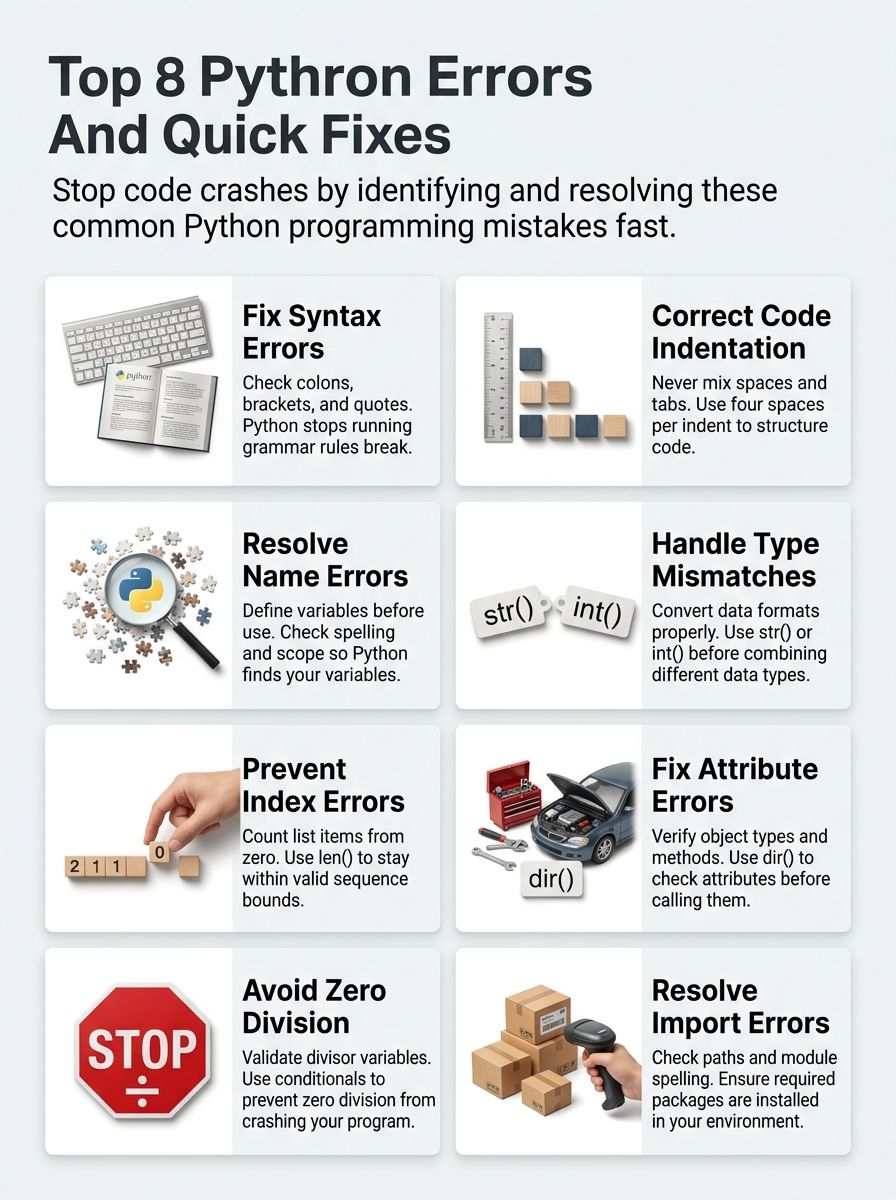
I am going to walk you through the top 10 common Python errors and how to fix them so you can code with confidence.
Top 10 Common Python Errors And How To Fix Them: Syntax Errors
Python syntax errors stop your code dead in its tracks. They show up when you break the language’s grammar rules. You will spot these mistakes right away because Python refuses to run your program until you fix them.
Identifying Causes of Syntax Errors
Syntax errors occur when you write code that breaks the structural rules of the programming language. Your code will not run at all if syntax errors exist.
These errors happen because of missing colons, incorrect brackets, or misplaced operators. The computer reads your code line by line, so it stops immediately when it finds something wrong. There is great news on this front. Python 3.14, releasing in late 2025, uses a Levenshtein distance algorithm to detect typos automatically.
Instead of a generic syntax message, Python asks helpful questions to guide your fix. For even faster feedback, professional developers use Ruff, an extremely fast Python linter that catches errors in milliseconds.
Strategies to Fix Syntax Errors
Syntax errors stop your progress, so fixing them fast keeps your programming moving forward. Catching them early saves you hours of frustration.
- Read the error message carefully: Python tells you exactly where the problem lives, and newer versions actively suggest fixes.
- Check punctuation and brackets: Missing colons after loops and mismatched parentheses cause the majority of parser confusion.
- Look for unclosed strings: Mismatched quotation marks make Python think your string stretches across multiple lines improperly.
- Examine your operators: Confirm you used the right symbols, like using a single equals sign for assignment and double equals for comparison.
- Break complex statements down: Shorter lines reveal problems that long, tangled code easily hides from view.
- Use an automated linter: Tools like Ruff catch syntax mistakes instantly and apply standard PEP 8 formatting automatically.
Managing Python Indentation Errors
Python uses indentation to structure code. Getting it wrong creates frustrating errors that stop your program cold. Mismatched spaces and tabs trip up beginners and experienced programmers alike, but the fixes are straightforward.
Pinpointing Common Indentation Issues
Indentation errors sneak up on coders frequently. Spaces and tabs get mixed together, lines fail to line up, and suddenly your code throws a fit. The most common culprit is mixing spaces with tabs in the same file. Your editor might show the code looking fine, but the computer sees two different characters.
The official PEP 8 guidelines mandate using exactly four spaces per indentation level. A great pro-tip is to configure your code editor to handle this automatically.
If you use Visual Studio Code, set “editor.insertSpaces”: true ensures your tab key always inputs spaces. This optimization prevents hours of troubleshooting later.
Good indentation is like good punctuation. It makes your code speak clearly to anyone who reads it.
Solutions for Fixing Indentation Errors in Python
Consistent spacing is a strict requirement in Python. Correcting these errors prevents your code from crashing during runtime.
- Configure your editor: Use an editor like Visual Studio Code or PyCharm to display whitespace characters visibly.
- Replace tabs with spaces: Mixing them causes errors, so convert all tabs to spaces throughout your entire file.
- Follow PEP 8 rules: Add exactly four spaces for each indentation level, as this is the standard most Python developers use.
- Use auto-formatters: Select your code block and use your editor’s auto-indent feature to reformat the spacing perfectly.
- Run a linter tool: Programs like Pylint or Flake8 catch indentation mistakes before they cause exceptions during execution.
Handling Python Name Errors
You reference a variable that Python cannot find, and you get a NameError. This error stops your program cold. Python does not know what you are talking about until you define that name properly.
Causes Behind Name Errors
Name errors pop up when your code tries to use a variable or function that does not exist. This happens because Python cannot find the name in its active memory.
Scope issues cause these errors frequently. A variable defined inside a function stays trapped in that function, so calling it outside creates an immediate error. Typos are sneaky culprits as well, since Python sees slightly misspelled variables as completely different entities.
One verifiable tip from veteran developers is to use Python’s built-in locals() function. Printing locals() outputs a dictionary of every variable available in your scope, letting you see exactly what Python sees.
Methods to Resolve Name Errors
Fixing these runtime exceptions keeps your code running smoothly and efficiently.
- Check your spelling: Typos create most name errors. Python sees “print” and “pint” as completely different things.
- Verify the definition order: Ensure you defined the variable above the line where you actually use it.
- Review variable scope: Variables created inside functions stay trapped inside. Use the global keyword if you need broader access.
- Check import statements: Import all necessary modules at the top of your file. Forgetting an import leaves Python searching blindly.
- Inspect active variables: Use the locals() function to print out a list of valid names in your current environment.
- Activate virtual environments: Missing environments cause Python to lose access to installed packages, triggering name errors.
Addressing Python Type Errors
Python throws type errors when you mix incompatible data types in your code. You will see these mistakes pop up constantly. Learning to spot and fix them saves you tons of debugging time and frustration.
Exploring Type Mismatch Issues
Type mismatch issues occur when your code uses one data type in a way that does not fit another. For example, adding a number to text causes an immediate crash.
A 2024 empirical study from the University of Waterloo analyzed Python defects and found that using a static type checker prevents roughly 15% of all recorded bugs.

Fixing these issues means you must convert your data into the right format using functions like str() or int().
For larger projects, developers highly recommend using tools like Pydantic or mypy. Pydantic forces incoming data to match your required types automatically, preventing unexpected crashes.
Techniques to Handle Type Errors
Python expects one type but gets another, causing confusion. Here are the best ways to fix these troublesome bugs.
- Validate inputs early: Use tools like Pydantic to ensure data matches your expected types before your core logic runs.
- Check variable types: Use the type() function to see what data type your variable actually holds right now.
- Convert strings to numbers: Use int() or float() functions when you need to perform math on user input.
- Apply static type hints: Define your functions with type hints so tools like mypy can catch errors before runtime.
- Use isinstance(): Apply conditional statements with isinstance() to verify a variable matches the type you need.
Correcting Python Index Errors
Index errors occur when you try to access a list item that does not exist at that specific position. Python counts list items starting from zero, which trips up many programmers.
Exploring Causes of Index Errors
Your program looks for an item at a spot that is out of bounds. This means it goes beyond the actual length of your collection.
Most index errors happen because programmers miscalculate data positions. Off-by-one mistakes are incredibly common, especially since strings count characters starting at zero just like lists.
Loops that run too many times frequently trigger this problem. Asking for item number five in a five-item list throws an index error, because the list is numbered zero to four.
A fantastic insider tip to prevent this is to use the built-in enumerate() function. It tracks the index and the item automatically during loops, ensuring you never go out of bounds.
Steps to Correct Index Errors
Learning to fix these runtime exceptions will save you hours of debugging frustration.
- Start counting at zero: Python uses zero-based indexing for all sequences, lists, and strings.
- Use the enumerate() function: This built-in tool handles the index counting for you automatically during loops.
- Check the list length: Use the len() function to find the exact number of items, then subtract one to find your highest valid index.
- Add a conditional statement: Verify your index number falls within the acceptable range before attempting to grab that item.
- Catch errors gracefully: Wrap your code in a try-except block to manage index exceptions without crashing the entire program.
Fixing Python Attribute Errors
Objects in Python hold specific attributes. Calling something that does not exist triggers an attribute error. You will spot these mistakes quickly once you know what to look for in your code.
Identifying Common Attribute Issues
Attribute errors pop up when your code tries to grab a property that an object lacks. The code crashes because Python cannot process your request.
A very common pitfall is writing my_string.append(). Strings are immutable and do not have an append method, so Python throws an error immediately.
Debugging becomes much easier once you verify the available attributes. You can use the built-in dir() function to list all valid methods for any object you are working with.
Another powerful tool is the getattr() function. Using getattr(my_object, ‘my_property’, None) requests an attribute safely, returning a default value instead of crashing if the property is missing.
Approaches to Fix Attribute Errors
These runtime exceptions stop your program cold. Fixing them fast keeps your code running smoothly.
- Inspect the object: Call the dir() function on your object to display every method and attribute it actually contains.
- Check for typos: Misspelled names cause most attribute errors, so read your variable calls very carefully.
- Verify the object type: Use type() to confirm what kind of object you have, ensuring it supports the method you want.
- Test with hasattr(): Use the hasattr() function to check if an object possesses a specific attribute before using it.
- Fetch safely with getattr(): Grab an attribute using getattr() and provide a default value to prevent unexpected crashes.
Avoiding Python ZeroDivisionError
Dividing by zero breaks your code fast, and Python stops everything with a ZeroDivisionError. You will need smart ways to catch this problem before it ruins your application.
Reasons for Zero Division Occurrence
Zero division errors pop up when your code tries to divide a number by zero. This runtime error stops your code dead in its tracks.
Common scenarios include forgetting to check user input or accidentally setting a divisor to zero. Financial calculations and data processing code face this risk daily.
In data science, this error presents a unique challenge. When using the popular pandas library, dividing by zero silently fills your dataset with infinity values instead of throwing a standard error.
These infinity values will corrupt your downstream machine learning models completely. You must actively clean this up using methods like .replace(np.inf, np.nan) to keep your datasets accurate.
Techniques to Avoid Division by Zero
You need solid techniques to catch this mathematical error before it destroys your workflow.
- Validate user input: Make sure any numbers entered by users are never zero before division happens.
- Use conditional checks: Write an if statement to verify your divisor is greater than zero before doing the math.
- Catch the exception: Employ a try-except block to catch the ZeroDivisionError specifically and handle it gracefully.
- Clean pandas dataframes: Use .replace(np.inf, np.nan).fillna(0) to remove silent infinity values from your datasets.
- Set safe defaults: Assign fallback values for variables that might become zero during runtime.
Resolving Python Import Errors
Your code breaks when Python cannot find a module you tried to import. These import errors force you to track down missing files or fix complex path issues.
Challenges with Module Imports
Module imports cause major headaches for many developers. You might write perfect code, but Python simply cannot locate the required package. This usually happens when a package is not installed in your active environment. The dreaded “ModuleNotFoundError” stops your program immediately.
For years, developers struggled with slow installations using the default pip tool. However, a massive shift occurred with the release of UV, a modern package manager built entirely in Rust.
Benchmark data from 2025 shows that uv installs packages 10 to 100 times faster than pip. Switching to this tool makes your dependency management reliable and lightning-fast.
Steps to Resolve Import Errors
Python throws these errors when it cannot load the modules you need. Here are the most effective fixes.
- Check your spelling: Typos in module names cause the most important problems. Python will not find files with incorrect names.
- Upgrade your package manager: Switch to the ultra-fast uv tool to ensure your packages install correctly and cleanly every time.
- Verify your virtual environment: Make sure your environment is actually activated. Inactive environments cannot access your installed libraries.
- Review your system path: Add the correct file path to sys.path if your custom module lives in a completely different folder.
- Check version compatibility: Ensure the package you want actually supports your current version of Python.
The Closing Thoughts
Python errors pop up frequently, and that is a totally normal part of the process. Every programmer faces syntax errors, runtime errors, and logical issues during development. You now know how to spot indentation problems, handle missing variables, and fix those tricky type mismatches. These common mistakes trip up coders at every single level.
Debugging becomes much easier once you practice these proven fixes over and over. Your code quality improves drastically when you catch these problems early. Testing your code regularly helps you find issues before they cause bigger headaches for your users. The best developers treat errors as learning opportunities.
Keep experimenting with different solutions, and your troubleshooting skills will sharpen incredibly fast.
Frequently Asked Questions (FAQs) on Common Python Errors
1. What are the top 10 common Python errors beginners face, and how can I fix them?
You’ll run into syntax errors, indentation issues, NameErrors, and TypeErrors most often. A 2023 study analyzing over 250,000 Python programs found that SyntaxError accounts for nearly 30% of all beginner mistakes. Read your error messages carefully because Python tells you exactly which line went wrong, then check your colons, quotes, and variable names.
2. Why do I keep getting “IndentationError” in my Python script?
Python uses indentation to define code blocks instead of curly braces, so if your spaces or tabs don’t line up perfectly, the code won’t run. Pick either four spaces or one tab for each indent level and stick with it throughout your entire file.
3. How can I solve “TypeError: unsupported operand type(s)” when running my code?
This happens when you try to combine incompatible data types, like adding a number to a string. Use the type() function to check what you’re working with, then convert your data using int(), str(), or float() before doing operations.
4. What should I do if Python says “NameError: name ‘x’ is not defined”?
Python can’t find the variable you’re trying to use, either because you haven’t created it yet or you’ve misspelled it. Double-check that you’ve assigned a value to your variable before the line where you use it, and remember that Python is case-sensitive, so “myVar” and “myvar” are completely different.