Listen to the Podcast:
Have you heard about how to add thumbnail to youtube video? Although it may seem like a low-value act, many successful channels have reaped much of their success from these thumbnails. How is this possible?
The thumbnails on YouTube will make users perceive your channel with a much more professional tone. Regardless of the theme of your videos, people appreciate the quality work and care you put as an author in the small details, so these images are beneficial to capture potential subscribers.
Before explaining the tutorial on how to put thumbnails on YouTube, we must leave some previous considerations that you must abide by. Throughout the post, we will also unravel the complete step by step of inserting thumbnail images into your videos, and we will see what to do if the video platform does not accept the publication of your thumbnail. Do not miss the opportunity to learn and join us!
Recommendations before adding thumbnails to YouTube
We know you’re excited to learn how to add thumbnails to youtube videos, but don’t worry! Before you sit in front of your team and start doing digital magic with your video channel, you must comply with the stipulations established by the video platform.

It is not just about knowing how to put thumbnails on YouTube; you have to take into account the following aspects:
1. Thumbnail Size and Format

Not any size or format for your thumbnail image will work. You must ensure that your design meets the standards required by the video platform.
So that there is no confusion or misunderstanding, we give you the size of your thumbnail, as well as the format and resolution that the image must have:
- Your thumbnail image must have a resolution of 1280×720 pixels and a minimum width of 640 pixels (significant).
- Regarding the image format, YouTube allows JPG, PNG, BMP, or GIF (animated GIFs obviously won’t work).
- The weight of the thumbnail also matters. Try not to exceed 2 MB.
- Also, pay attention to the aspect ratio, which should be 16:9 (as this is the most used in YouTube previews and players).
2. Evaluate the colors used by YouTubers in your same niche

The famous market test. We must always be attentive to what the competition is doing, since then how will we overcome it? Therefore, checking YouTube channels that may compete against you is not a bad idea.
Before you learn to put thumbnails on YouTube, find the keyword you want to rank for and see what others are doing to stand out. Please pay special attention to the issue of color and font since what we want is to stand out above them.
A good choice of color is:
- Rojo.
- Blanco.
- Yellow.
- Orange.
However, it depends on your content, YouTube channel, and niche (and personal tastes).
3. Consider the different devices
When thinking about how to add a thumbnail to a youtube video, you should not consider that you do that to attract only one type of user. It is a product that will reach millions of devices (and if you set your mind to it, you will also reach millions of hearts).
You must consider the one who connects from his desktop computer, enters from his cell phone to listen to you, or uses his tablet to consume your content. Keep all your users in mind if you want to consider your video channel successful.
For this reason, check that, when changing screens on your YouTube channel, the colors continue to contrast or the font is still legible. To give two examples.
Oh, and one last consideration! We invite you to review our YouTube Views and Subscriber Guide, with which you can fully optimize your video channel and adapt your YouTube profile, social networks, and online presence. Three birds with one stone!
With these recommendations in mind, the time the whole family has been waiting for has arrived: let’s discover together how to put thumbnails on YouTube!
How to add thumbnail to YouTube video?
We have reached the heart of the matter. Since we want you to learn how to put thumbnails on YouTube in the best possible way, we will explain how the process in two particular ways:
1. Insert a video thumbnail
This process is fundamental and straightforward; there are only a few steps:
- Go to YouTube Studio.
- Select the Content option in the menu that appears on the left.
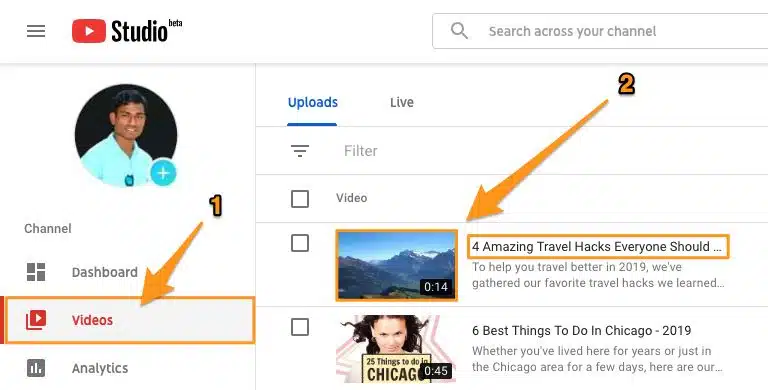
- Choose a video by clicking its thumbnail image.
- Select a thumbnail from those that are automatically generated.

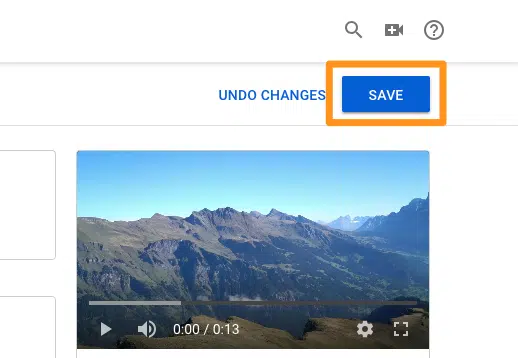
- Press Save.
2. Add a custom thumbnail
Here we enter the realm of custom thumbnail images. There are several ways to insert these thumbnails into your videos.
If it is a New Video, you have to take into account two essential alternatives:
- Press the Create option, with which you will upload the video.
- Under the Thumbnail feature, choose Upload Thumbnail.

If you want to upload a live stream, the formula on how to add a thumbnail on YouTube video changes:
- Select the Create option and then Go Live.
- On the Transmission screen, click Change Thumbnail.
3. Add a thumbnail to an already uploaded video
You may want to change a thumbnail of your channel (because you found better drawings or reformed your profile image), so also enter this tutorial to learn how to add thumbnails on YouTube.
- Go to YouTube Studio.
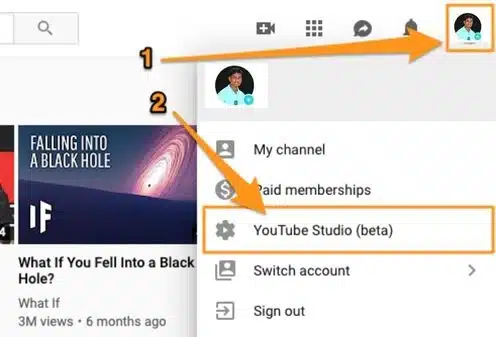
- Choose (again) the Content option.
- Select the video by clicking its thumbnail.
- In the Thumbnail option, click Upload Thumbnail.
- Select the file you intend to use as a custom thumbnail from your device.
- Select Save.
And ready! You already have your custom thumbnail available and know how to add thumbnails on YouTube. As you can see, it is a simple process that does not require much work.
Now let’s see another variant: can we download the thumbnails of videos already on YouTube?
4. Download YouTube Video Thumbnails
We could not close this great article on how to add thumbnail to YouTube video without talking about a new guide: the way to download the cover of a video from this platform.
Imagine you need to download a video thumbnail from your YouTube channel to post it in an article, and you don’t have the model you made by hand. What can you do?
Let’s see the procedure to download a thumbnail!:
- The first step is to search YouTube for the cover video you are interested in downloading.
- Once there, copy the URL that you will find in the address bar. In case you are using a YouTube app, select the Share option and copy the link from the pop-up window that will appear.
- You should go to a page to download this thumbnail using the thumbnail downloader.
- Once you are on the page of your choice, paste the URL address you copied earlier and press the Submit option.
- Once you have seen the screenshots (which you will see in all the available sizes), you can right-click the screenshot of your choice and select the Save image as… option that will appear in the menu emergent. As simple as that!
As you can see, the process is not complex at all. Now, all you have to do is create the best YouTube channel of all time!
Although you may want to insert your thumbnail image into your video, the platform does not allow it. So what should you do?
Why doesn’t YouTube allow me to put my thumbnail?
Even if you have followed all the steps step by step and you think you have mastered the procedure of putting thumbnails on YouTube, there may be some reasons why the platform prevents you from uploading your image.
Calm down, don’t panic: breathe and keep reading. There are several reasons why YouTube doesn’t allow you to upload your thumbnail image:
1. Your account does not meet the requirements
One of the most common mistakes that all those who want to insert thumbnails on YouTube fall into is not making sure they meet the criteria required by the platform to activate this function.
To know how to put thumbnails on YouTube and not fail, you must ensure the platform verifies your channel. To do this, a checkmark should be next to the channel name.
And if you don’t know how to verify a YouTube account, don’t worry; we’ll clear up your doubts.
2. It’s inappropriate
Have you already learned how to put thumbnails on YouTube? Excellent, but it is not enough to know the procedure. We understand that the platform is usually very strict with the material disseminated, so you must be aware of the information you upload to your channel.
If YouTube deems your thumbnail doesn’t meet their Community Guidelines, that image won’t see the light of day. Or maybe yes, but not on your channel.
What reason does YouTube consider inappropriate for disabling thumbnails? Well, the classic:
- Nudity or images with sexually provocative material.
- Images that promote hate and violence.
- Explicit violence.
- Information that may be dangerous or harmful.
There is even the possibility that people report your thumbnail, considering that it is not related to the content of the video.
If you want to avoid getting a negative review of your YouTube channel, don’t fall for tricks, and always be consistent with the content you show both in the preview and the video.
You can appeal the violation if your thumbnails do not violate the YouTube Community Guidelines. Lest you say, there’s no sense of justice on the platform.
You could realize that the process of how to add thumbnail to YouTube video is nothing special. You have to follow the instructions, choose the thumbnail that best fits your channel… and that’s it!
Final thoughts
If you have chosen YouTube as one of the social networks of your brand or service, you have to keep it updated. That is, you must upload content frequently.
Just as you can schedule tweets on Twitter, Facebook, Instagram, etc., you can do it on YouTube.