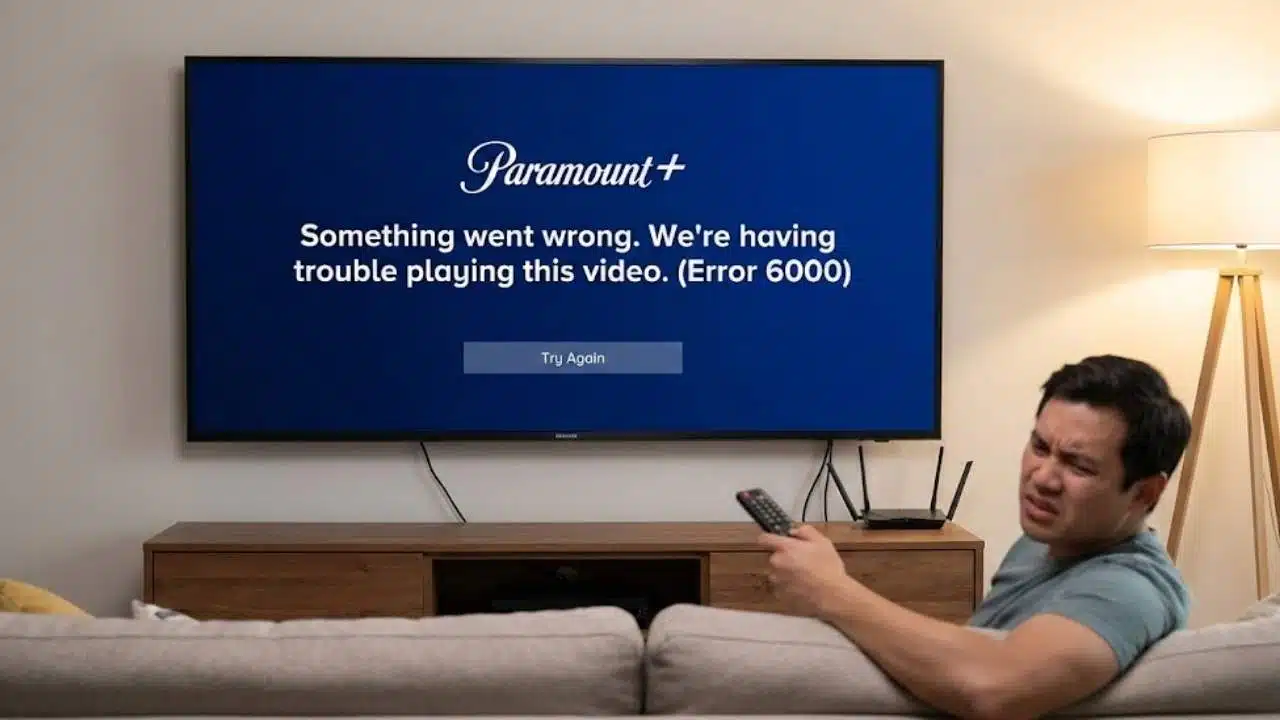
Is your TV showing a Paramount error when you try to watch your favorite shows? You’re not alone. Many people face Paramount errors on TV that stop them from streaming their shows.
These errors can pop up for many reasons, from app glitches to network problems.
Did you know that simply restarting your TV and router can fix most Paramount errors? This quick fix works because it clears temporary data that might be causing the problem. In this guide, we’ll walk you through simple steps to fix common Paramount+ errors.
You’ll learn how to clear cache, check for updates, and fix network issues. Let’s get your shows back on screen.
Key Takeaways
- Restart your TV and router for 2 minutes to fix most Paramount+ errors by clearing temporary data that causes streaming problems.
- Clear the app cache and data on your TV to solve error codes like 3005 on Samsung TVs and 6015 on Sony Bravia TVs.
- Change your DNS settings to Google’s public DNS (8.8.8.8) when basic fixes don’t work, especially for network-related streaming issues.
- Use a wired Ethernet connection instead of Wi-Fi for more stable streaming and fewer buffering problems on Paramount+.
- Check if Paramount+ servers are down on Downdetector.com before trying complex fixes, as some errors affect all users at once.
Quick Fixes for Paramount Errors on TV
When your Paramount+ app acts up, a few simple fixes can save the day. Try these quick solutions first before moving on to more complex troubleshooting steps.
How do I restart my TV and router to fix Paramount errors?
Restarting your TV and router often fixes many Paramount+ streaming problems. This simple fix works for error code 3005 on Samsung TVs and other common issues that pop up when you try to watch shows.
- Turn off your TV using the remote control or power button on the device.
- Unplug your TV from the wall outlet completely.
- Wait at least two minutes with the TV unplugged to clear its memory.
- Find your internet router and modem in your home.
- Unplug both your router and modem from their power sources.
- Wait about 30 seconds with both devices unplugged.
- Plug your modem back in first and wait until all lights stop blinking.
- Plug your router back in next and wait for it to fully restart.
- Plug your TV back into the wall outlet after the two minutes are up.
- Turn your TV back on using the power button or remote.
- Open the Paramount+ app again to check if the error is gone.
- Try playing a show to make sure the streaming works right.
- Check if other streaming apps work but Paramount+ still has issues.
- Try this restart method before moving on to more complex fixes.
How can I clear the Paramount+ app’s cache and data?
Clearing cache and data often fixes many Paramount+ errors on your TV. This simple fix helps solve streaming glitches, error codes, and app conflicts that stop your shows from playing.
- For Android-based Bravia TVs, press Home button, go to Settings, select Apps, then See all apps, find Paramount+, tap Clear Cache, then Clear Data, and restart your TV.
- On Samsung TVs, go to Settings menu, select Apps, find Paramount+ in your app list, and use the clear cache option to fix error 3005.
- Clearing cache is a top fix for error 6015 on Sony Bravia TVs and should be done before trying other fixes.
- App caching can cause Paramount+ to fail even when other streaming apps work fine on your device.
- Clear both cache and data if you notice DRM conflicts or minor app glitches during streaming.
- After clearing cache and data, restart your TV to make sure all changes take effect.
- If clearing cache doesn’t fix your issue, try reinstalling the Paramount+ app as your next step.
- Cache problems often happen after app updates or when you’ve been streaming for long periods.
What is the process to reinstall the Paramount+ app?
Reinstalling the Paramount+ app can fix many errors like code 3005 and other glitches. The steps differ slightly based on your TV brand, but the basic process works the same way for most smart TVs.
- Find the Paramount+ app on your home screen or in your apps list.
- Press and hold the app icon until a menu appears with options.
- Select “Uninstall” or “Delete” from the menu that pops up.
- Wait for the app to finish uninstalling from your TV.
- Restart your TV by turning it off and on, or using the restart option in settings.
- Go to your TV’s app store (Google Play Store, Sony App Store, or Samsung App Store).
- Search for “Paramount+” in the search bar.
- Select the app from the results and click “Install” or “Download.”
- Open the app after installation and sign in with your account details.
- Check that you have a stable internet connection for the best streaming results.
- Try playing content to see if the error has been fixed after the fresh install.
- Contact Paramount+ support if you still see error messages after reinstalling.
Check for Updates
Updates can fix many Paramount errors on your TV. Old app versions or outdated TV systems often cause streaming problems.
How do I update the Paramount+ app on my TV?
Keeping your Paramount+ app updated fixes many common errors and improves your streaming experience. App updates solve problems like error 6015 on Sony Bravia TVs and make sure your app works with the latest TV software.
- Find your TV’s app store (Google Play Store for Android TVs or App Store for Apple TVs).
- Search for “Paramount+” in the search bar of your app store.
- Look for an “Update” button next to the Paramount+ app if an update is available.
- Click the “Update” button and wait for the download and installation to finish.
- Restart your TV after the update completes for the changes to take effect.
- Clear the app’s cache after updating to remove old data that might cause problems.
- Check for TV firmware updates too, as app compatibility often depends on your TV’s system version.
- Try reinstalling the app if updating doesn’t fix your streaming issues.
- Contact Paramount+ support only after you’ve made sure your app is fully updated.
- Update all your streaming apps regularly to prevent future errors with content playback.
How can I install the latest TV firmware or system updates?
Keeping your TV software up to date helps fix many Paramount+ streaming errors. Recent cases show that outdated firmware can cause DRM conflicts and streaming rights issues that block your favorite shows.
- Check if updates are available by pressing the Home or Menu button on your remote control.
- Look for “Settings” or a gear icon in your TV’s main menu.
- Find “System” or “About” in the settings menu of your TV.
- Select “Software Update” or “System Update” from the options.
- Choose “Check for Updates” and wait while your TV searches for new firmware.
- Install any available updates by following the on-screen prompts.
- Make sure your TV stays on during the update process to avoid damage.
- Restart your TV after the update finishes for the changes to take effect.
- Try opening Paramount+ again to see if your error is fixed.
- Set your TV to automatically check for updates in the system settings menu.
- Connect your TV to a stable internet connection for faster update downloads.
- Update your TV before trying to reinstall the Paramount+ app for best results.
- Check for updates regularly to stop errors from coming back.
Network Troubleshooting
Network issues often cause Paramount errors on your TV. A weak or unstable internet connection can lead to buffering, freezing, or error messages while streaming.
How do I ensure a stable internet connection for Paramount+?
A stable internet connection is key to fixing most Paramount+ streaming errors. Your TV must show “Connected to Internet” in network settings before you can enjoy shows without problems.
- Restart your router by unplugging it for 30 seconds, then plug it back in. This fixes many streaming issues fast.
- Check your TV’s network status to make sure it says “Connected to Internet” in the settings menu.
- Test other streaming apps like Netflix or YouTube to see if they work. If only Paramount+ has issues, the problem might be with the app itself.
- Move your router closer to your TV or use a wired Ethernet cable for a stronger, more stable connection.
- Run an internet speed test on your TV or phone to check if you have enough speed for streaming. Paramount+ needs at least 4 Mbps for good quality.
- Try watching different shows on Paramount+ to make sure the issue isn’t with just one program. Test several shows over a two-week period.
- Switch from Wi-Fi to a wired connection if you keep having trouble. Connect an Ethernet cable from your router straight to your TV.
- Call your internet provider if all streaming apps are slow. You might need a service check or plan upgrade.
- Reboot your TV after fixing internet issues to make sure the app can connect properly.
- Look for error code 3005, which often points to internet problems that need fixing before Paramount+ will work right.
Why should I use wired Ethernet for better streaming performance?
Wired Ethernet gives you much better streaming on Paramount+ than Wi-Fi. Many Sony Bravia TV users fix their streaming problems just by plugging in an Ethernet cable. This simple change can stop those annoying buffering issues and make your shows play without freezing.
If you keep seeing error 6015 or other network problems, a wired connection might be your answer.
TV experts always suggest Ethernet cables for the best streaming quality. Unlike Wi-Fi, wired connections don’t get messed up by walls, other devices, or distance from your router.
This makes Ethernet perfect for fixing those stubborn Paramount+ errors that won’t go away with Wi-Fi. If your shows keep stopping or looking fuzzy, try a cable connection to see if that solves your problem.
Advanced Fixes for Specific Errors
Some errors need special fixes that go beyond basic steps. Try these advanced solutions when you face tricky Paramount errors on your TV.
How do I change DNS settings to 8.8.8.8 on my TV?
Changing your TV’s DNS settings to Google’s public DNS (8.8.8.8) can fix many Paramount+ streaming issues. This fix works when basic troubleshooting steps haven’t solved your connection problems.
- Open your TV’s main menu by pressing the Home or Menu button on your remote.
- Find and select “Settings” or “Setup” from the menu options.
- Look for “Network” or “Network Settings” in the settings menu.
- Select “Network Status” or “Network Configuration” to view your current connection.
- Choose your current connection type (WiFi or Ethernet) that you use.
- Find “DNS Settings” or “IP Settings” in the network menu.
- Change the DNS mode from “Auto” to “Manual” if that option exists.
- Enter 8.8.8.8 as your primary DNS server address.
- Enter 8.8.4.4 as your secondary DNS server for backup (Google’s other DNS).
- Save your new settings and exit the menu.
- Restart your TV to apply the new DNS configuration.
- Launch Paramount+ to check if your streaming issues are fixed.
- Try playing a video to confirm the DNS change worked correctly.
- Switch back to automatic DNS if you notice new connectivity problems.
How can I adjust video resolution settings for Fire TV?
Fire TV resolution problems can cause Paramount+ errors like code 6013. Changing your video settings often fixes playback issues when other troubleshooting steps haven’t worked.
- Press the Home button on your Fire TV remote to go to the main screen.
- Select “Settings” from the top menu bar on your Fire TV home screen.
- Scroll right and choose “Display & Sounds” from the settings menu.
- Select “Display” to access all video resolution options.
- Find “Video Resolution” and click to see available options for your TV.
- Change the setting to 1080p, which works better with streaming apps than 4K.
- Exit the settings menu and restart your Paramount+ app to test if the error is fixed.
- Try watching content that gave you errors before to check if the display resolution change worked.
- Lower the streaming quality inside the Paramount+ app if you still see errors.
- Look for “Video Quality” or “Playback Settings” in the Paramount+ app settings.
- Select a lower quality option like “Good” or “Better” instead of “Best” for smoother playback.
- Return to normal resolution settings once Paramount+ servers or app updates fix the underlying issue.
How do I update location or zip code settings to fix live TV errors?
Live TV errors on Paramount+ often happen when your location settings are wrong. Fixing your zip code can help you watch local channels and content that’s meant for your area.
- Open your Paramount+ app on your TV device and sign in to your account.
- Go to the Settings menu, which you can usually find in the top corner of your screen.
- Look for “Location” or “Geographic Settings” in the menu options.
- Select the option to update your zip code or location information.
- Enter your current zip code using the on-screen keyboard or remote.
- Save your new settings and exit the menu.
- Restart the Paramount+ app to apply the changes to your profile.
- Try watching Live TV again to see if the error has been fixed.
- Check that your zip code matches where you actually live for accurate local programming.
- Contact Paramount+ support if changing your location doesn’t solve the error.
- Make sure to update your location after moving to a new home or area.
- Use the correct zip code to avoid content access issues with local channels.
- Try signing out and signing back in after updating your location for the changes to take effect.
- Check your network configuration to make sure it’s not causing location detection problems.
What does Paramount Error Code 3005 mean and how can I fix it?
Paramount Error Code 3005 points to internet connection problems on your TV, often with Samsung models. This error can pop up even when other streaming apps work fine on your device.
- Unplug your TV from the wall for at least two minutes to reset its system.
- Delete the Paramount+ app from your TV and install it again fresh.
- Check if your TV needs a firmware update through your settings menu.
- Make sure your internet speed is fast enough for streaming HD content.
- Restart both your TV and internet router to clear any connection issues.
- Clear the app cache by going to Settings > Apps > Paramount+ > Clear Cache.
- Try changing your DNS settings to 8.8.8.8 in your TV’s network settings.
- Connect your TV directly to your router with an Ethernet cable instead of using WiFi.
- Contact Paramount+ support if the problem continues after trying these fixes.
- Ask for help from a tech expert like Josh G, who has helped over 4,000 customers with this exact error.
- Check online if others are having the same issue, as Error 3005 has been a known problem for months.
- Test your internet connection speed using your TV’s built-in speed test or a website.
If All Else Fails
Sometimes even the best fixes don’t work, and that’s when you need to look at other options. You might need to check if the problem is on Paramount’s end or reach out for help from their team.
How can I check if Paramount+ servers are down?
Paramount+ errors might not always be your fault. Server problems can cause many streaming issues that no amount of device fixes will solve.
- Visit Downdetector.com and search for “Paramount+” to see real-time outage reports from other users.
- Look for spikes in the outage graph on Downdetector, which show times when many users report problems.
- Read user comments on Downdetector to check if others have the same error message as you.
- Check Paramount+’s official Twitter account for any posts about service disruptions or planned maintenance.
- Try accessing Paramount+ on a different device to rule out device-specific problems.
- Ask friends or family if they can access Paramount+ to confirm if the issue is widespread.
- Look for error messages like “can’t reach the router” which often point to server-side issues rather than your home network.
- Check if other streaming apps work fine, which helps confirm the problem is with Paramount+ servers.
- Note the time and date of the error to report to customer support if needed.
- Wait 15-30 minutes and try again, as brief service interruptions often fix themselves.
When and how should I contact Paramount+ customer support?
You need help with stubborn Paramount+ errors that won’t go away. Contact support when you’ve tried all the fixes and still face problems.
- Try support after you’ve gone through all basic troubleshooting steps like restarting, clearing cache, and reinstalling the app.
- Live TV errors often need direct support help, especially when changing your location doesn’t fix the issue.
- Visit the official Paramount+ website and look for the “Help” or “Contact Us” section to find support options.
- Call the phone support line for fast help with urgent streaming problems or account issues.
- Use the live chat feature on the Paramount+ website to talk with a support agent right away.
- Email support works well for less urgent questions, but expect to wait longer for a reply.
- Check if servers are down before contacting support, as some issues affect all users at once.
- Join the Paramount+ Reddit community where over 10 million users share fixes and workarounds.
- JustAnswer connects you with tech experts who can solve your streaming problems within minutes.
- Talk, text, or chat with experts through JustAnswer for quick solutions to complex errors.
- A JustAnswer membership saves time and money each month if you need regular tech help.
- Take screenshots or notes about error codes (like Error 3005) to help support agents understand your problem faster.
Takeaways
Fixing Paramount errors on your TV doesn’t have to be hard. Most problems go away with simple steps like restarting your TV, clearing the app cache, or checking for updates. Network issues often cause streaming errors, so make sure your internet works well.
If basic fixes don’t help, try changing DNS settings or checking if Paramount servers are down. Remember that customer support is always there to help with tough problems that won’t go away.
FAQs
1. What causes Paramount errors on my TV?
Paramount errors on your TV can happen due to internet problems, app glitches, or outdated software. Your TV might need a restart or your app may need an update. Sometimes the Paramount servers are down, which is out of your control.
2. How do I fix a Paramount error code on my smart TV?
First, try turning your TV off and on again. Check your internet connection by testing other apps or websites. If that doesn’t work, delete and reinstall the Paramount app. You might also need to update your TV’s software.
3. Why does my Paramount app keep crashing?
Your Paramount app crashes because it might need an update or your TV has limited memory. Clear the app cache in your TV settings menu. If crashes continue, check if your TV model is still supported by Paramount.
4. Can I fix Paramount errors without calling customer service?
Yes, you can fix most Paramount errors yourself. Restart your TV, check your internet speed, update the app, and clear the cache. If these steps fail, then contact Paramount support for help with more complex issues.